User Application
Income, Expenses & Budgets
The everyday transaction workflow — entry, categorization, budgeting, recurring bills, and bulk import.
Incomes
User Panel Every income record belongs to a bank account, a category, and a currency, with an optional reference number, free-text note, and multi-tag labeling. The list view supports inline search and filtering, and every row can be edited or deleted without leaving the page.
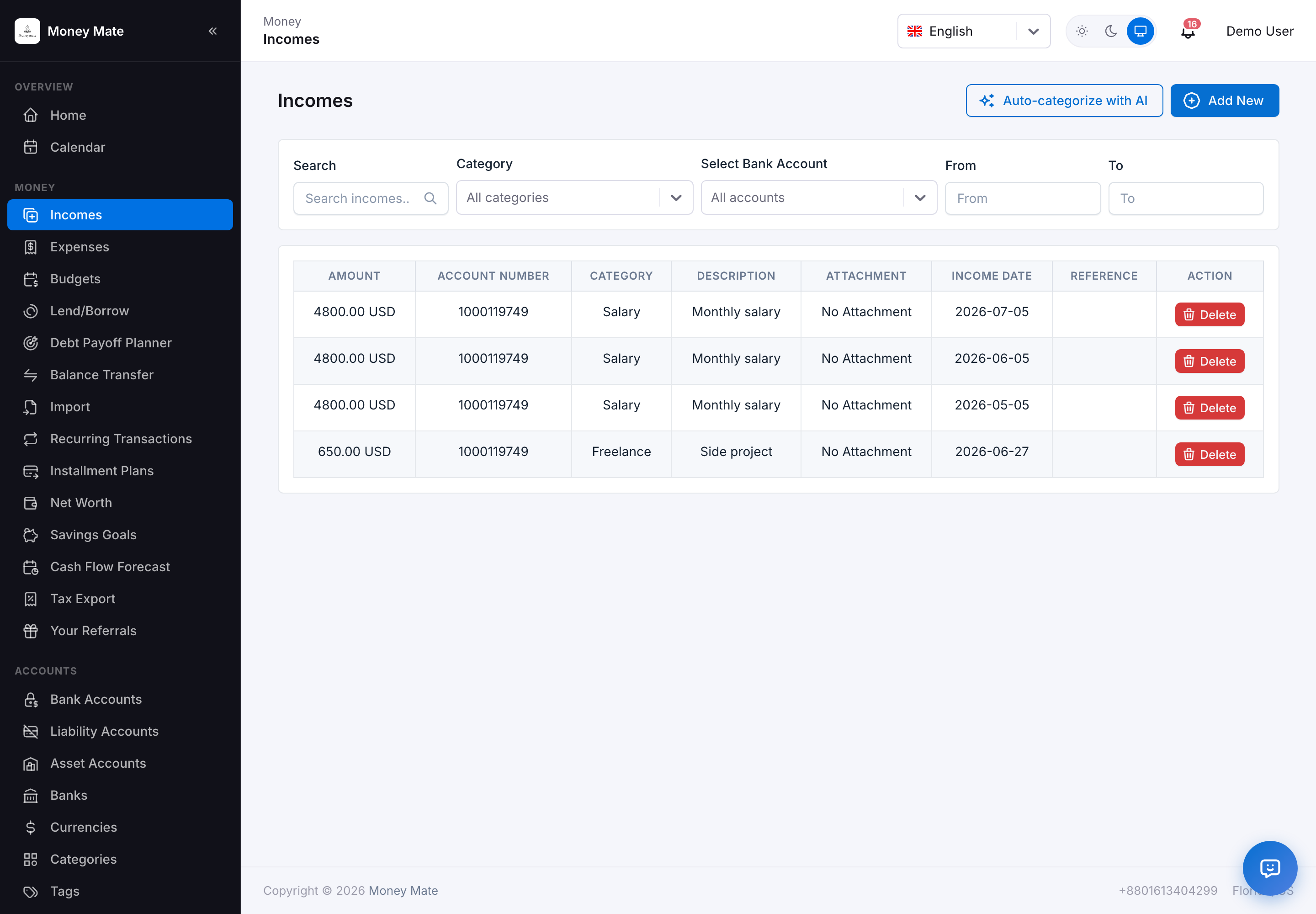
Incomes list
Adding an entry opens a focused form rather than navigating to a new page — faster for logging several transactions in a row.
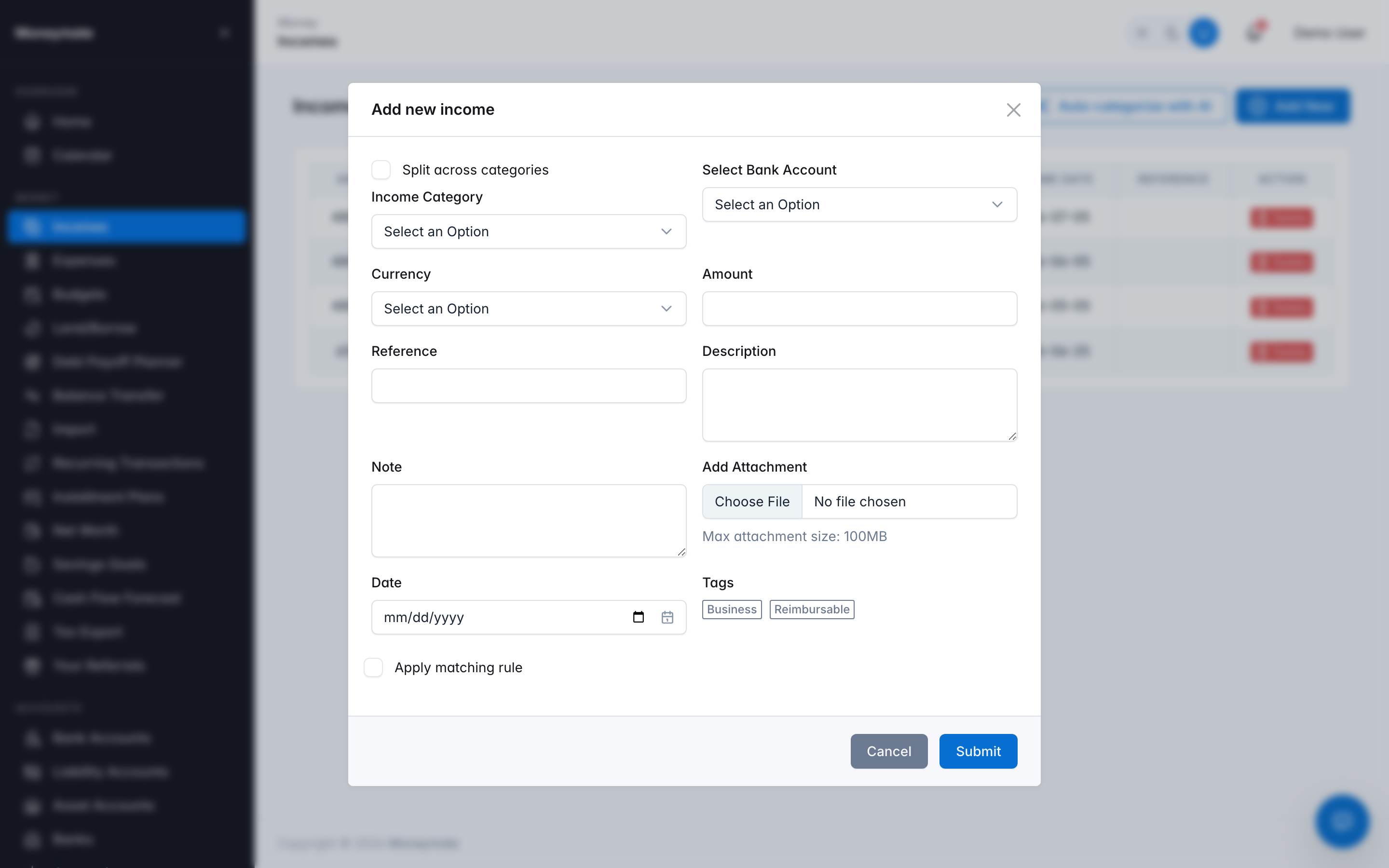
Add Income form
For historical data or a full bank statement, use Import instead of entering rows one at a time.
Expenses
The same rich entry experience as Incomes, with three expense-specific capabilities layered on top:
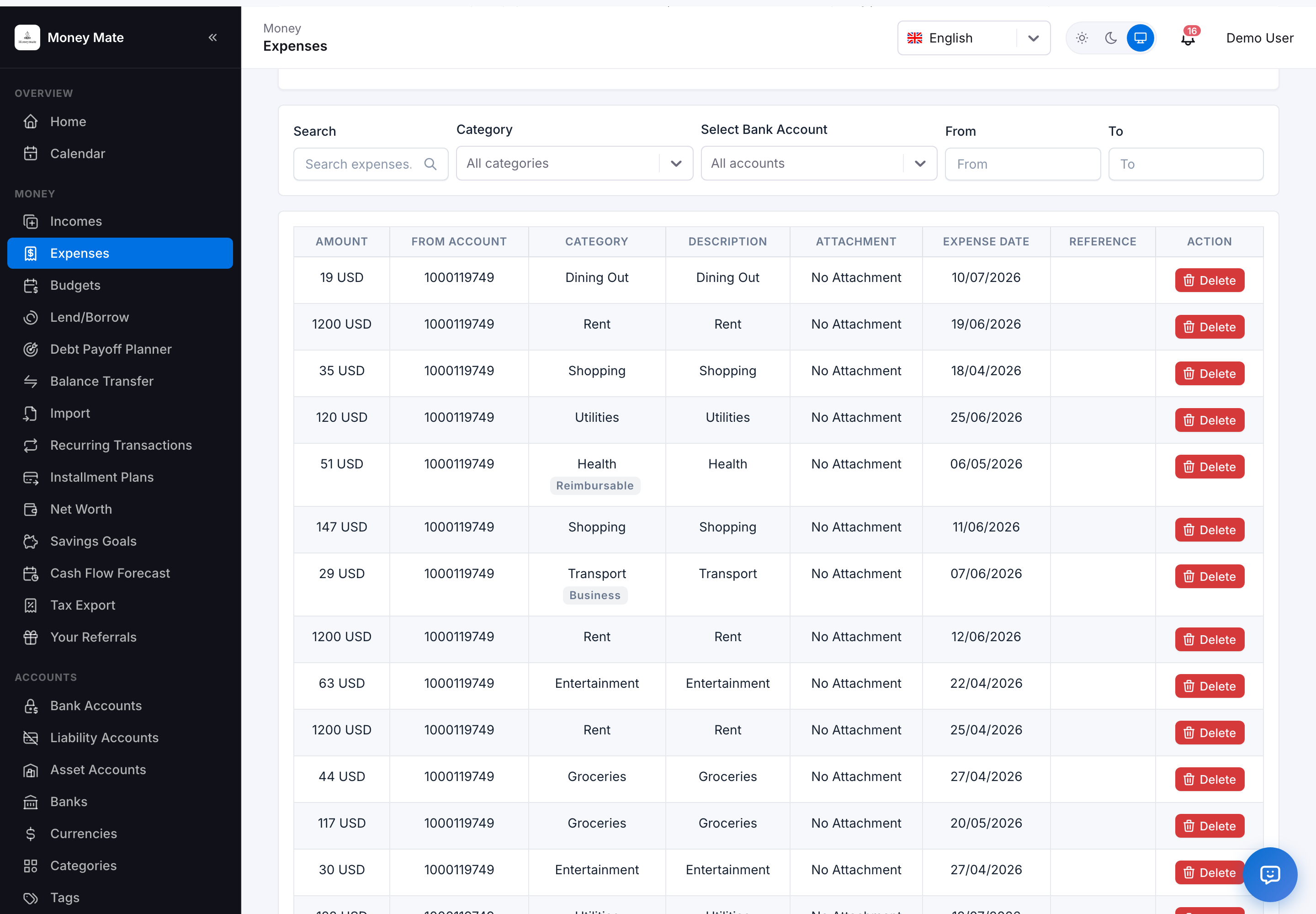
Expenses list
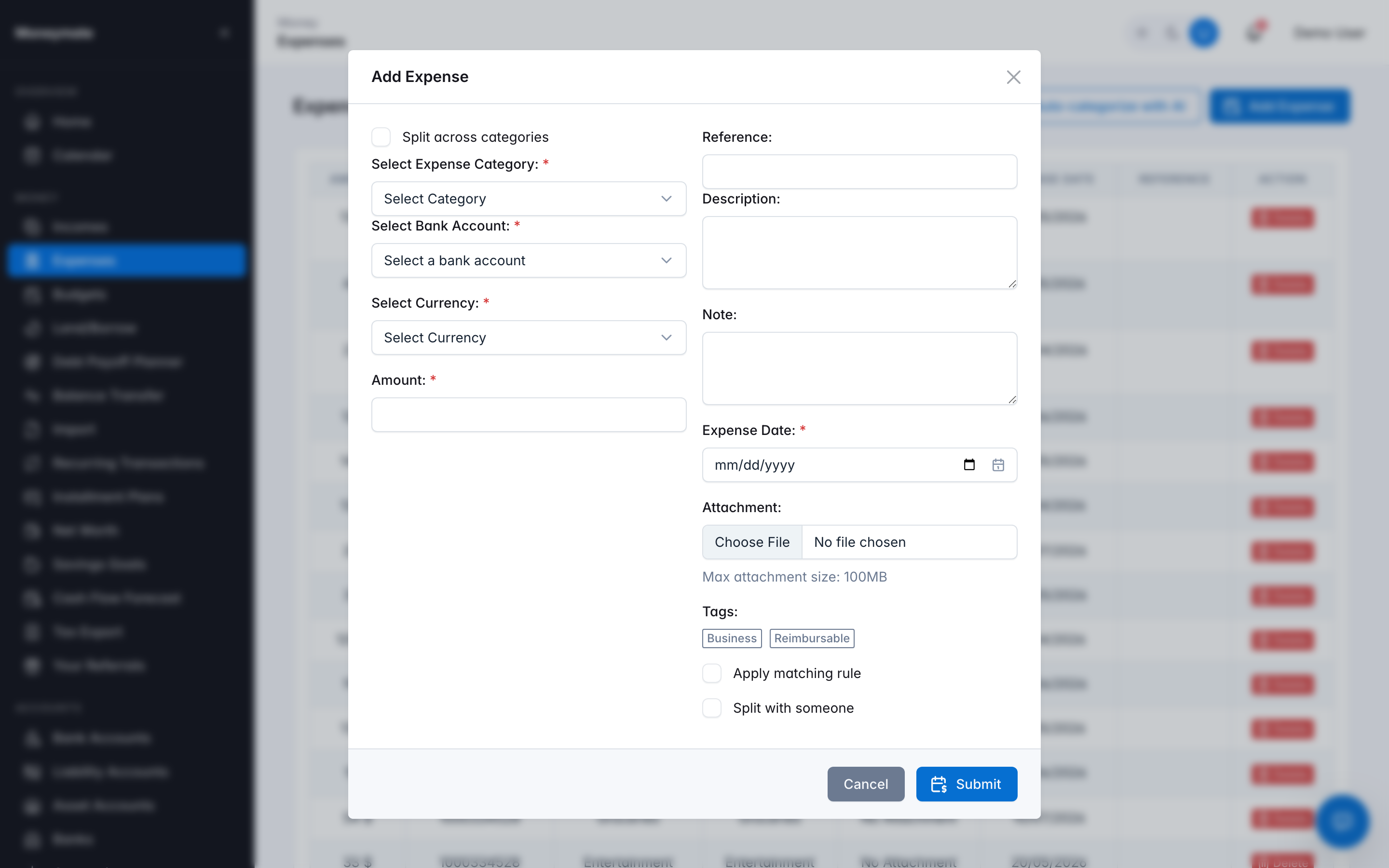
Add Expense form — split, attachment, tags, and rule application
- Split across categories — one real-world purchase (a Costco run covering groceries and household goods) can be recorded as a single expense with its amount divided across multiple categories, instead of forcing an artificial single category or several disconnected entries.
- Receipt attachments — attach an image or PDF up to your plan's configured size limit; stored securely and downloadable later.
- Apply matching rule — run this specific entry through your auto-categorization rules immediately, or let auto-categorization apply automatically as new expenses come in via import.
- Auto-categorize with AI — a different, AI-powered option from the rule-based one above: scans every currently uncategorized expense (or income) in bulk and proposes a category for each. Like every AI action, its suggestions land as drafts a subscriber reviews and approves — nothing is recategorized silently.
- Split with someone — a quick action that creates a linked Lend/Borrow record for a shared expense, without leaving the Expenses page.
Spending Insights
Plan-gated A dedicated card at the top of the Expenses page, in two layers:
- The chart itself — a 6-month income-vs-spending trend and a spending-by-category breakdown, computed directly from the subscriber's own transactions. No AI call, no credit cost.
- AI insights, on demand — the "Generate AI insights" button reviews income and spending patterns, flags each category essential, discretionary, or consider reducing with a one-line reason, and writes a handful of concrete savings suggestions. Like every AI action, this costs credits and needs an AI provider configured — with neither, the card still shows the chart, just without the "Generate" button working.
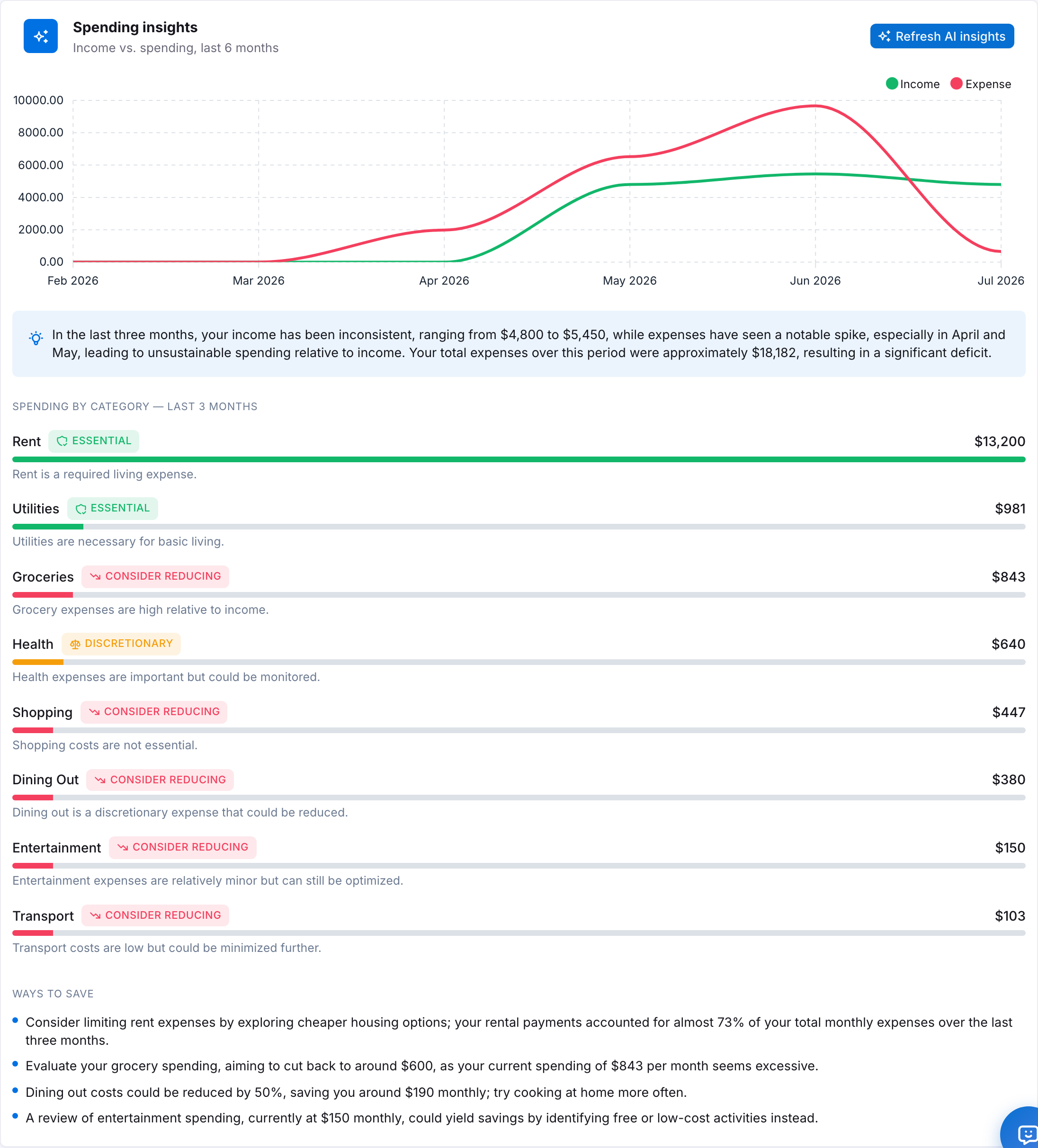
Spending Insights — trend chart, category necessity flags, and AI savings suggestions
Access is controlled per-package via the spending_insights_enabled feature flag (see Packages) — on a plan without it, the card still occupies its place on the Expenses page but shows a plain "not available on your plan" message in place of the chart, rather than disappearing.
Budgets
Set a monthly spending limit per category (or an entire category group). MoneyMate tallies every matching expense automatically as it's entered — there's no separate "run budget calculation" step — and fires a threshold notification at 80% and again at 100% of the limit (see Notification Preferences).
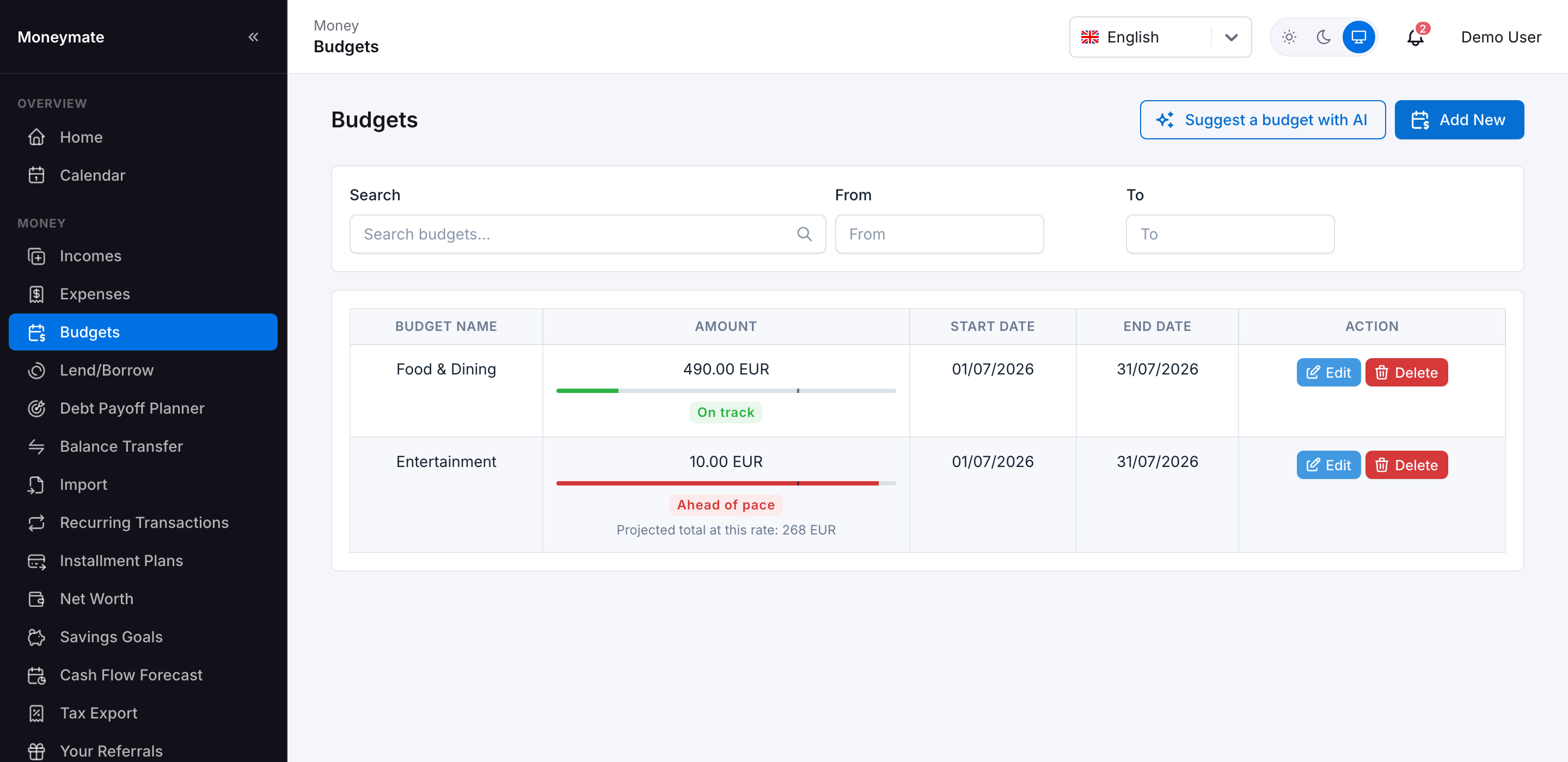
Budgets list with progress bars and pace indicator
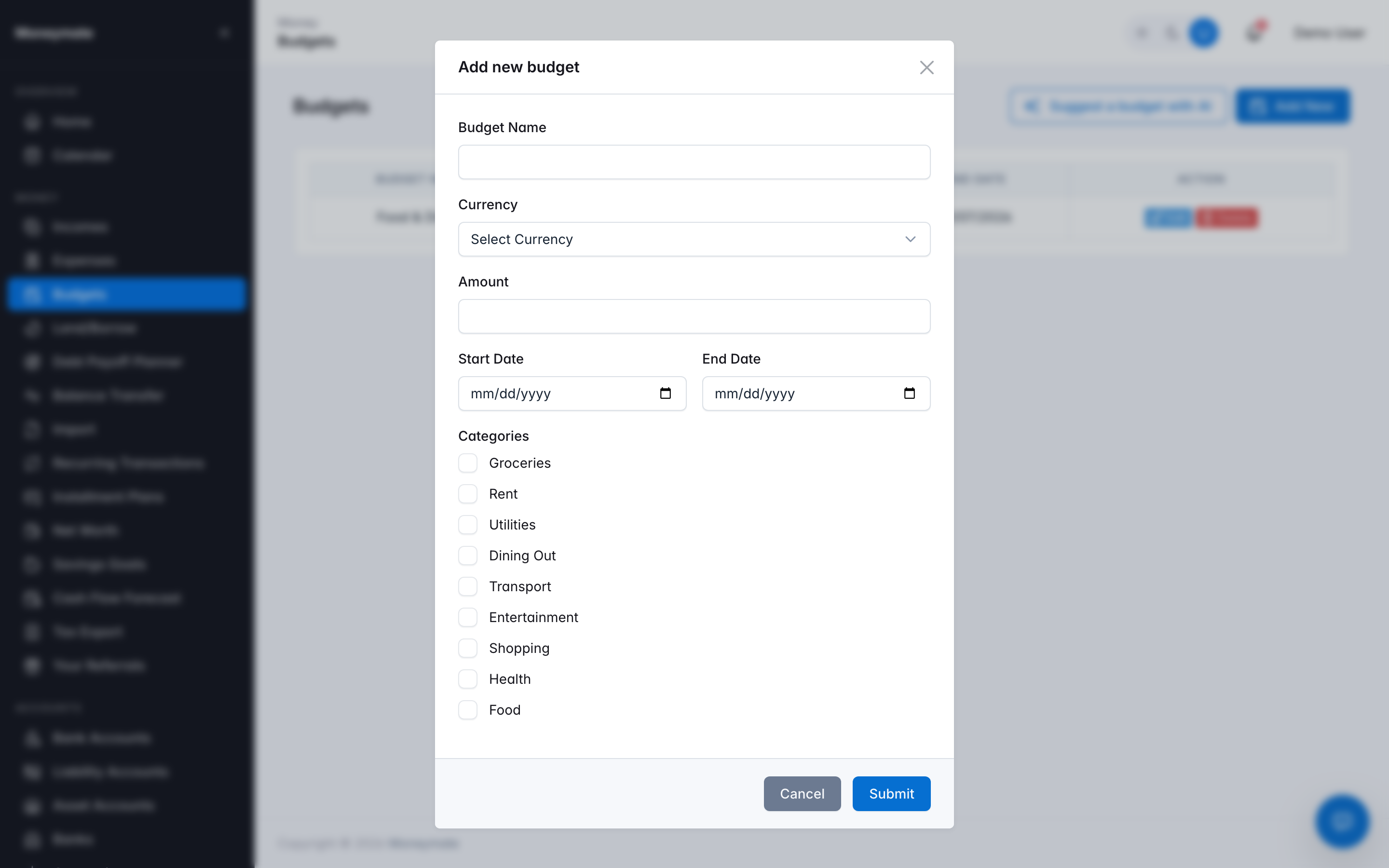
Create Budget form
Suggest a budget with AI — analyzes historical spend and proposes a budget name, limit amount, and covered categories, presented as a draft to review and adjust before saving rather than a limit applied straight away.
Burn-rate pace indicator — a small marker on each budget's progress bar shows where spending would be today at a perfectly even daily pace, so a budget can be read at a glance without doing the day-count math yourself. A budget spending meaningfully faster than that pace is labeled Ahead of pace with a projected total at the current rate; otherwise it's labeled On track. This is pure display math computed from data the budget already has (its limit, amount spent, and date range) — no extra setup, no AI call, and it isn't gated by plan the way the rest of Budgets is.
Recurring Transactions
Bills and income that repeat on a schedule — daily, weekly, monthly, or yearly. Once created, the scheduled command app:process-recurring-transactions generates the actual Expense/Income row automatically on each due date (see cron setup), and a separate reminder command emails the subscriber ahead of the due date if they've opted in.
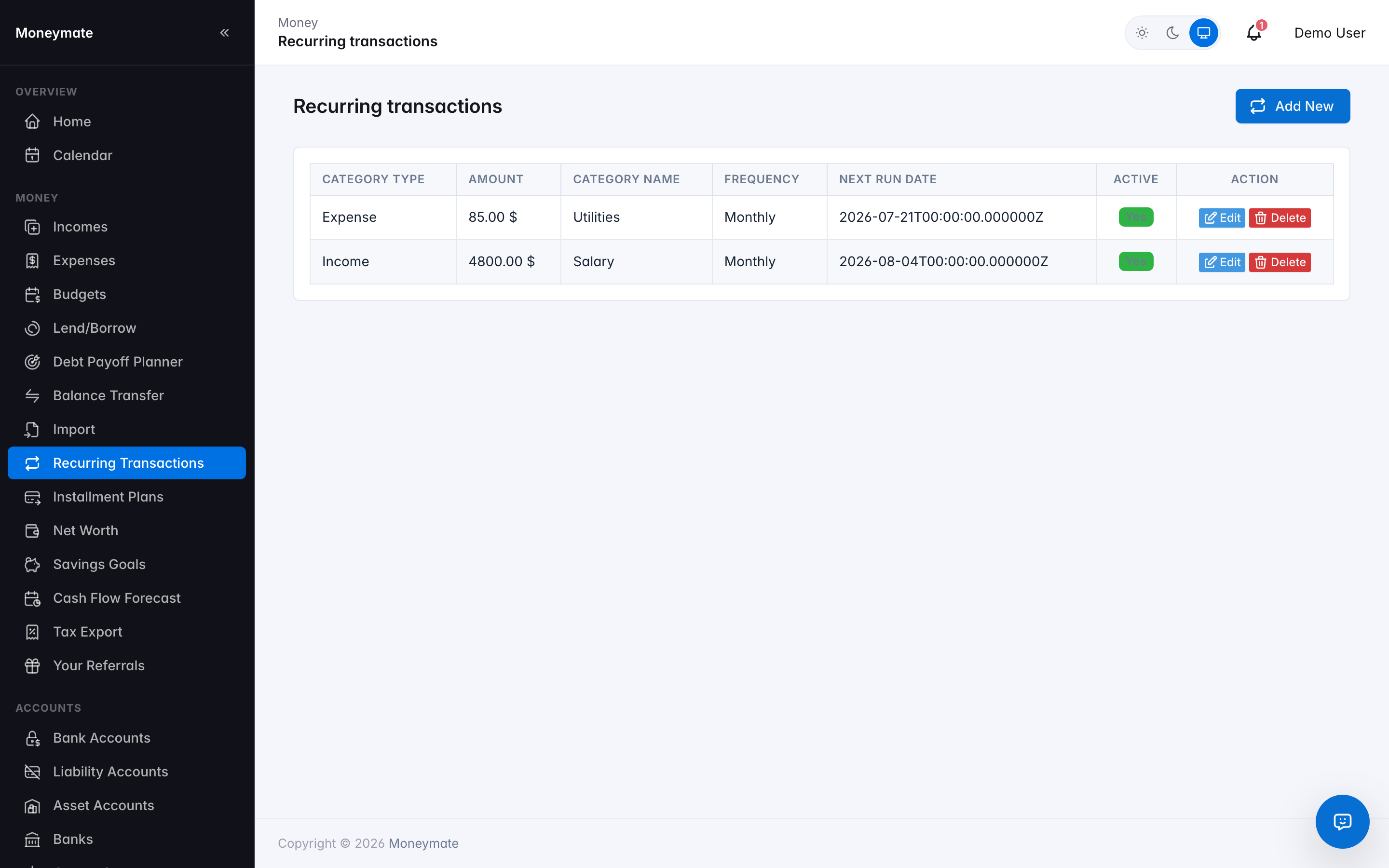
Recurring Transactions
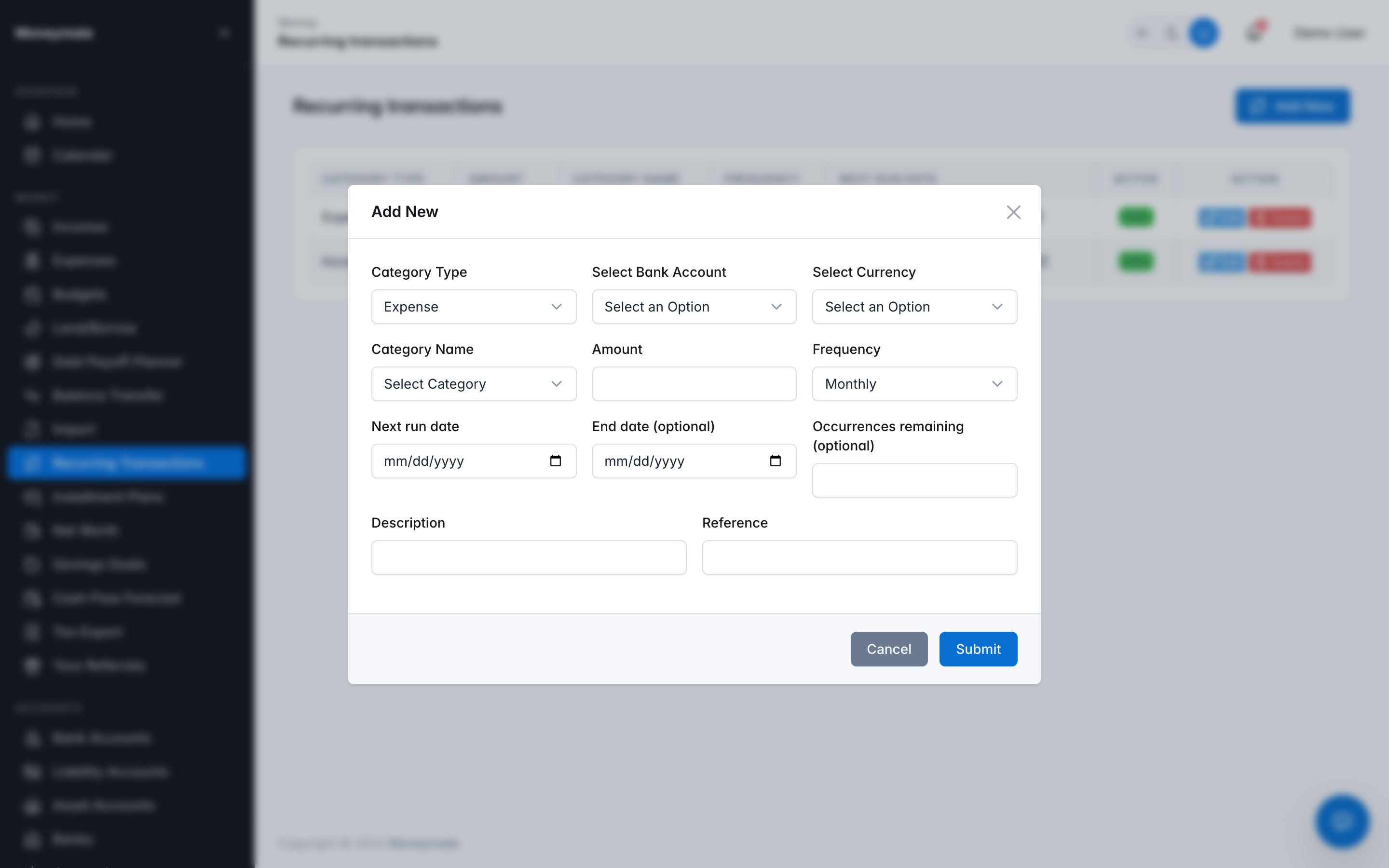
Create Recurring Transaction form
Price-increase alerts — raising a template's amount (a subscription renewed higher, a bill went up) immediately notifies the subscriber with the old amount, new amount, and percentage change, via the bell and — if opted in under Notification Preferences — email. It only fires on an increase; lowering an amount is good news and stays quiet. This detects the change at the moment a subscriber records it themselves, since MoneyMate has no live bank feed to notice a price change on its own.
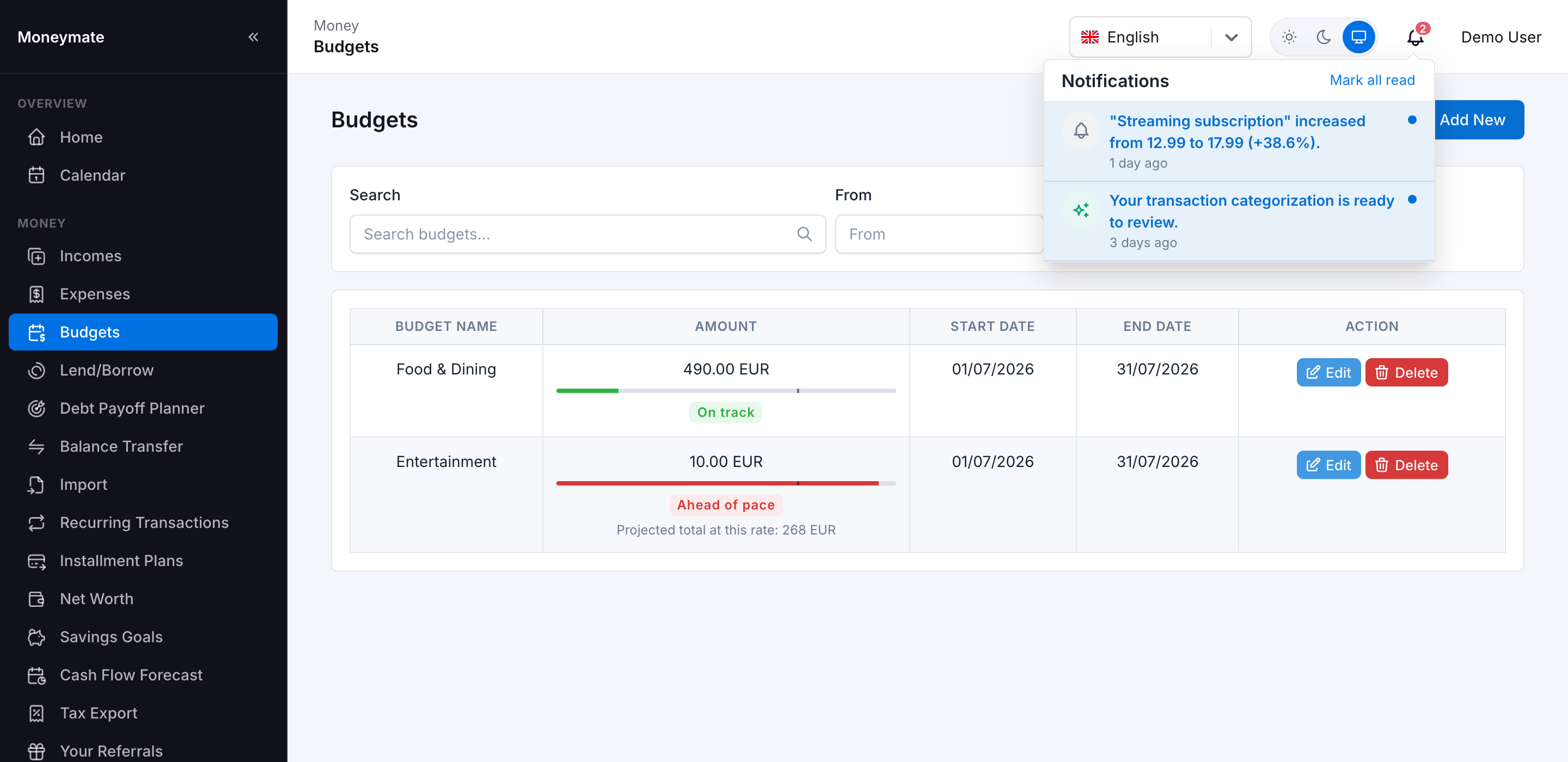
Price-increase alert in the notification bell
Import
A guided wizard to bring in transactions from a CSV, QIF, or OFX file exported from any bank. CSV files get a column-mapping step with best-effort auto-detection; a downloadable sample CSV template is provided so subscribers know exactly what format to prepare. Every imported row runs through duplicate detection and your auto-categorization rules before you commit it.
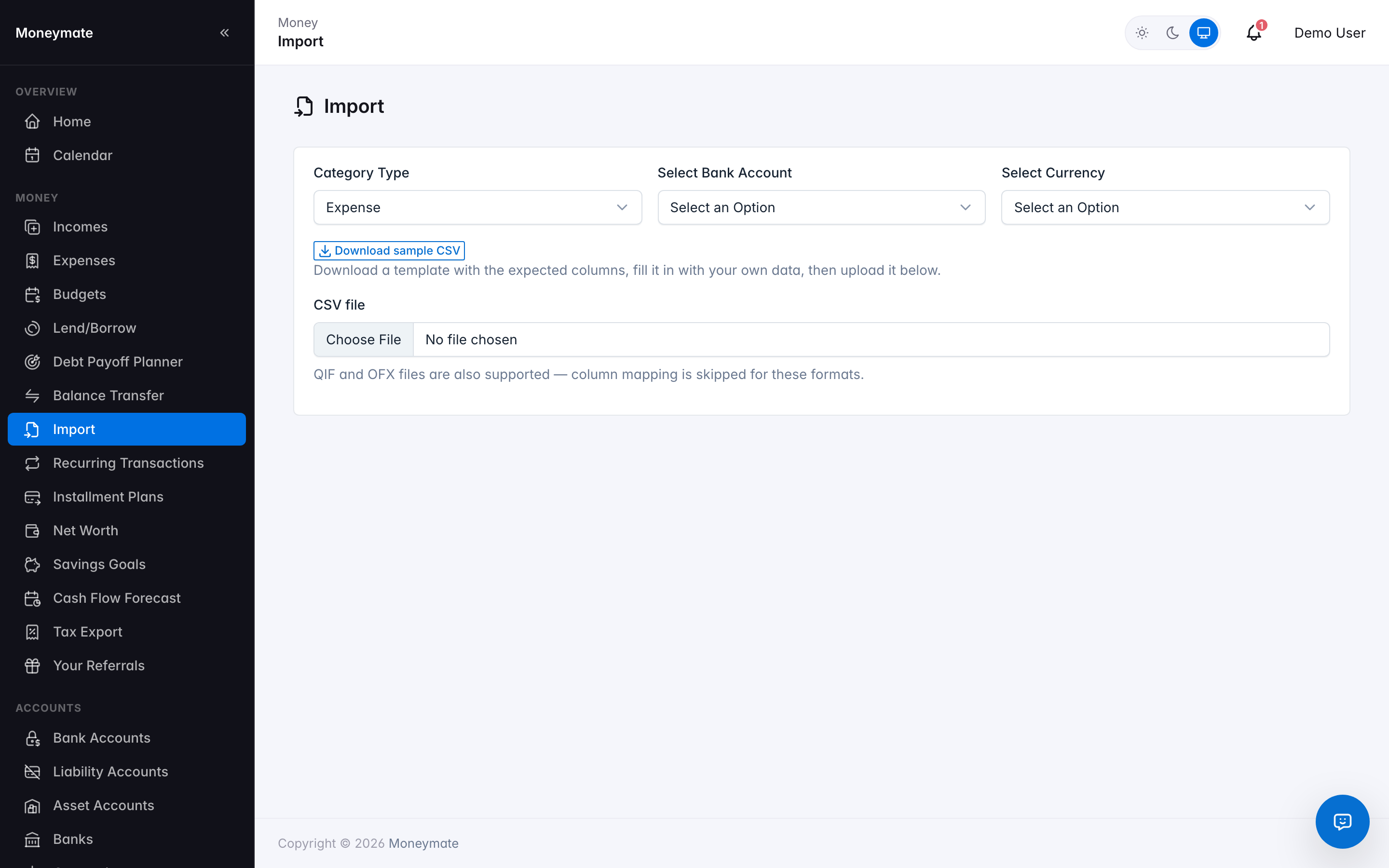
Transaction Import wizard
Balance Transfer
Move money between two of your own accounts, recorded as a linked pair of transactions so both account balances stay accurate.
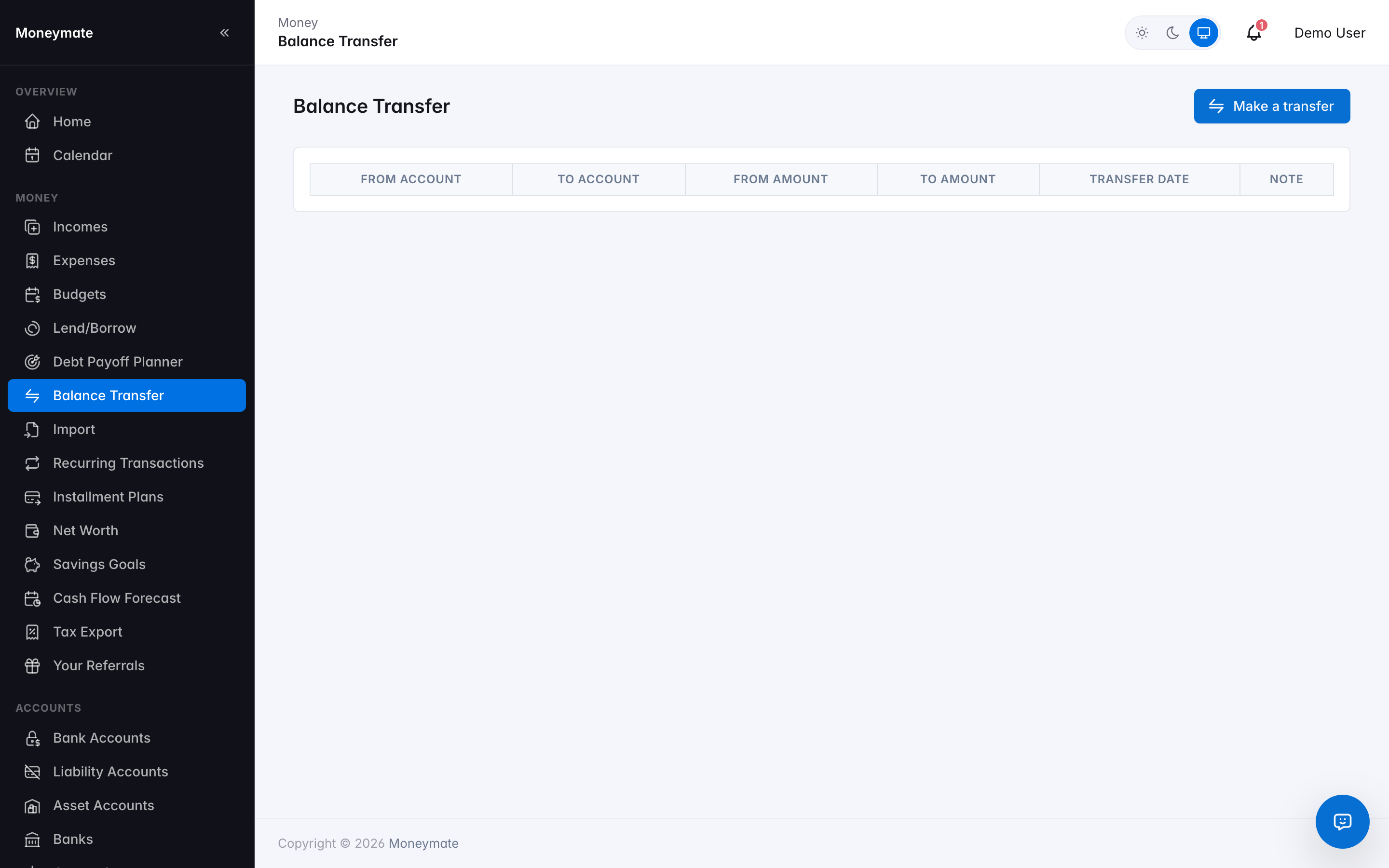
Balance Transfer