User Application
Accounts & Organization
Every account type, plus the categories, tags, and rules that keep transactions organized automatically.
Bank Accounts
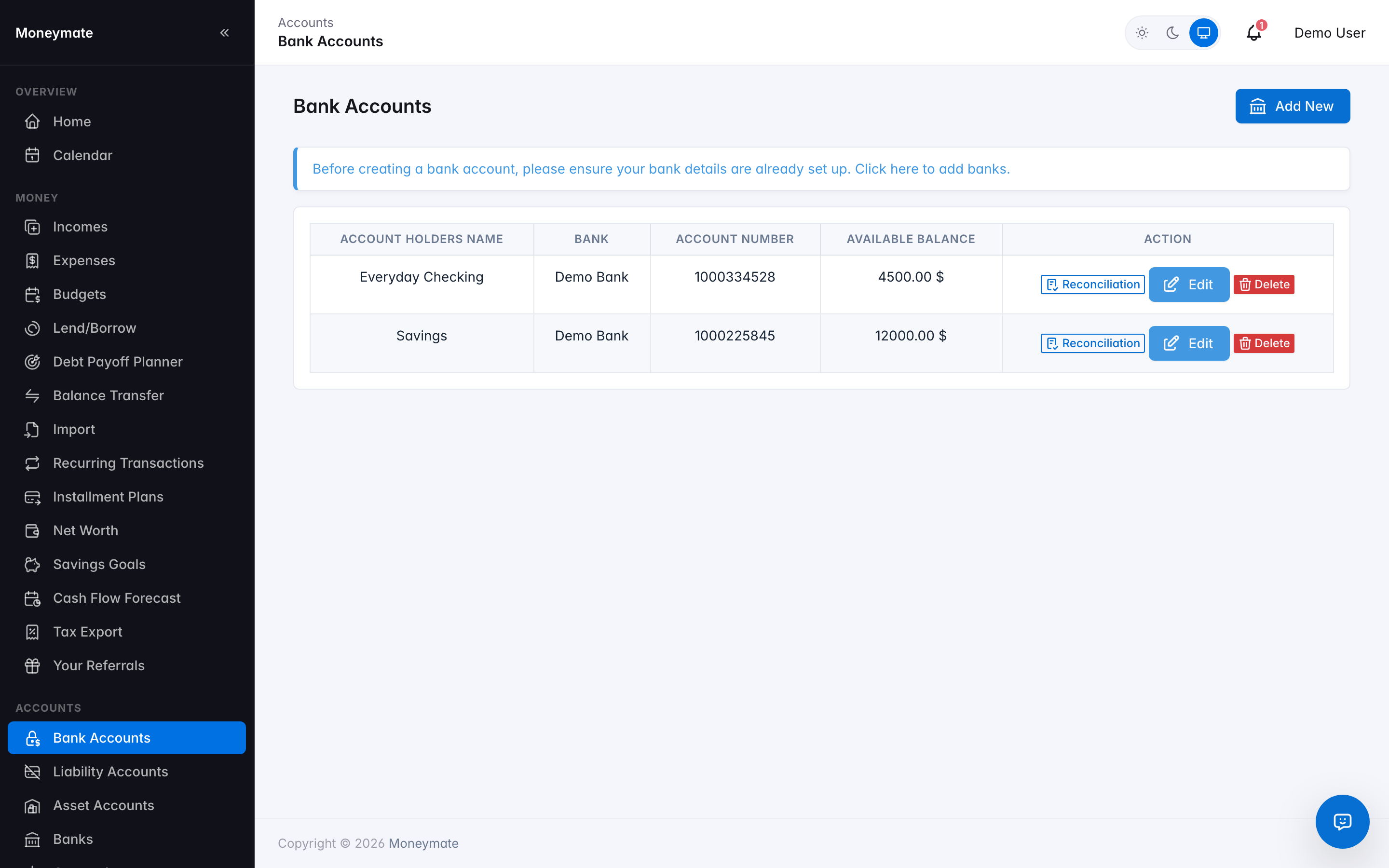
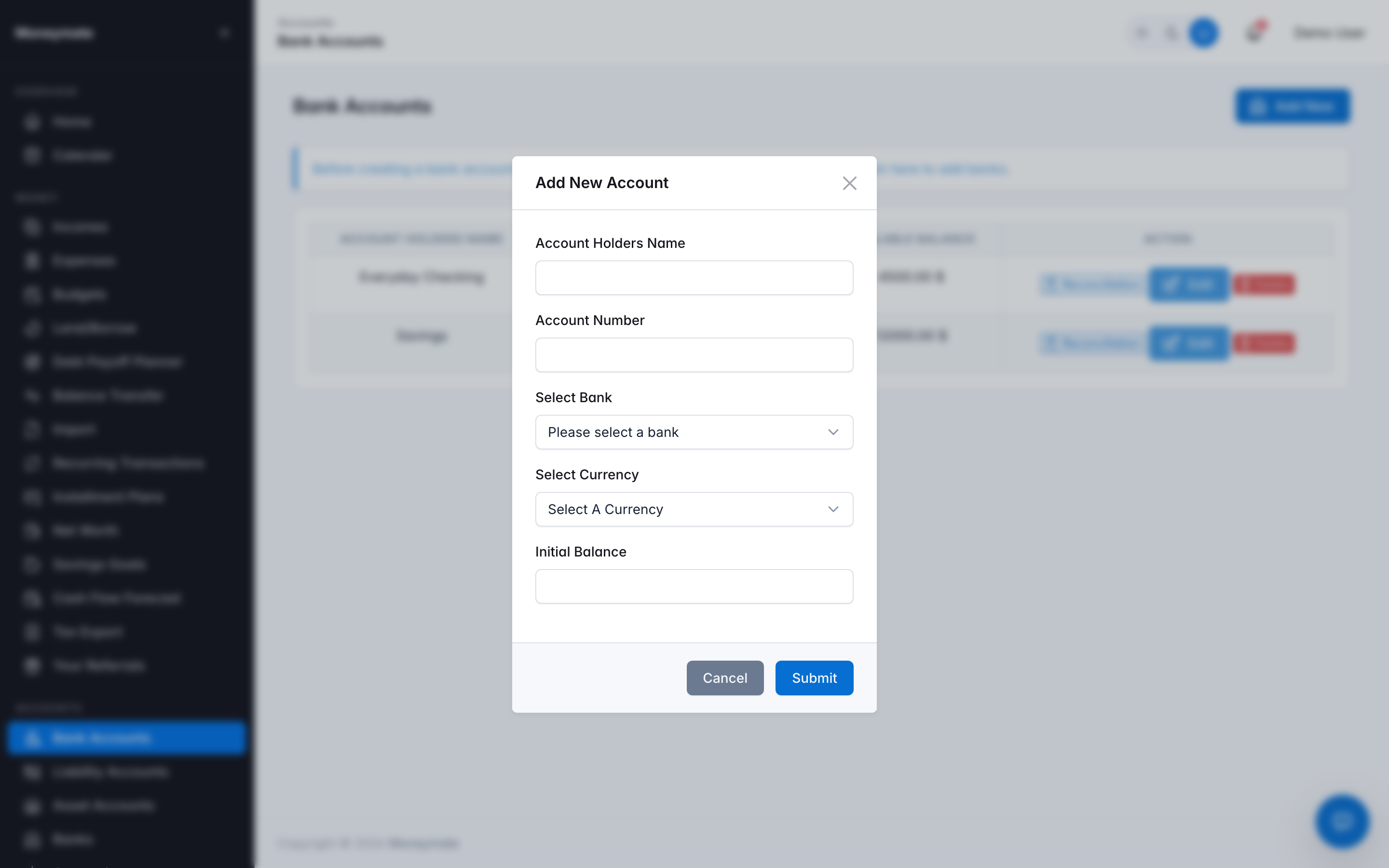
User Panel Add any number of manual bank/cash accounts, each with its own bank, account number, currency, and starting balance. Every transaction, budget, debt, and report in the application is ultimately scoped to one of these accounts.
Bank Accounts
Add Bank Account form
Alongside each account's real balance, the list shows what's actually available to spend — the balance minus whatever's currently allocated to Savings Goals linked to that account. The real balance never changes because of a goal; only the available figure reflects the reservation.
Reconciliation
User Panel Plan-gated A checkbook-style reconciliation loop for one bank account at a time, opened via the "Reconciliation" button on that account's row in Bank Accounts. It confirms your MoneyMate records agree with your real bank statement for a period — the same core workflow as Quicken or GnuCash's reconciliation, not a full statement-import matching engine.
How it works:
- Pick a date range. The page lists every income and expense on that account within it that isn't already reconciled.
- Enter your bank statement's ending balance for the period.
- Check off each transaction that appears on your real statement — the page totals the checked amounts live as you go.
- Once the checked total matches the statement balance, submit. Every checked transaction is marked reconciled (with a timestamp) and drops off the list for next time.
The point is catching data-entry mistakes — a missed expense, a duplicate, a wrong amount — by periodically forcing the books to agree with the bank's own numbers.
Liability & Asset Accounts
User Panel Plan-gated Track things beyond a simple bank account or the Debts tracker — a car loan or mortgage as a liability, or a vehicle/property value as an asset. Both are gated separately per plan (liability_accounts_enabled / asset_accounts_enabled); a plan without the flag sees an empty list and can't create, edit, or delete either.
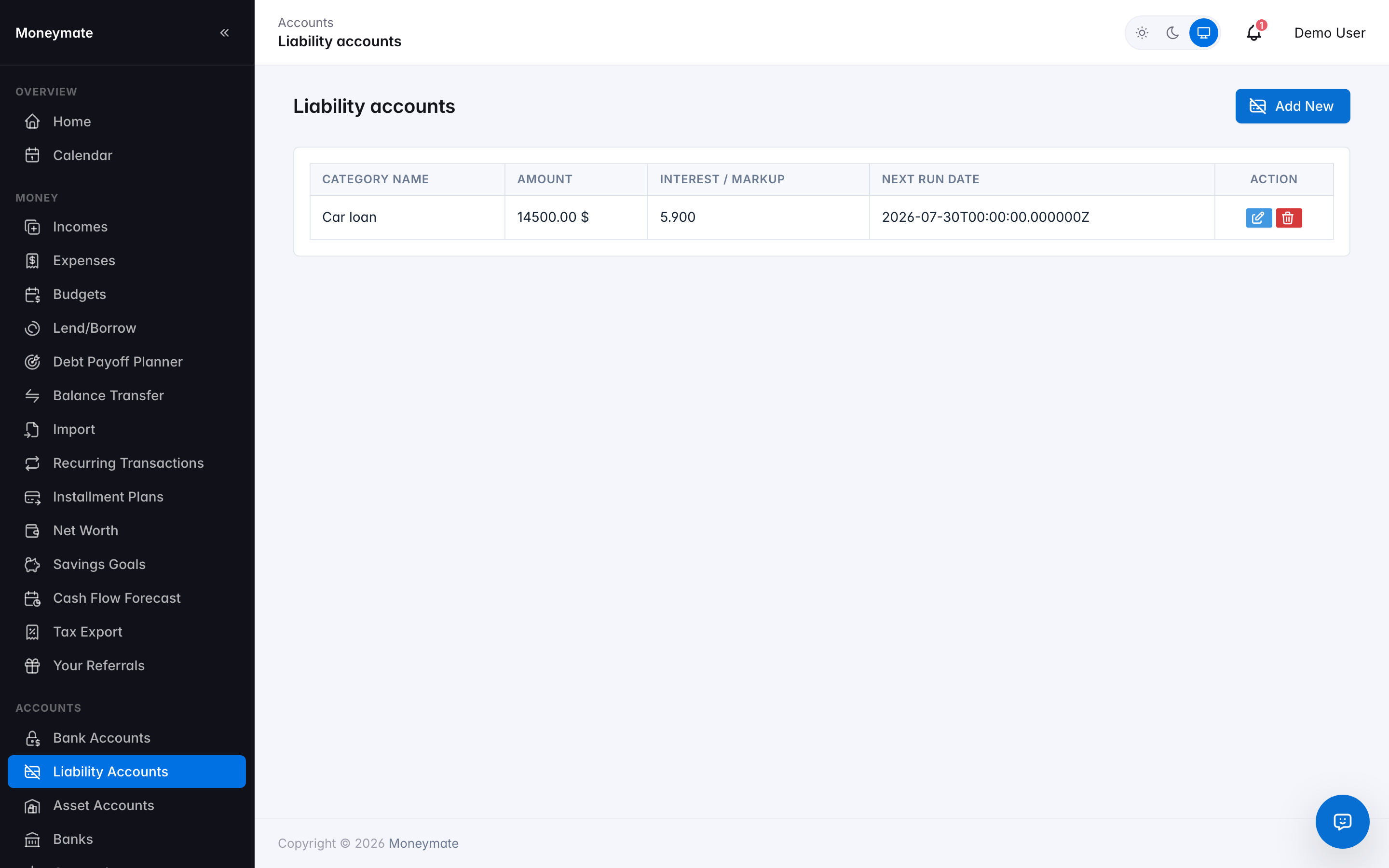
Liability Accounts — a category name, currency, current balance, and two optional fields: an interest rate/markup and a minimum payment, plus a next-payment due date. None of the optional fields affect the math below; they're informational, for your own tracking.
Liability Accounts
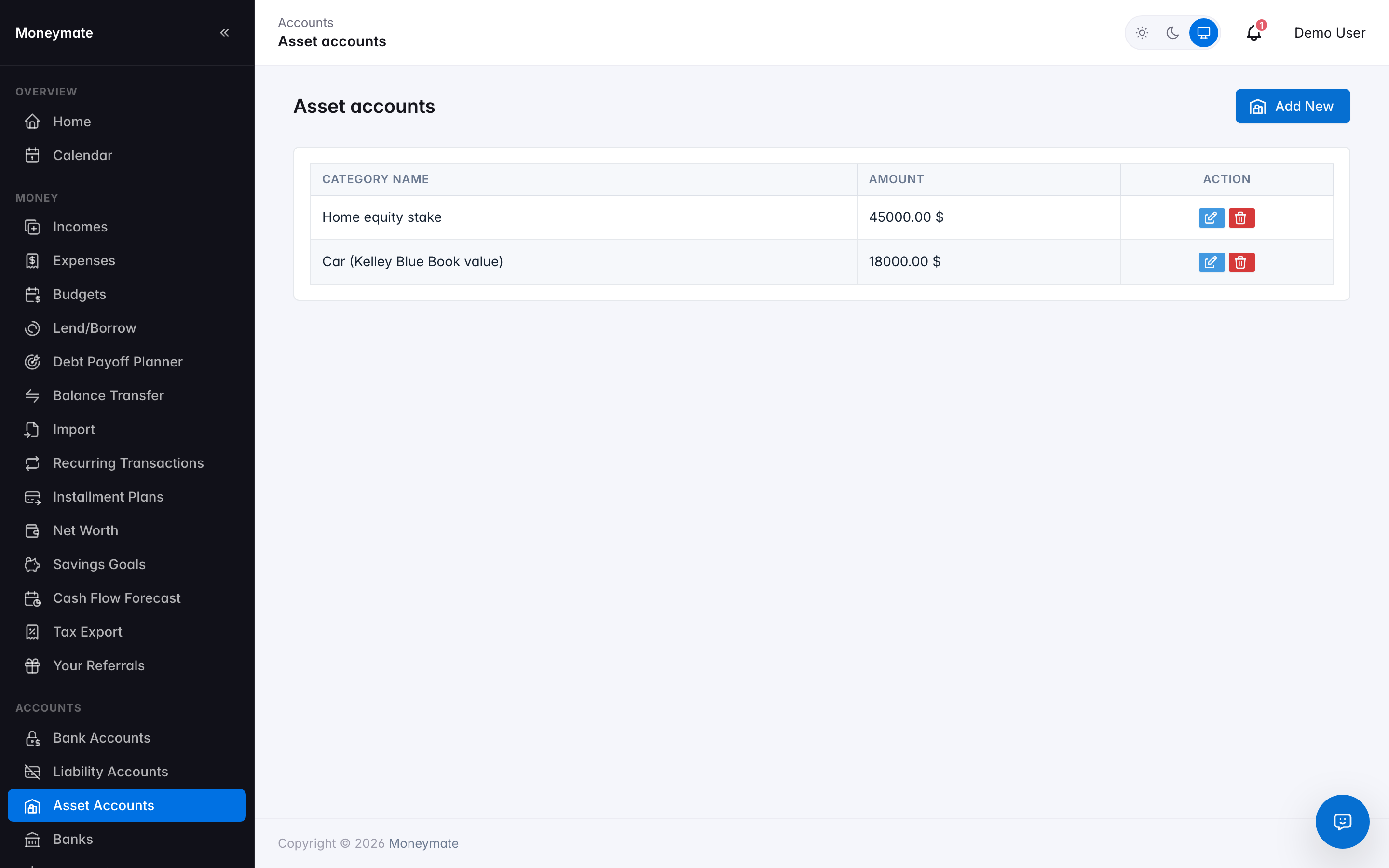
Asset Accounts — just a name, currency, and current balance (no interest, payment, or date fields — an asset's value doesn't accrue interest the way a debt does).
Asset Accounts
Every balance is converted to USD behind the scenes the same way every other amount in MoneyMate is, and both feed directly into the Net Worth total: asset balances add to it, liability balances subtract from it — right alongside your bank account balances and lend/borrow debts.
Banks
The list of bank names available when adding a Bank Account — add your own local or regional banks.
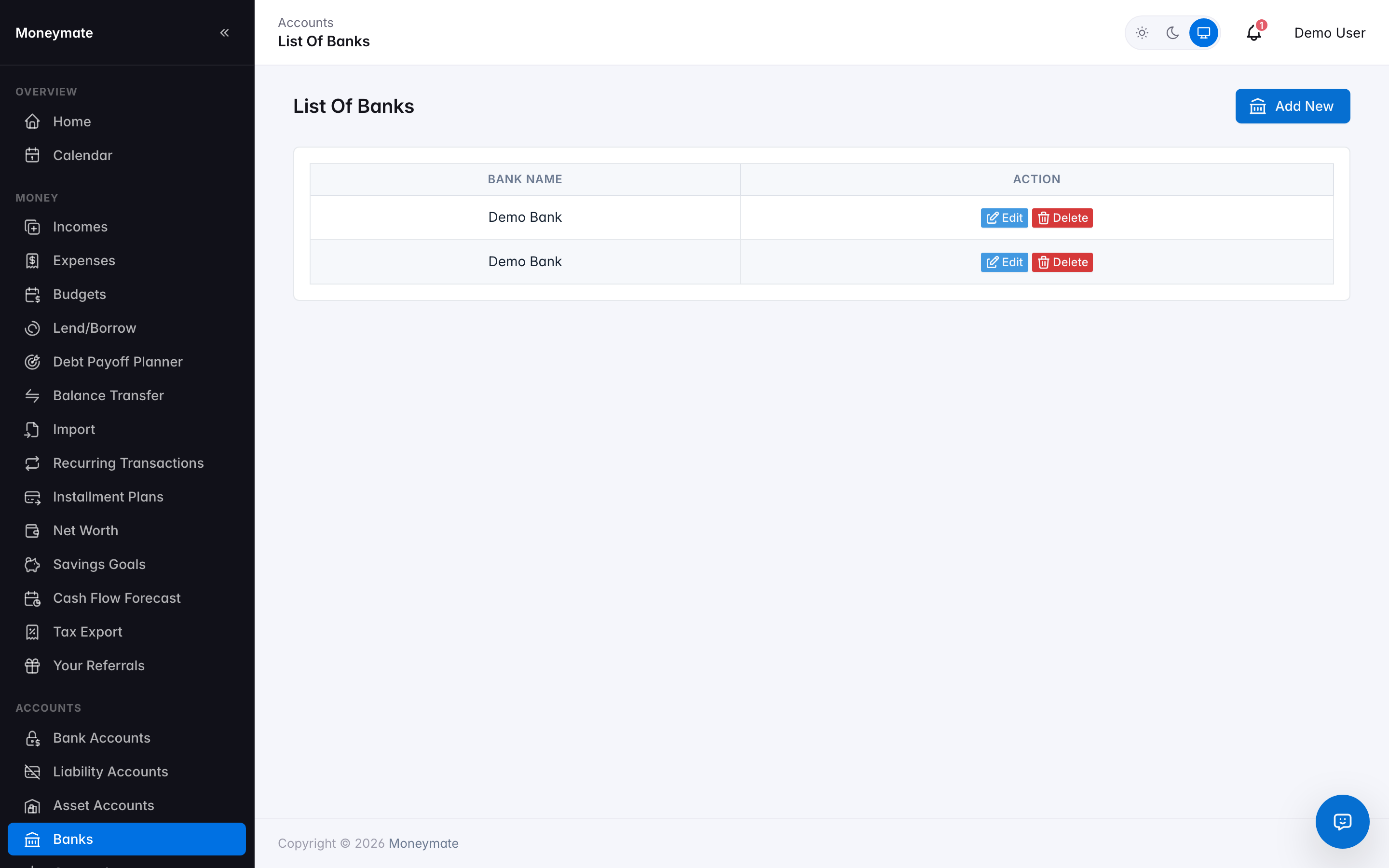
Banks
Currencies
Every currency available throughout the application, with its current exchange rate against USD — a read-only reference list. Pick freely from it for any account, transaction, budget, or debt; there's no limit on how many different currencies a subscriber can use across their own accounts. The catalog itself (adding a currency, editing a rate, choosing the site-wide default) is shared, instance-wide configuration managed by the admin — see Admin → Currencies — since every subscriber's reports read the same rates. Don't see a currency you need? Ask your site admin to add it.
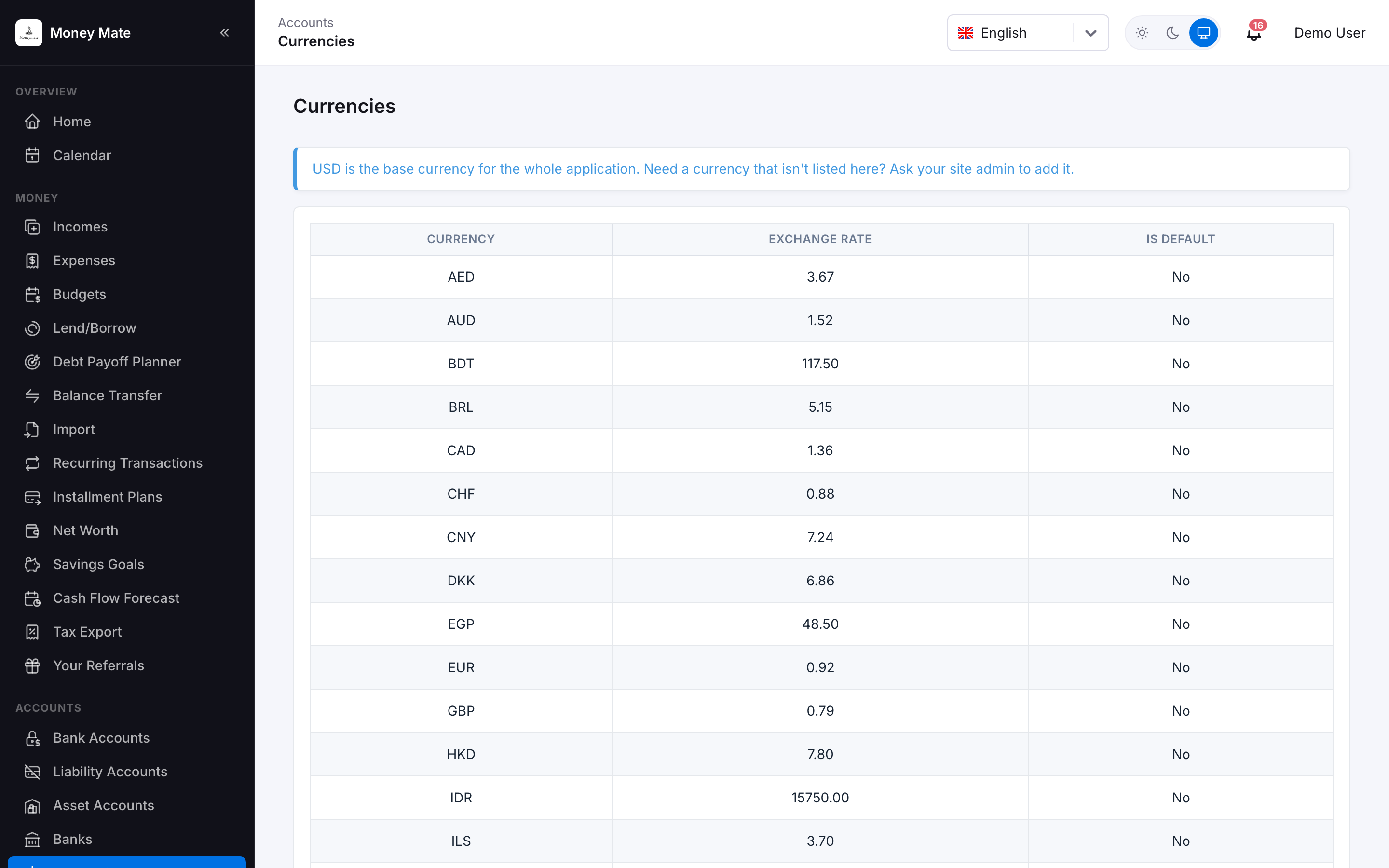
Currencies — browse rates, no edit access
Categories & Category Groups
Organize income and expenses into categories, and roll related categories up into a group (e.g. "Groceries" + "Dining Out" under "Food") for cleaner reporting.
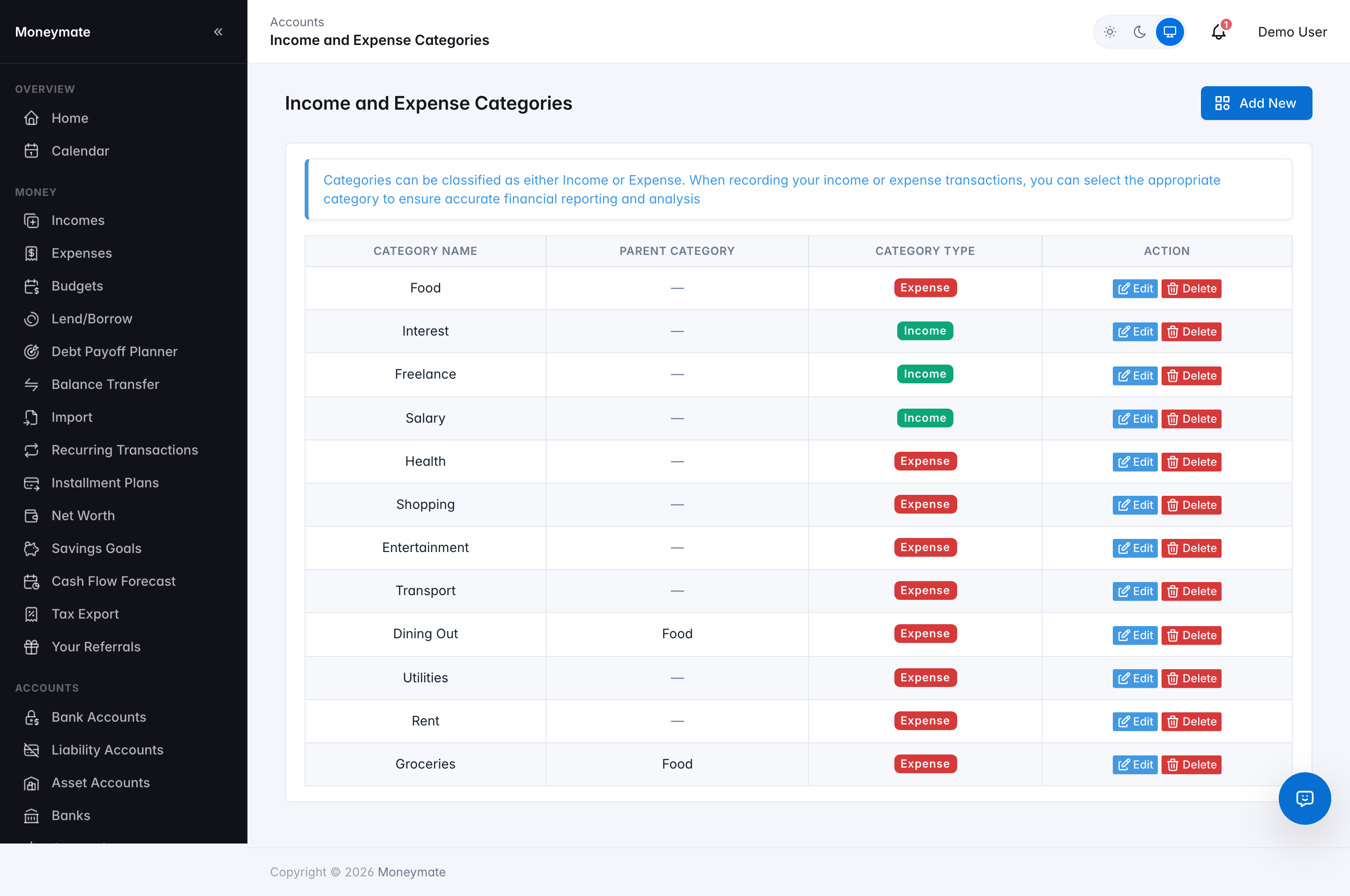
Categories
Tags
Freeform, multi-select labels for any transaction — orthogonal to categories, useful for cross-cutting concerns like "tax-deductible" or "business trip".
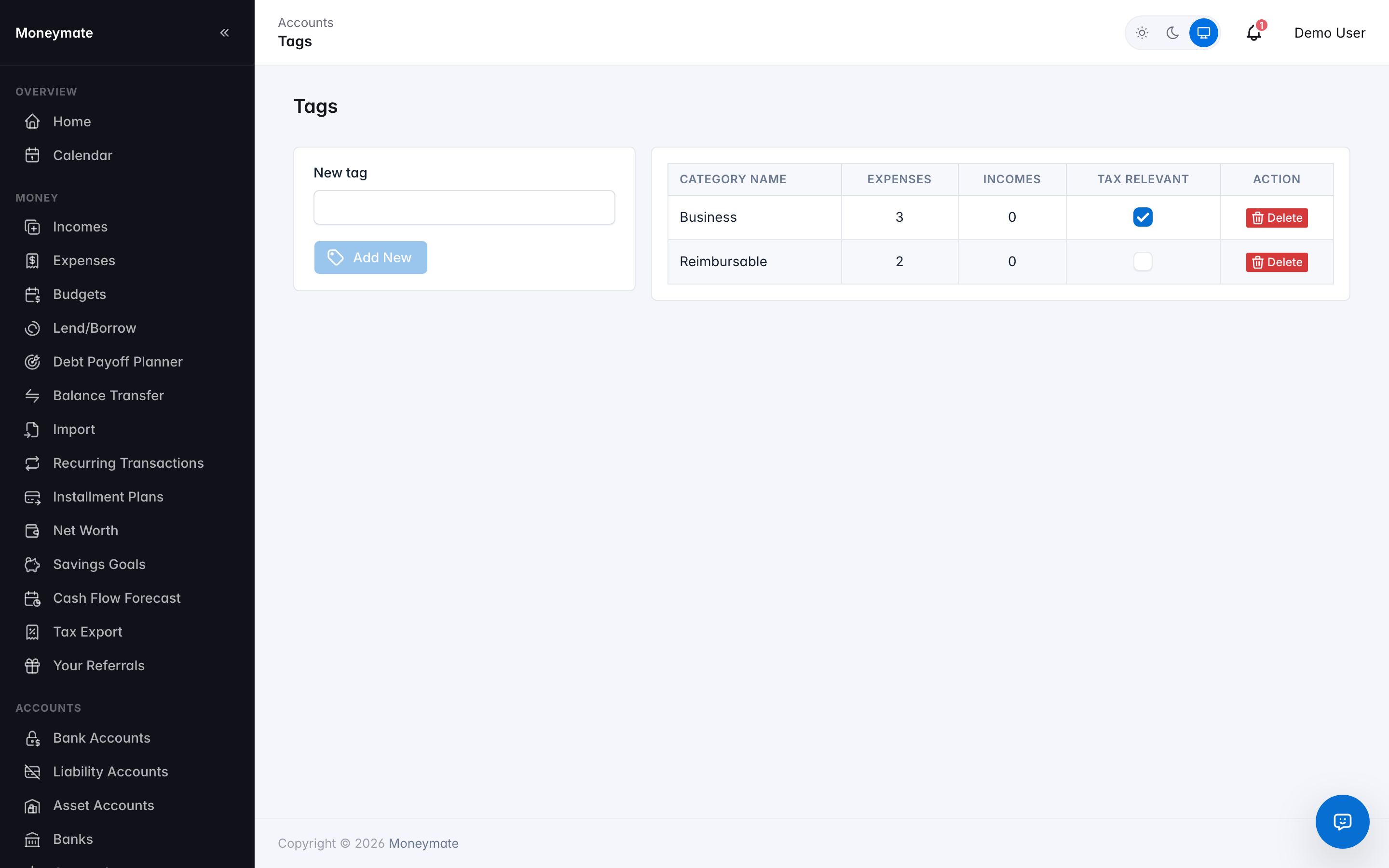
Tags
Auto-Categorization Rules
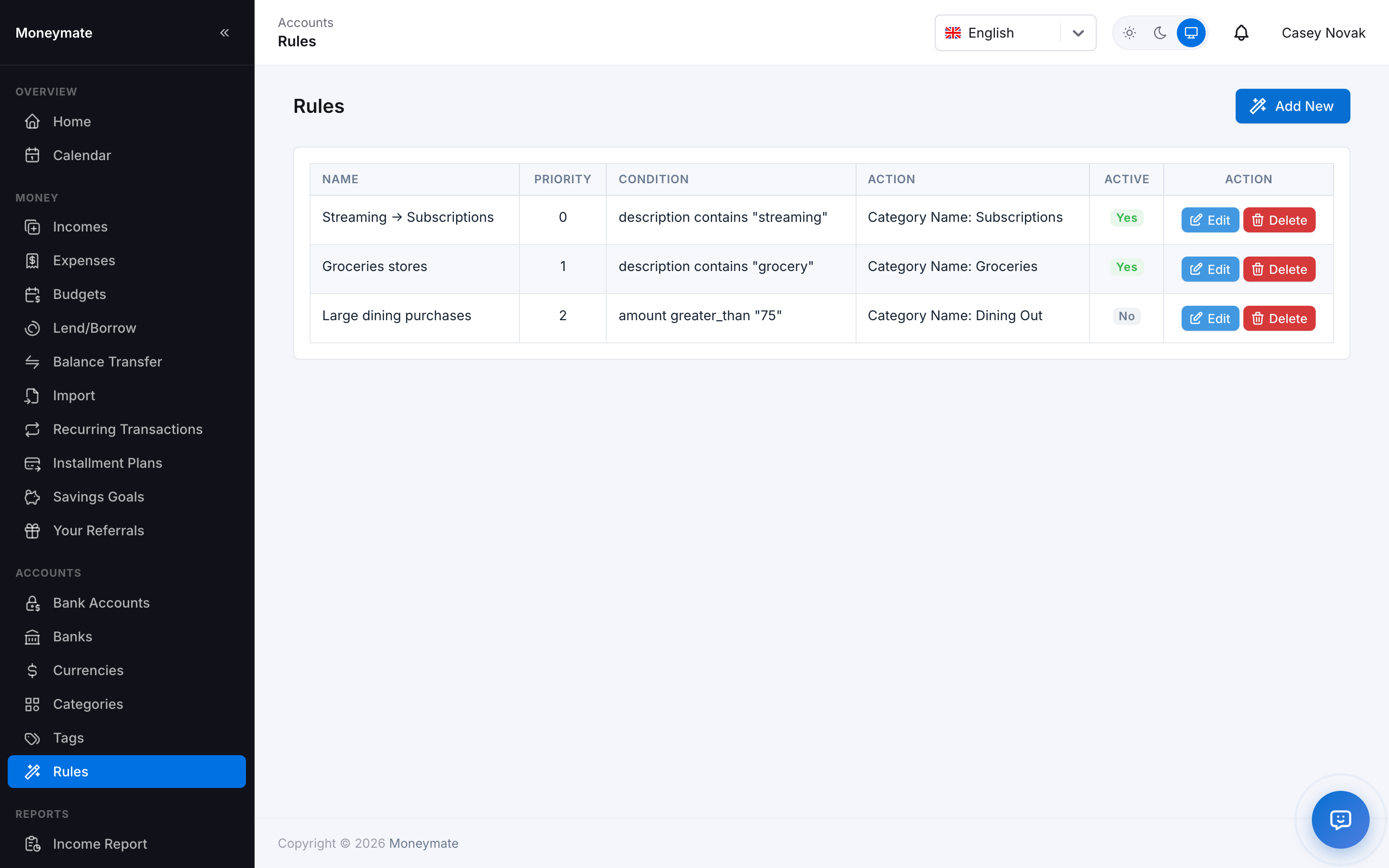
Define a condition — description contains/starts with/equals a value, or amount is greater than/less than/equals a value — and an action: assign a category, or add a tag. Rules are evaluated in priority order (lowest first) and it's first match wins, not every matching rule; only one rule ever applies to a given transaction. No AI credit is spent either way.
This does not run in the background on its own. On the manual Add Expense/Add Income form, rules only apply if you tick the "Apply matching rule" checkbox for that entry — leave it unchecked and the category you picked is used as-is. During CSV/QIF/OFX import, matching rules apply automatically to suggest a category per row before you confirm the import. Rules are skipped entirely for split transactions (each split line already carries its own category). Available on plans with the rules engine enabled, up to that plan's rule limit.
Transaction Rules