Guide
The admin panel.
Everything an operator needs to run the marketplace day to day: moderation, people, money, content, and system configuration — all under /admin, behind the admin role.
On this page
Dashboard
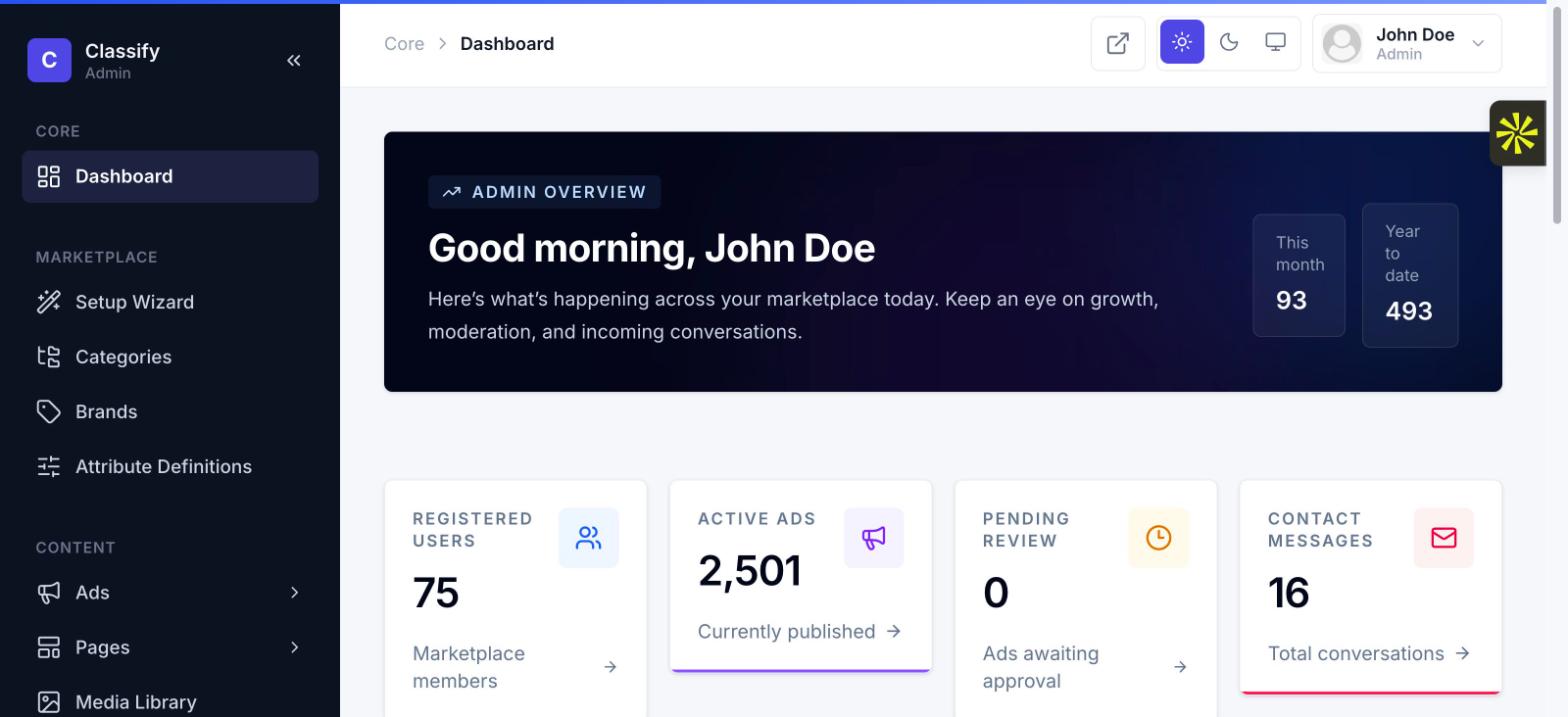
The landing screen after login — a snapshot of marketplace health: registered members, currently published ads, ads waiting for moderation, and unread contact messages, plus a revenue chart for the year and an "attention center" surfacing anything that needs a decision right now (pending ads, open reports, expiring items).
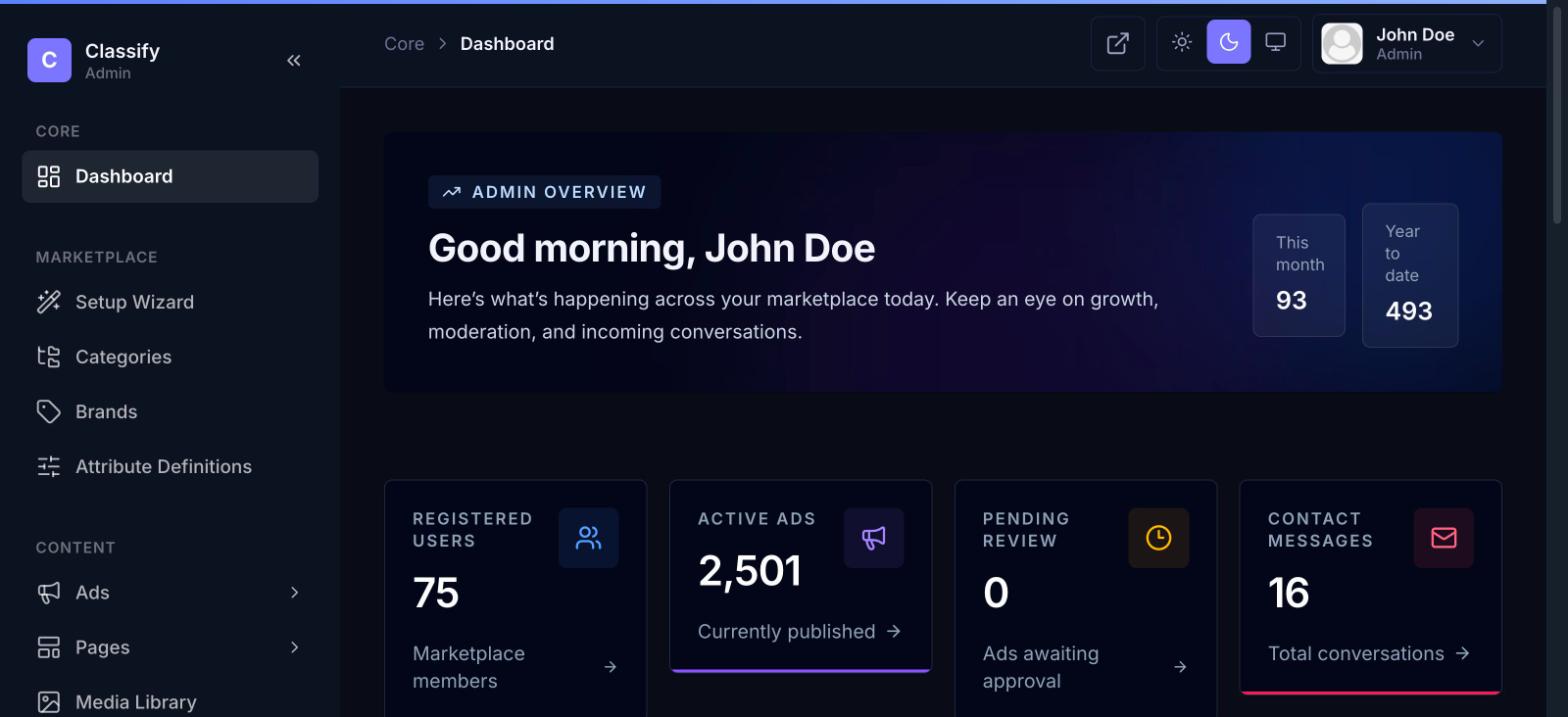
Every surface in the admin panel — and the member and public surfaces too — has a full light/dark theme, toggled from the same three-way switch in the topbar (light / dark / follow system):
Categories
The taxonomy every listing is filed under. Categories are two levels: a top-level category (e.g. "Vehicles") and subcategories under it (e.g. "Cars", "Motorcycles"). A listing is always posted against a subcategory — top-level categories exist purely to group and navigate subcategories, they're never a listing's actual category.
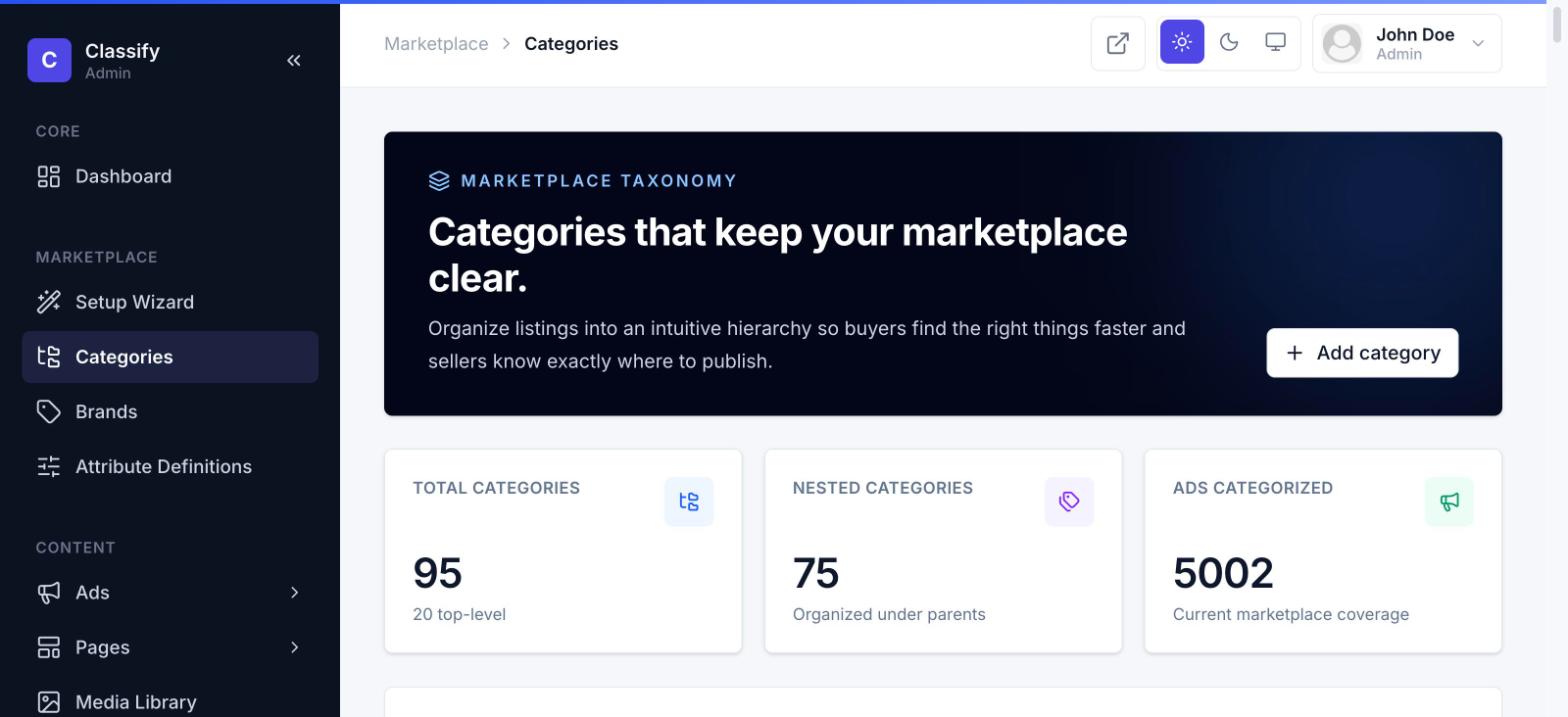
Each category carries a name, slug, icon, color accent, and (optionally) a description and SEO intro used on its public category page. Deleting a category that still has listings or subcategories under it is blocked — reassign or archive first.
Attribute definitions
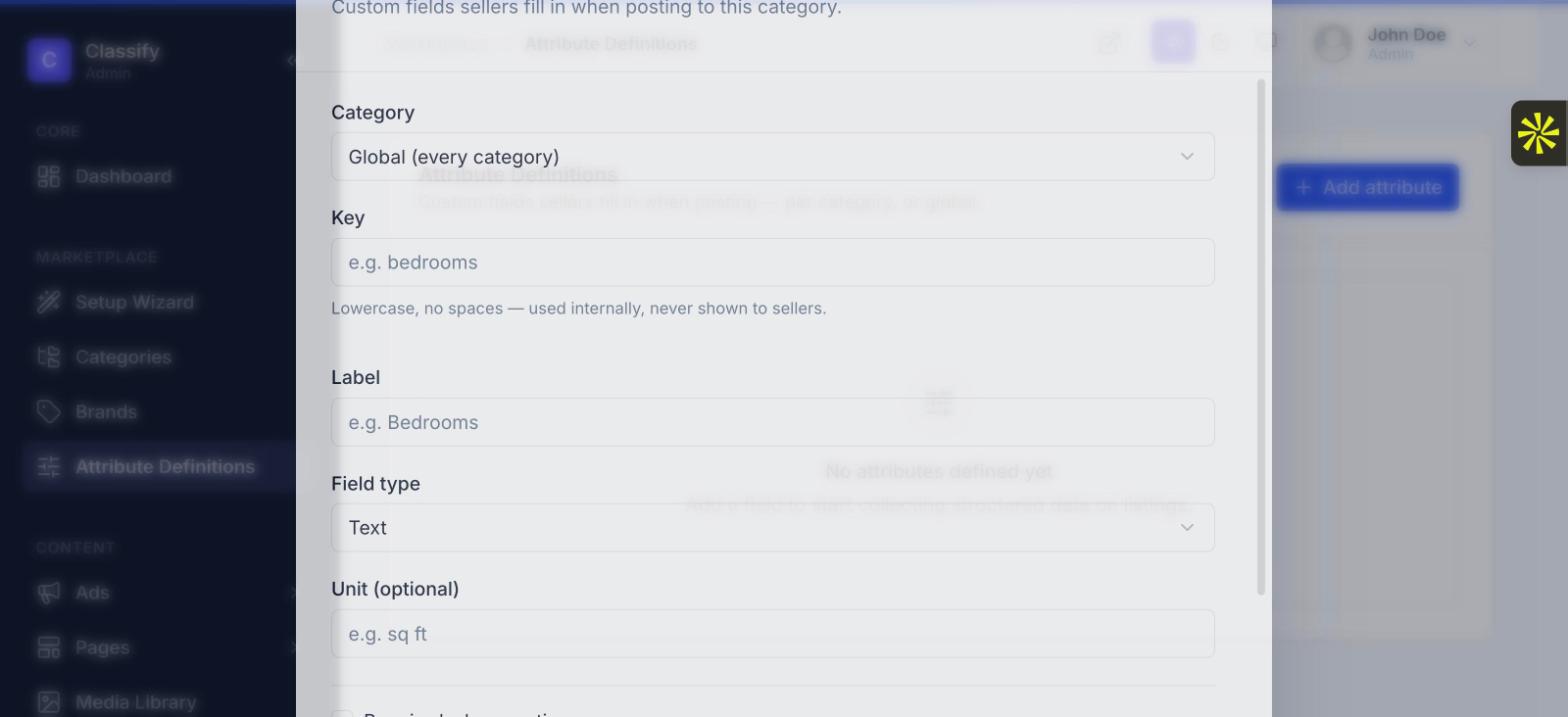
Custom fields collected on the listing wizard, beyond the universal ones (title, price, condition, location). Define a field once — global (every category) or scoped to one category — and it appears automatically wherever a seller in that category posts a listing.
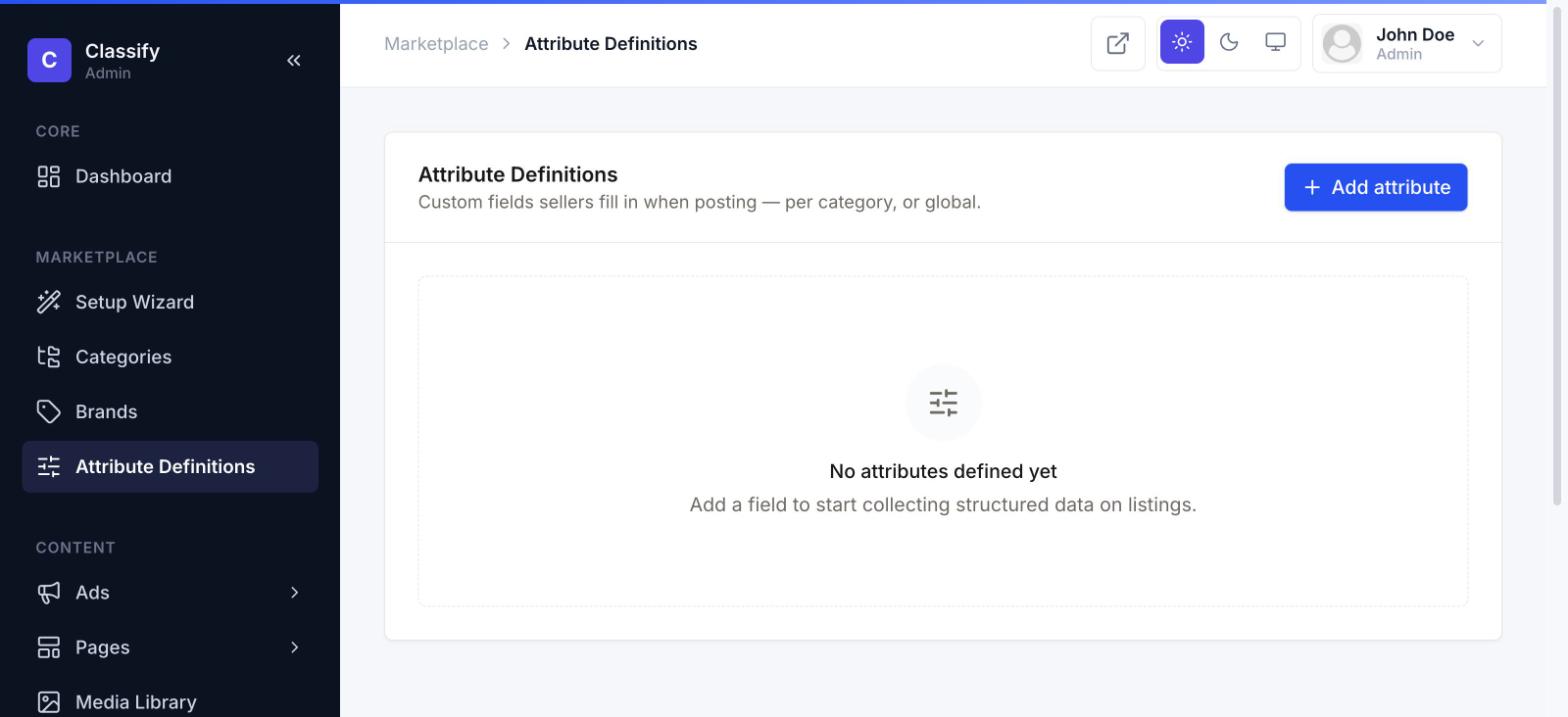
Each attribute has a type (text, number, select, checkbox, etc.), an optional unit label (e.g. "sq ft"), and four independent flags that control where it shows up:
| Flag | What it controls |
|---|---|
| Required when posting | The wizard won't let a seller publish without filling it in. |
| Filterable | Appears as a filter in the public listings sidebar. |
| Shown on card | Appears on the compact listing card in grids/search results. |
| Searchable | Included in full-text search matching, not just displayed. |
Media library
A reusable pool of images available to the visual page builder — distinct from per-ad photos, which sellers upload directly on their listing. Anything uploaded here can be dropped into any page-builder block (hero images, feature icons, banners) across every page on the site.
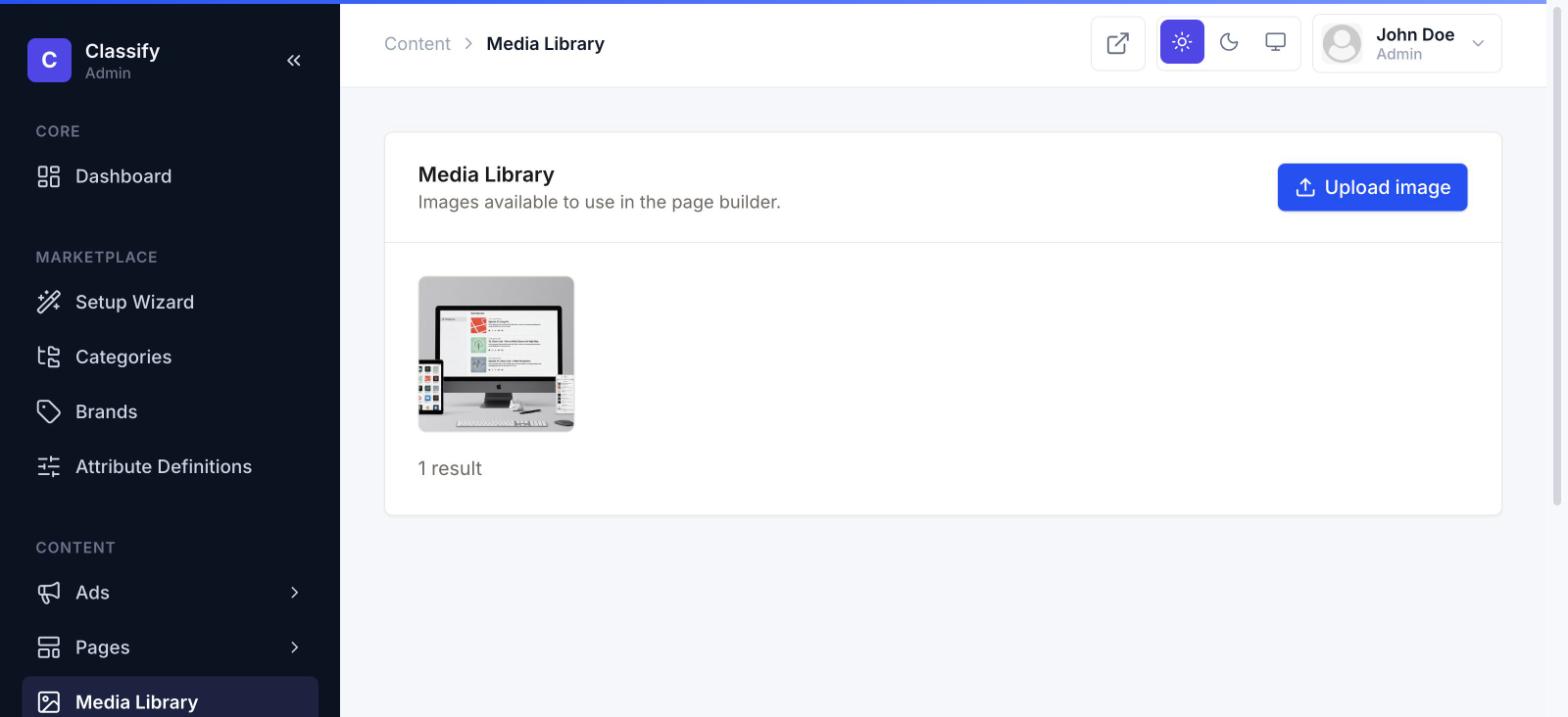
Deleting an image checks whether it's still referenced by any published or draft page first, so a page can't be left pointing at a missing file.
Ads & the moderation queue
Every ad submenu item under Content → Ads is the same listings table filtered to a different status: Moderation Queue (pending review, risk-scored, newest first), Premium Pending / Regular Pending (split by plan), Approved Ads, and Blocked Ads. Approving a listing here fires the same notification pipeline that tells the seller their ad went live.
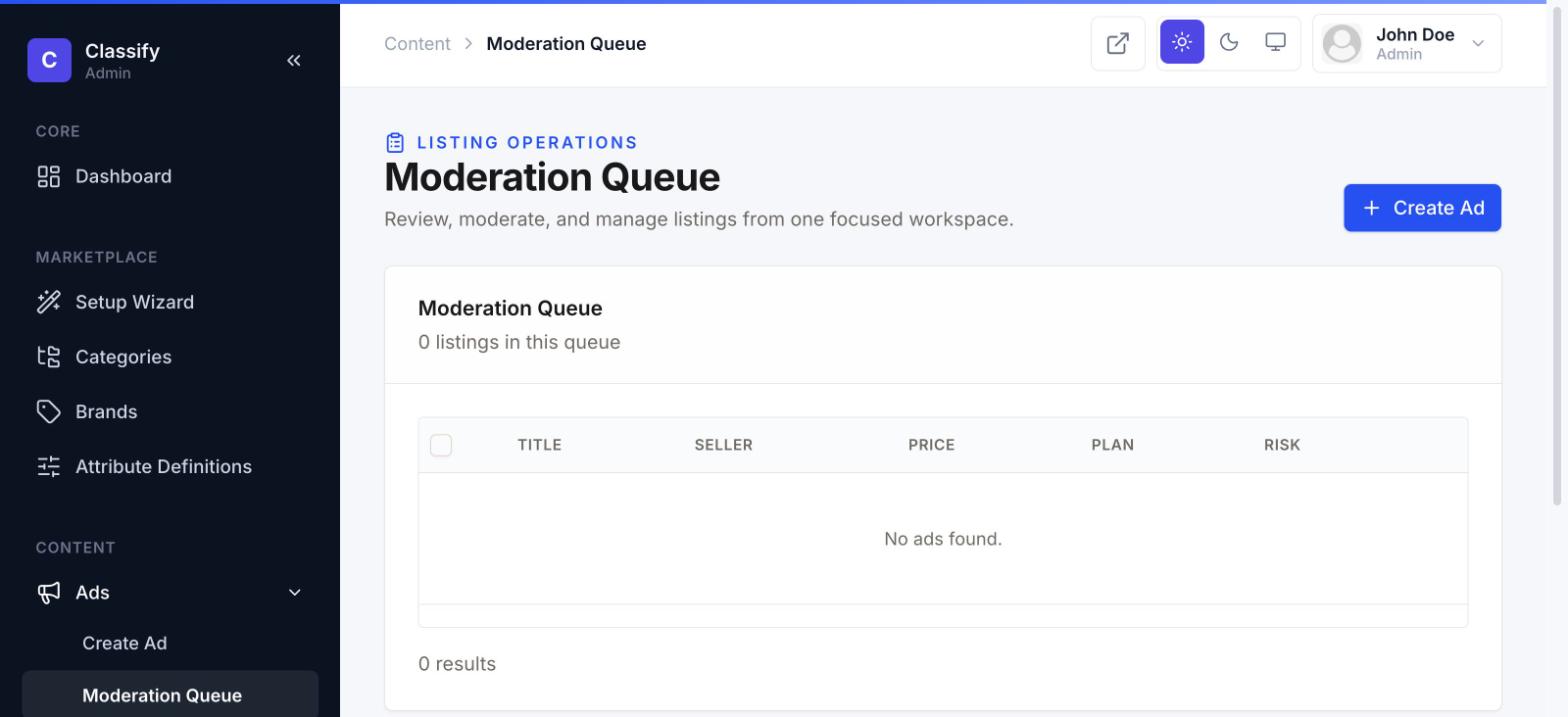
Opening a listing to edit it gives an admin the exact same form a seller uses to post, plus full control — including a rich text editor for the description, with the same HTML sanitization applied on save that public listing pages render safely:
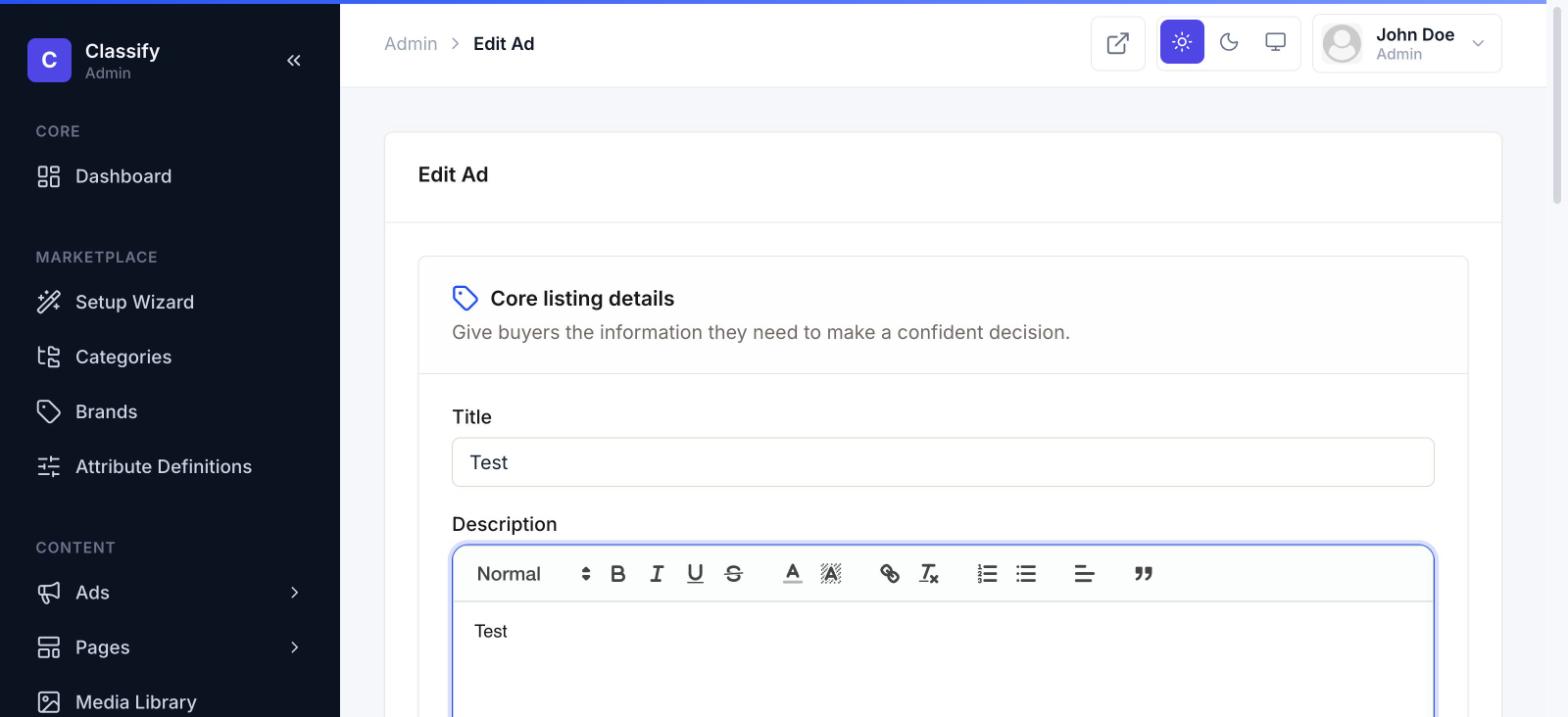
A pending listing's risk score factors in things like banned keywords, near-duplicate detection against the same seller's other listings, and how many listings that seller has posted in a short window — high-risk items surface at the top of the queue rather than requiring a chronological scan.
Users
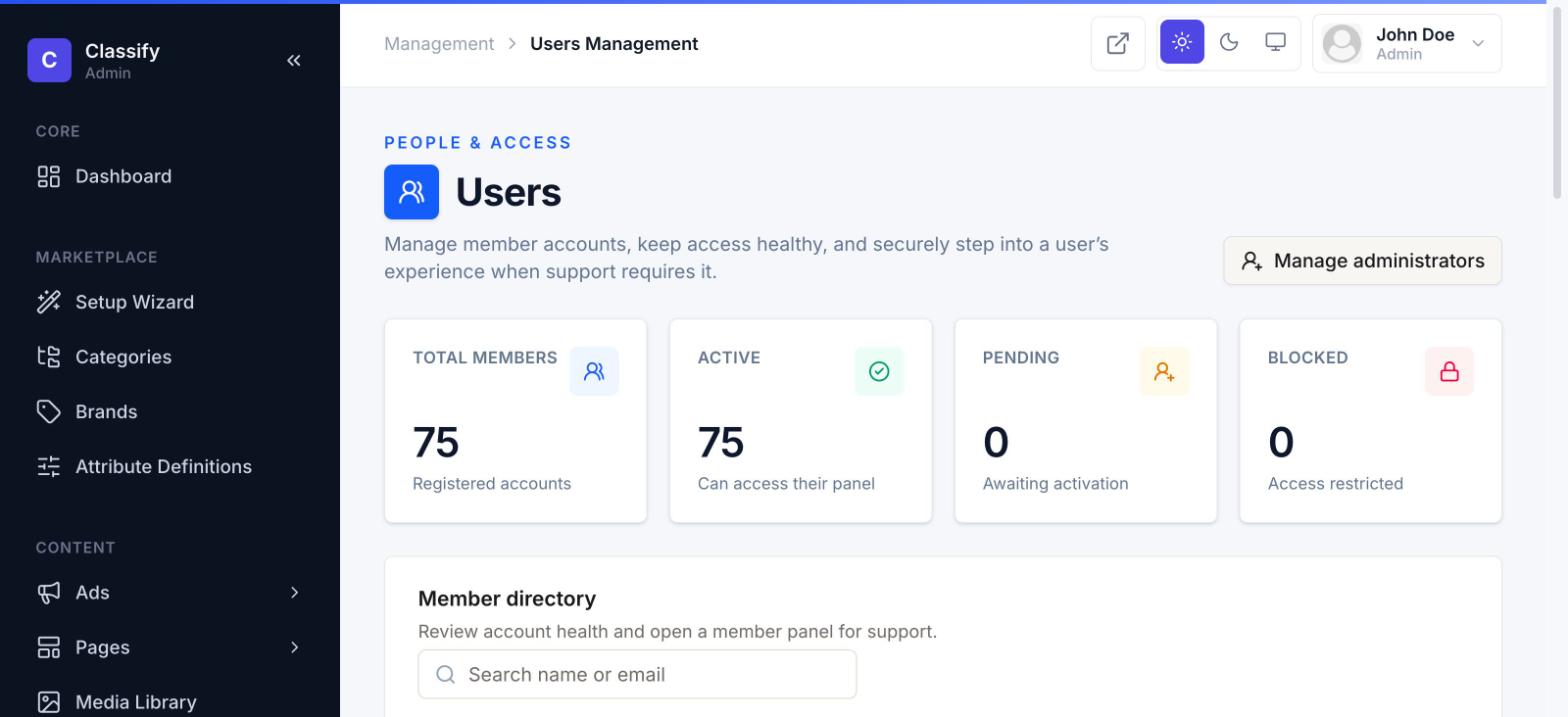
The full member directory — search by name or email, see account status at a glance, and open a member's account for support. The Impersonate action logs an admin in as that member (with a clearly labeled banner and a one-click "Return to admin") without ever touching their password — the standard, safe way to reproduce a support issue exactly as the member sees it.
Seller verifications
Reviews ID and business-tier submissions from the member-side verification flow. Approving either tier grants that seller's "Verified Seller" badge everywhere it's shown (their profile, their listings, their messages, and the buyer-facing "verified sellers only" filter); revoking removes it just as immediately.
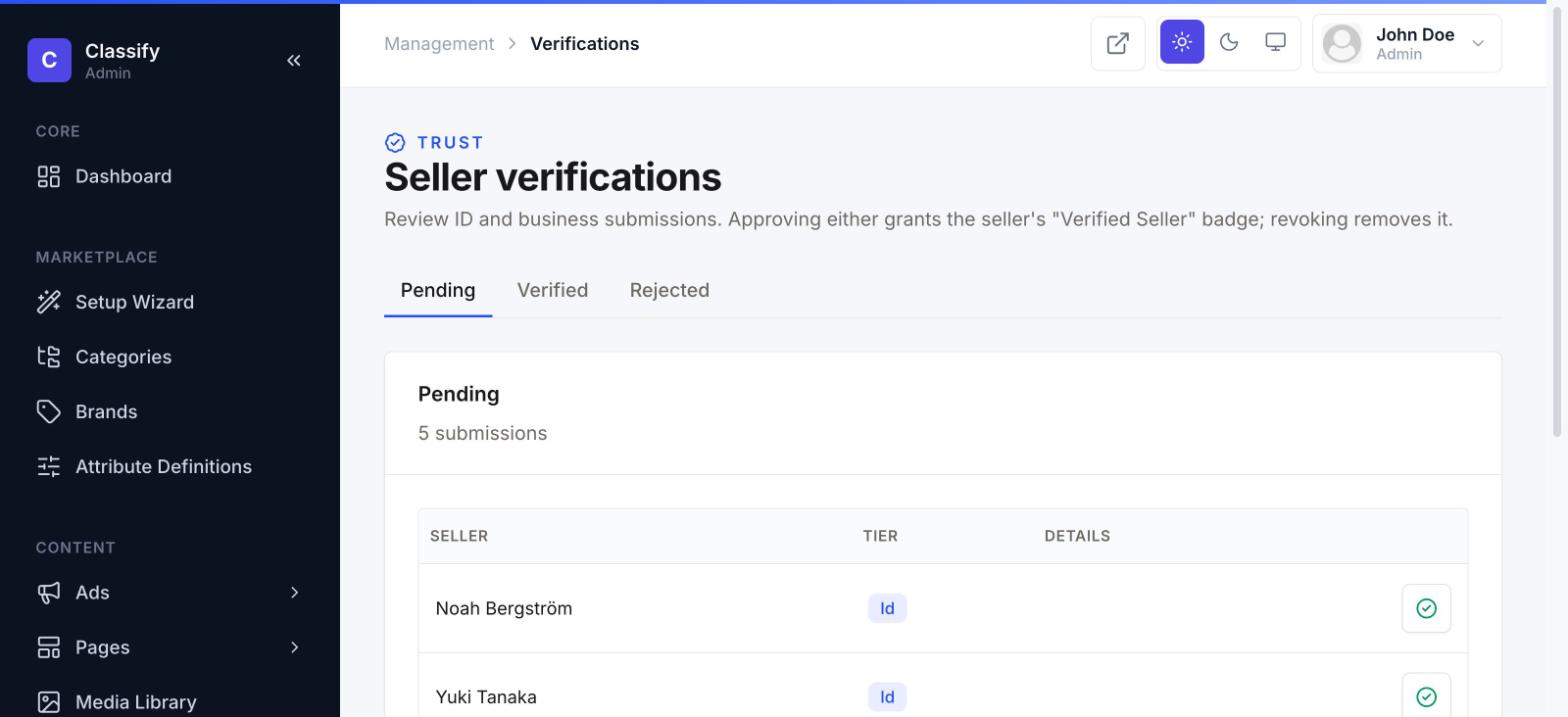
Email and phone verification are self-service and automatic (an activation link, an OTP code) — this queue is only for the two tiers that need a human to check a document: government ID and business registration.
Roles & permissions
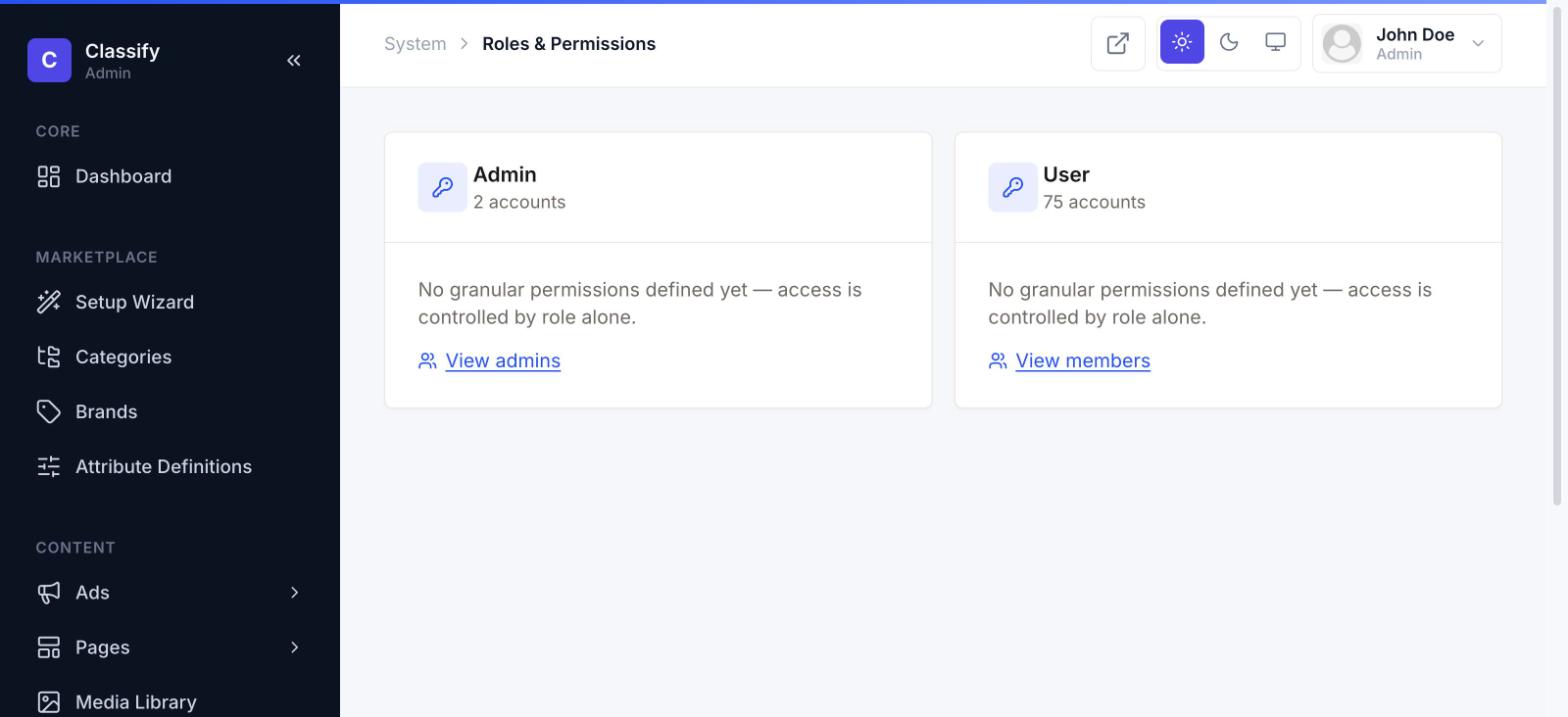
Classify ships with two roles: Admin (full access to everything under /admin) and User (the member/buyer/seller role). There's no granular permission matrix out of the box — access is controlled by role alone — but the underlying package (spatie/laravel-permission) supports finer-grained permissions if your deployment needs them.
Audit log
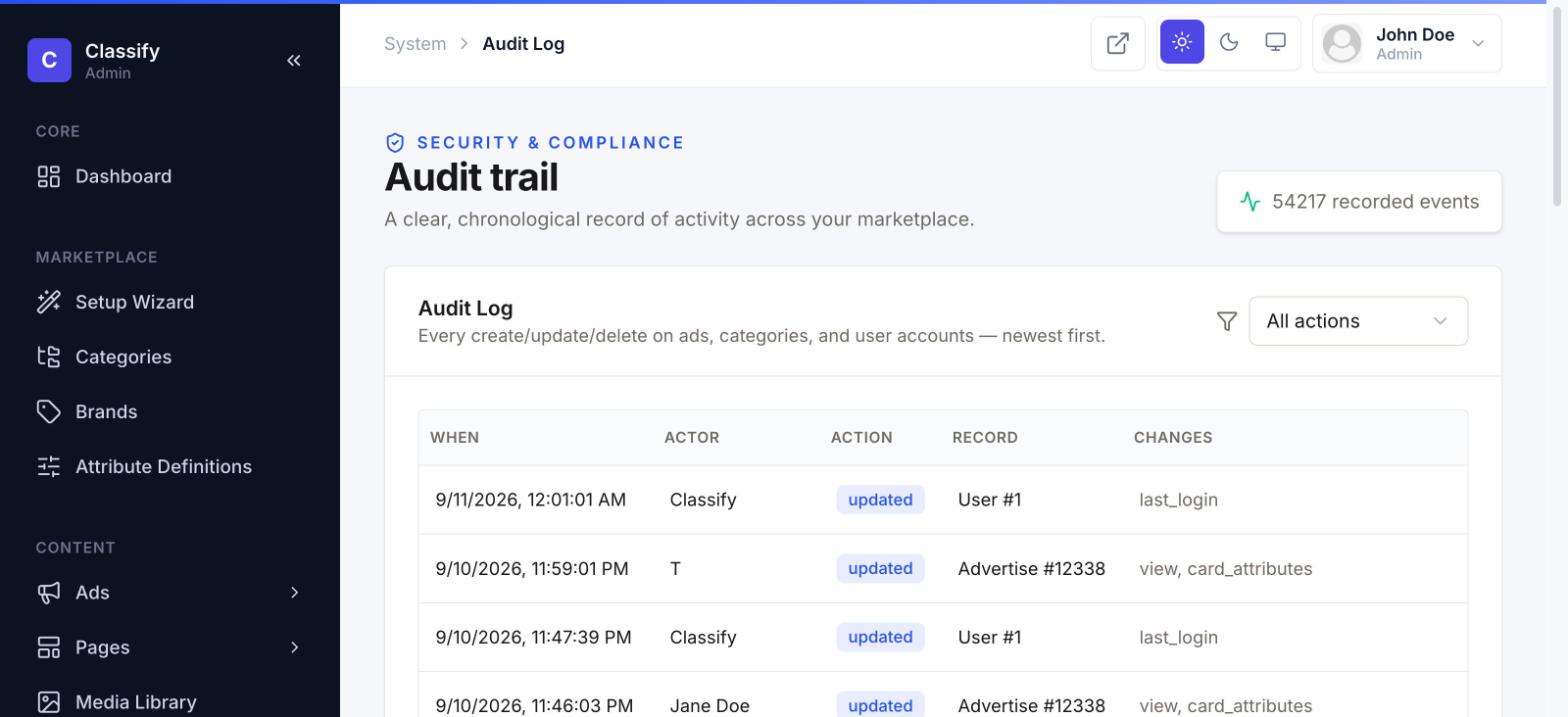
A chronological, filterable record of every create/update/delete on ads, categories, and user accounts — who changed what, and exactly which fields changed. Useful for support ("did the seller edit this after we approved it?") and for accountability when more than one admin has access.
Seller plans & boosts
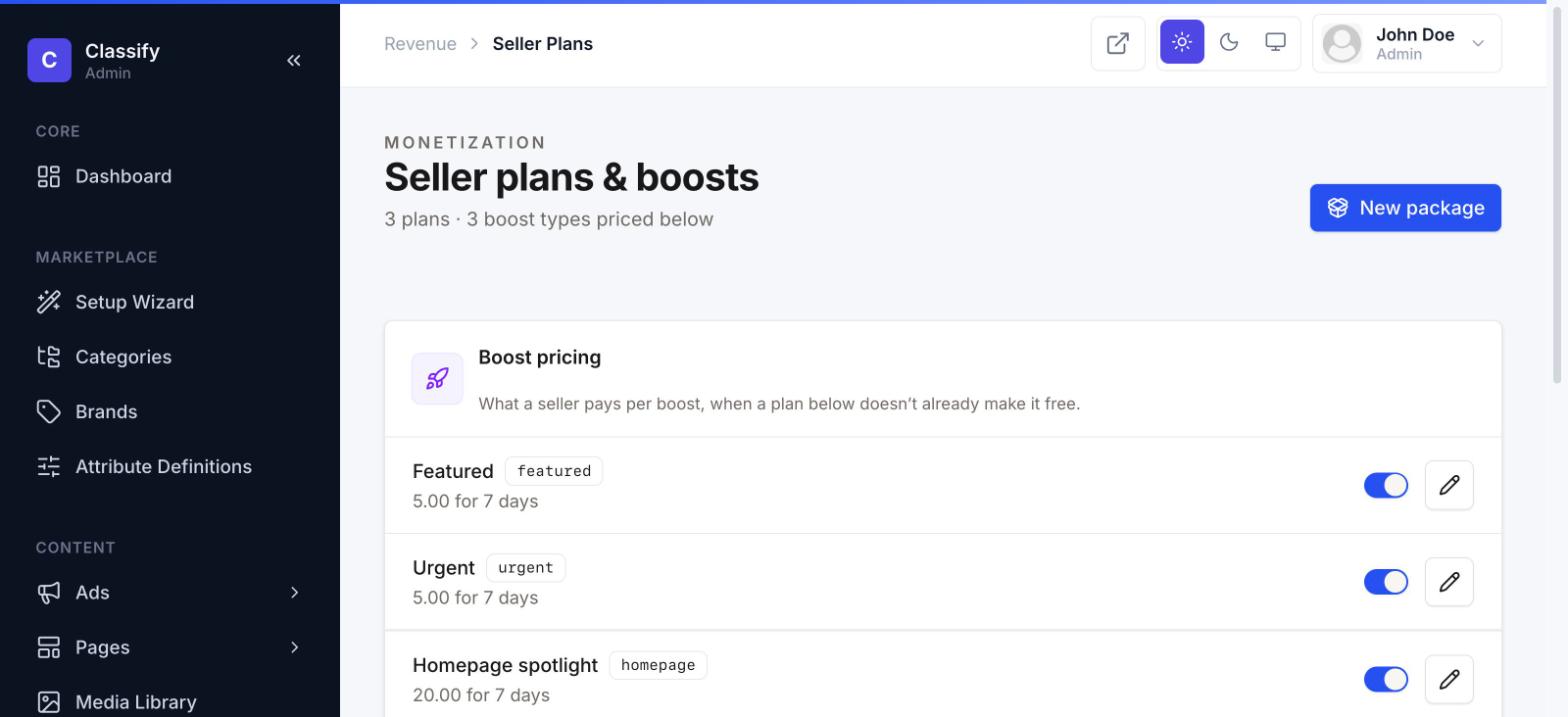
Where subscription tiers (Starter / Growth / Business, or whatever you name them) and one-off boost pricing (Featured, Urgent, Homepage spotlight) are configured. A plan bundles a listing quota, a photo limit, and which boost types it makes free-and-unlimited; boost pricing here is what a seller pays per promotion when their plan doesn't already cover it.
Coupons
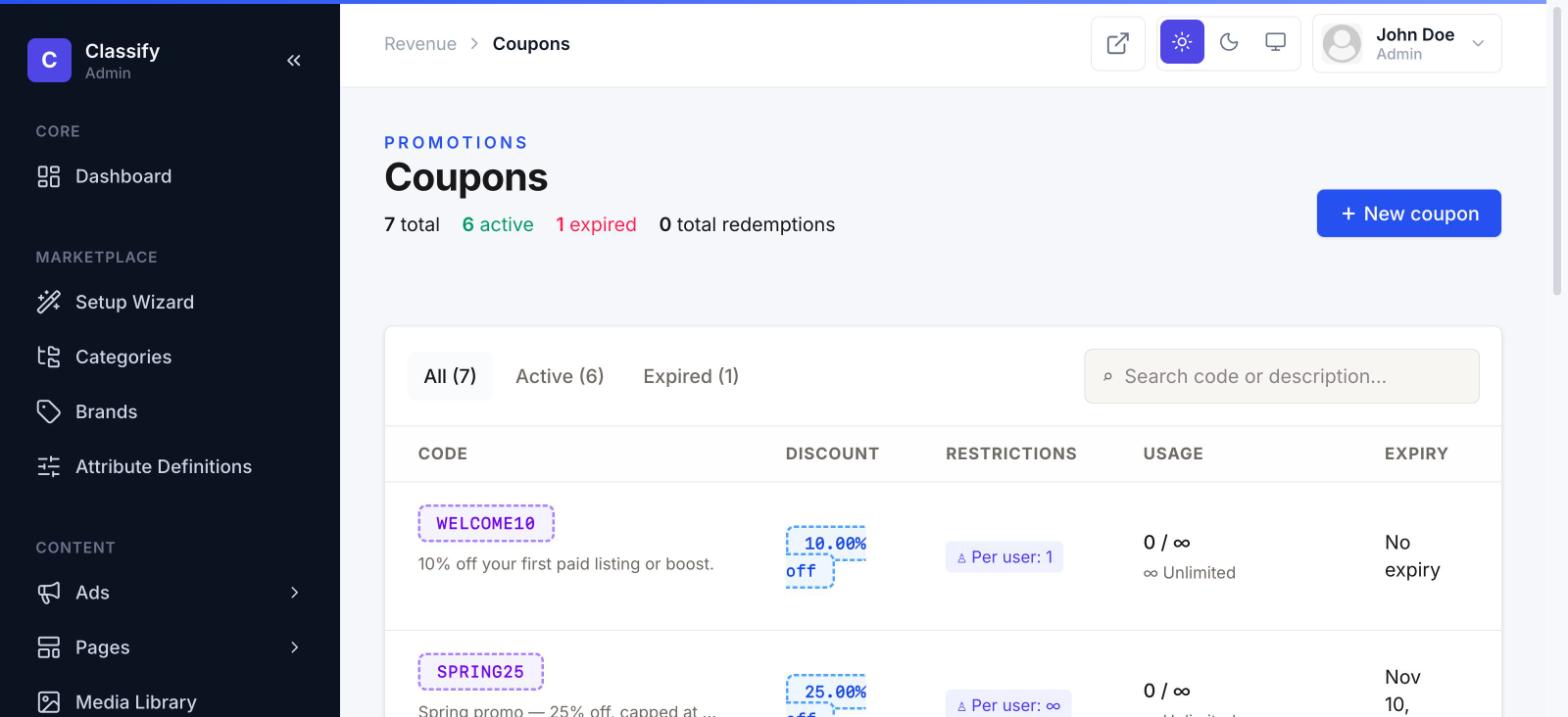
Percentage or fixed-amount discount codes, scoped to plan subscriptions, with optional per-user usage limits, a total redemption cap, and an expiry date. Applied at checkout — on both the wallet-balance and card-payment paths — through a single shared validation service, so a coupon behaves identically no matter which payment method a buyer chooses.
Monetize your site
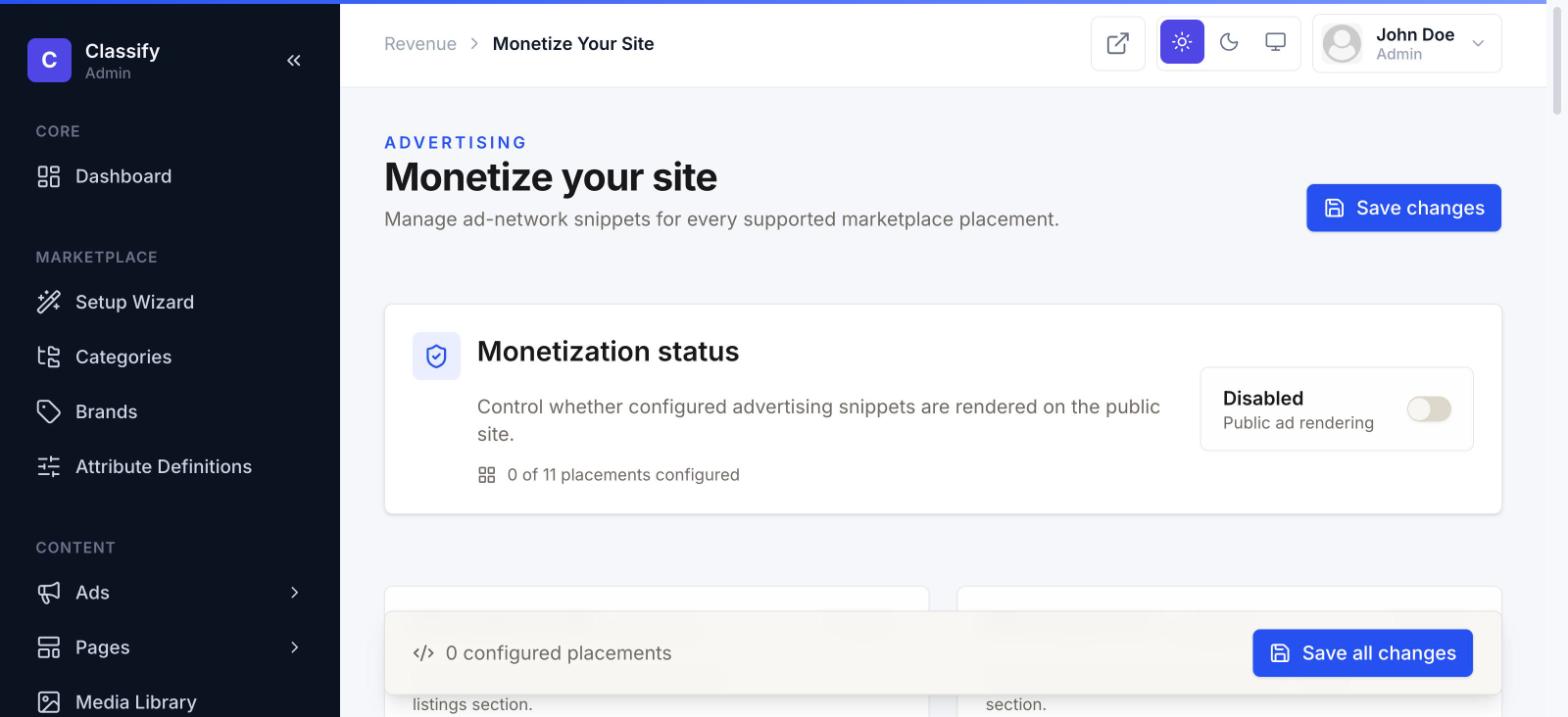
Not to be confused with Seller Plans above — this page manages third-party ad-network snippets (e.g. AdSense) rendered into fixed placements around the public site: below the premium listings section, below the regular listings section, and other marked slots. A master switch turns all configured placements on or off at once.
Payment history
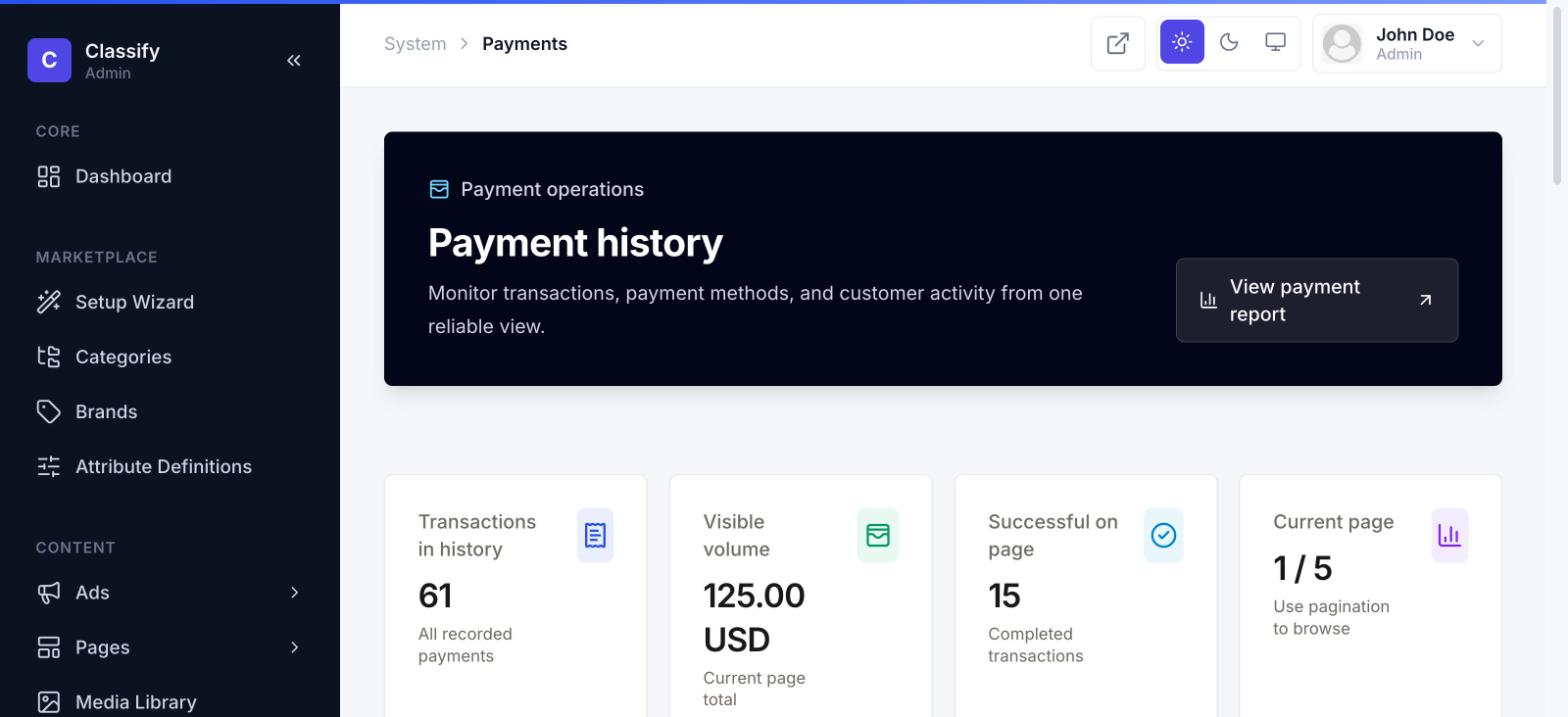
Every transaction processed through the site — listing payments, subscription charges, boost purchases, wallet top-ups — with customer, listing, amount, payment method, and status, all in one searchable table.
Settings
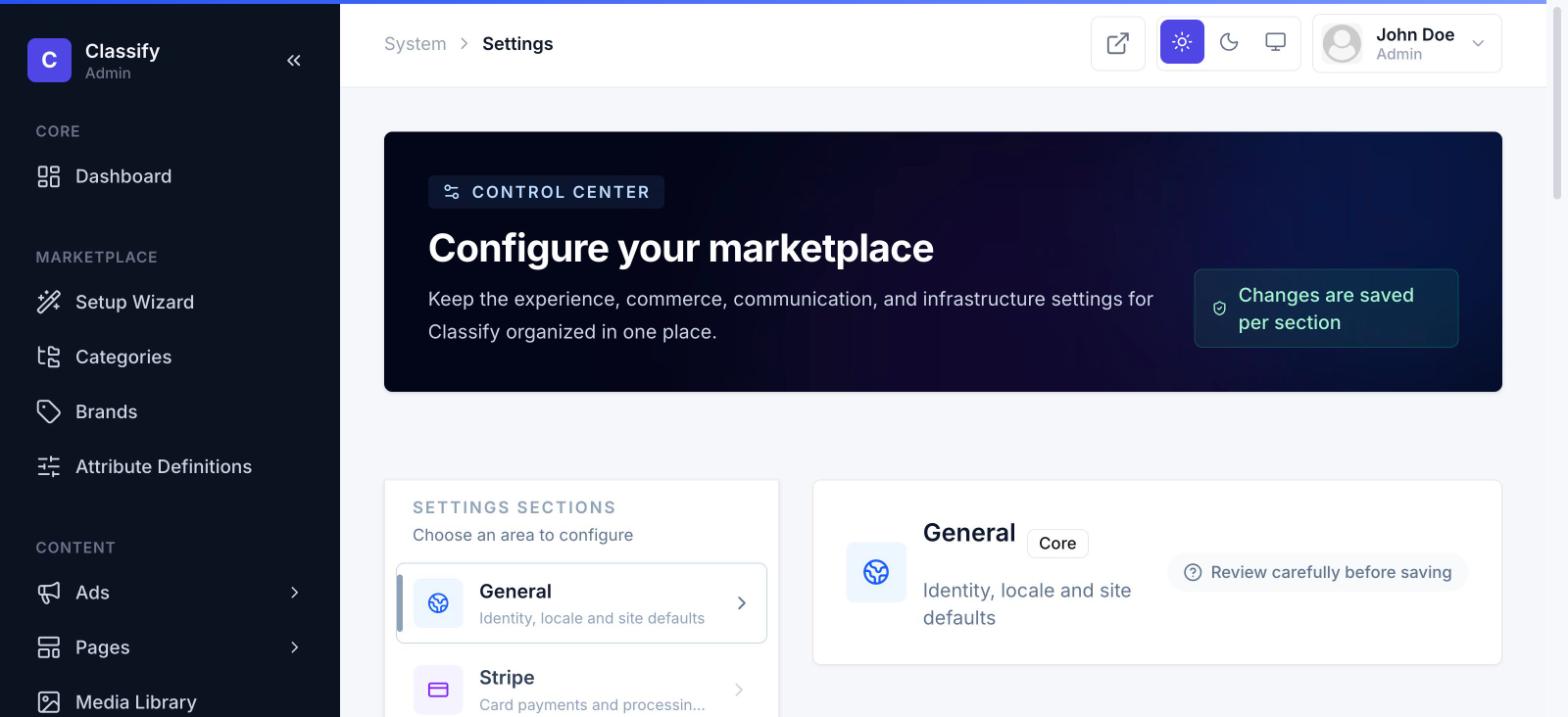
The marketplace's control center, organized into sections: General (site identity, locale, defaults), Stripe (payment keys), Email delivery (SMTP connection, with a "send test" button), Social links, Newsletter (Mailchimp), and more. Each section saves independently.
API keys & the REST API
Classify ships a read-only REST API (v1) exposing published listings, categories, locations, and top sellers — for a mobile app, a partner integration, or anything else that needs marketplace data outside the site itself. Authentication is a single X-Api-Key header, no OAuth flow.
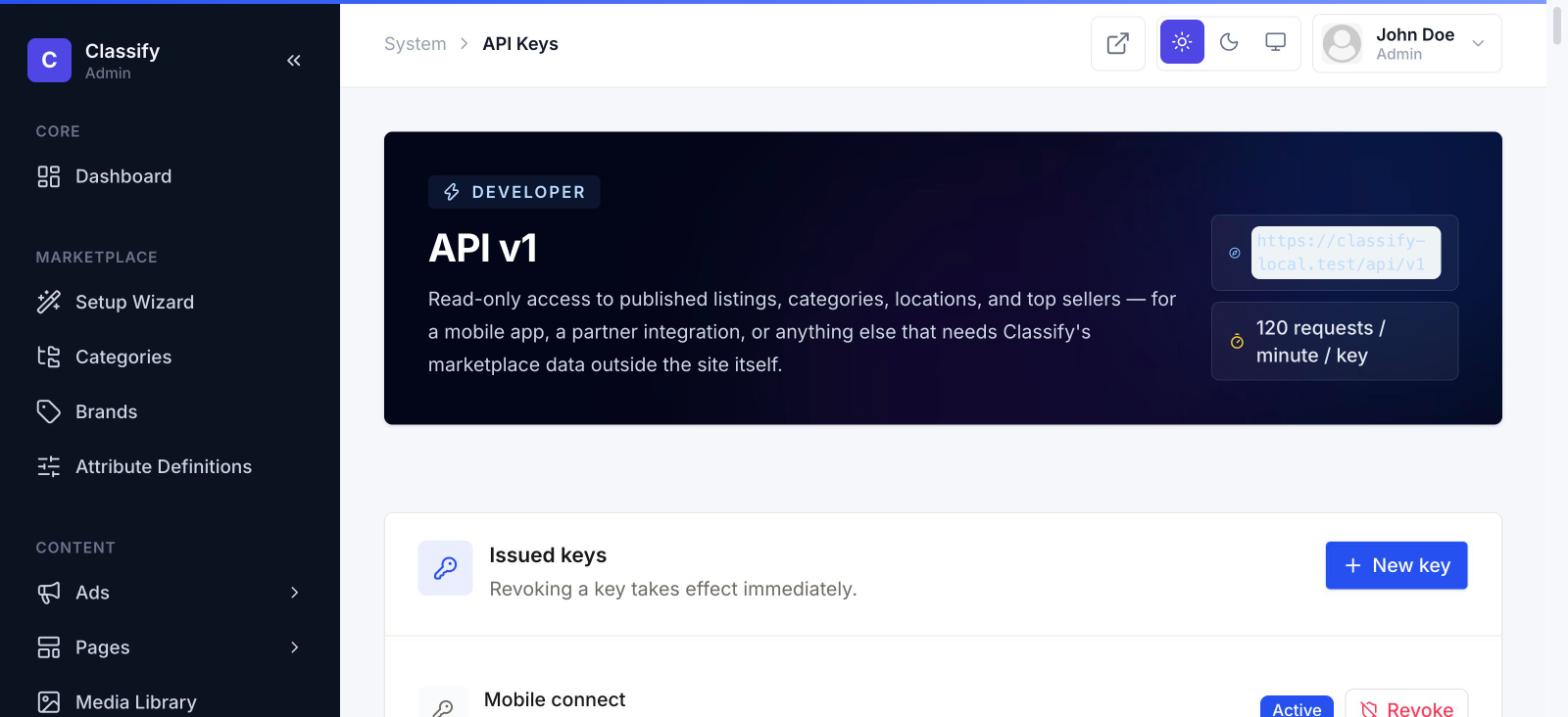
The page itself doubles as documentation: every endpoint is listed with a live, verified example request and response, plus copy-ready sample code in both PHP and cURL, so integrating doesn't require leaving the admin panel.
Global styles & starter presets
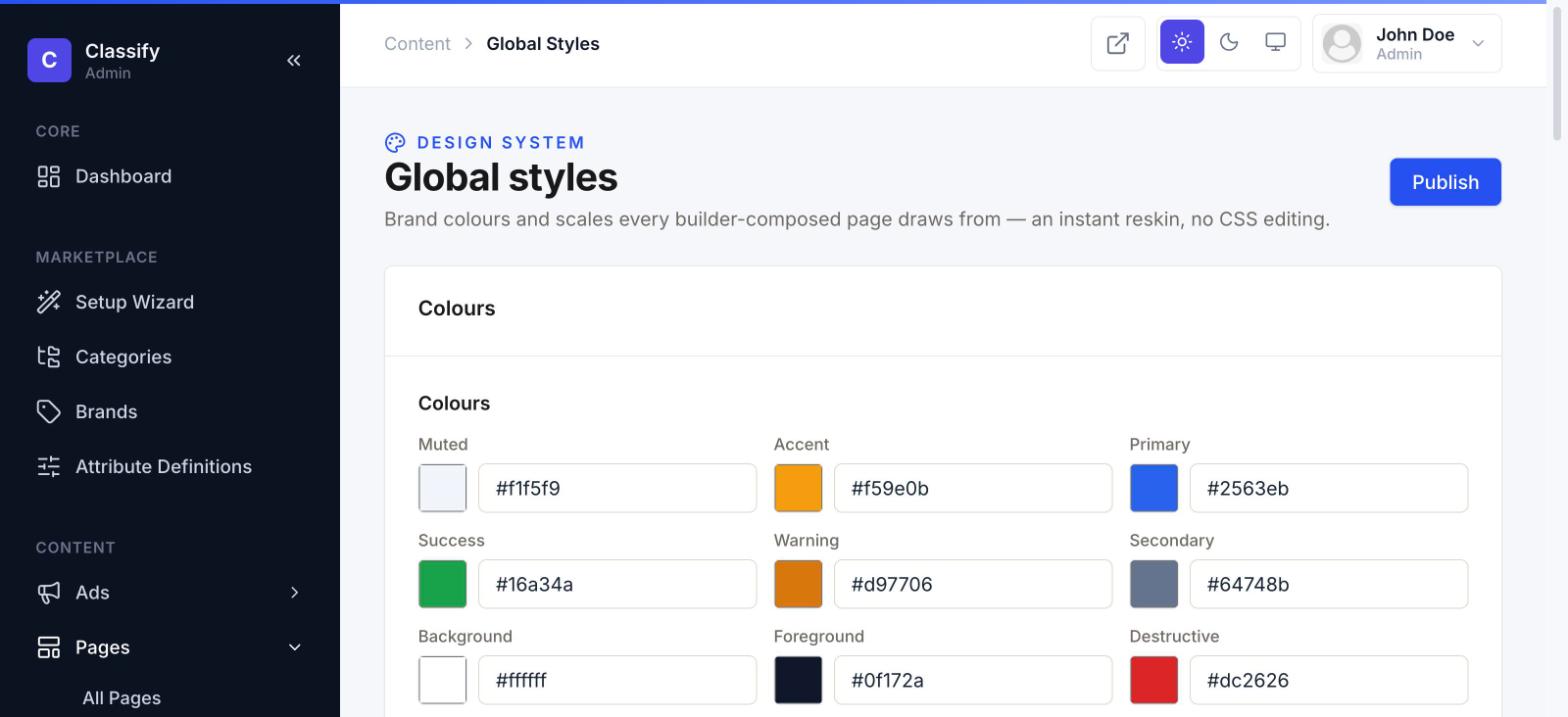
Global styles is the design system every page-builder-composed page draws its colors and spacing scale from — change a color token here and it updates everywhere that token is used, no CSS editing required.
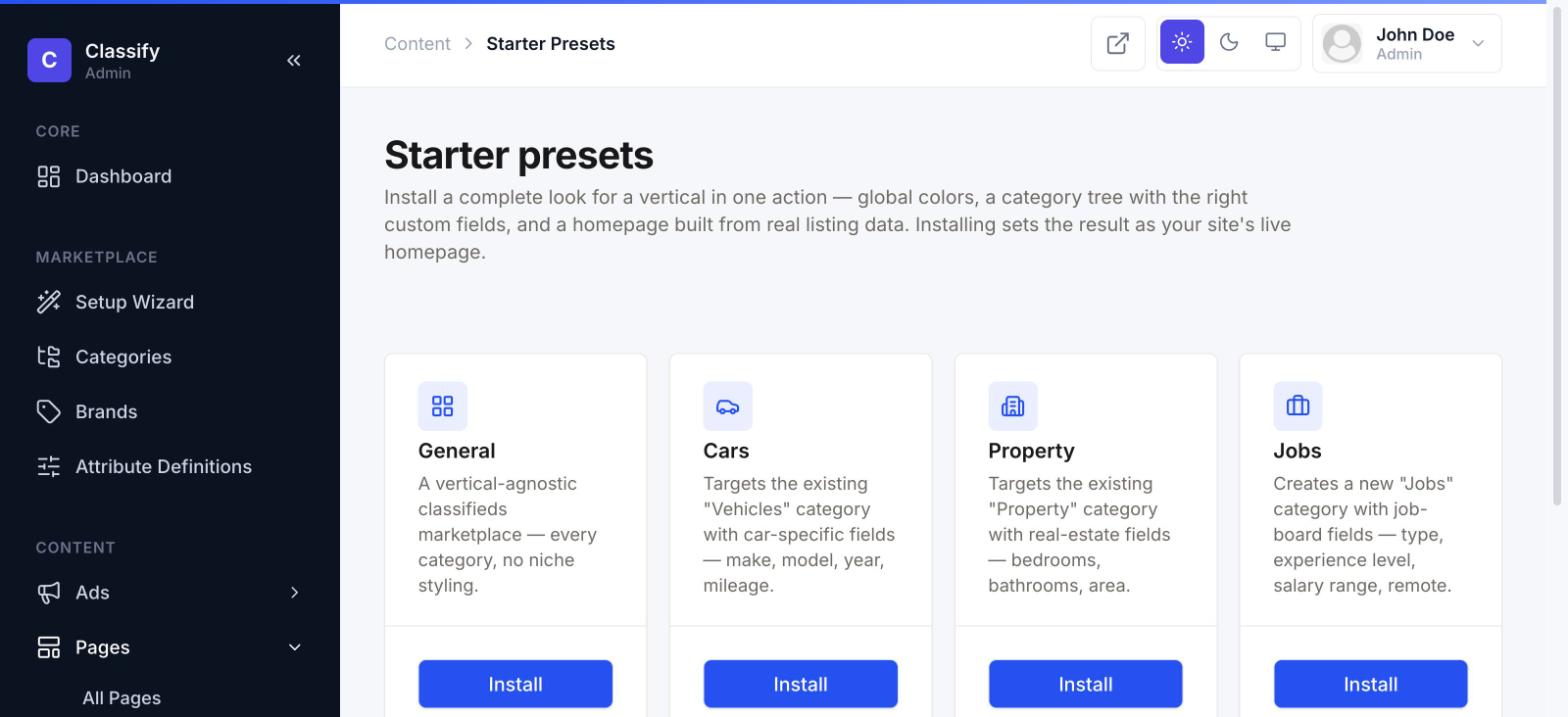
Starter presets installs a complete look for a specific vertical in one action — a matching color palette, a category tree with the right custom fields already defined, and a homepage built from real listing data. Installing one replaces your site's live homepage, so it's meant for early setup, not something to click through casually on a live site.