LaraPodcast Docs
Documentation
Everything you need to install, configure, and run your own self-hosted podcast client.
Introduction
LaraPodcast is a single-tenant, self-hosted podcast client built with Laravel, Inertia, and React. Subscribe to shows by pasting a feed URL or by describing one to an AI provider, keep an unread queue across every subscription, favorite episodes, and listen with a player that keeps going as you move between pages.
This isn't a multi-tenant SaaS platform — there's one shared library per install, and every signed-in user sees the same dashboard, queue, and settings. If you want a clean, private podcast player for yourself, a household, or a small team, this is that, and nothing heavier.
Requirements
Server
- PHP 8.3 or newer
- MySQL 5.7+ / MariaDB equivalent
- Composer (a pre-built
vendor/folder is already included)
PHP extensions
- ctype, curl, dom, fileinfo
- gd — processes podcast artwork & profile photos
- mbstring, openssl, pdo_mysql, tokenizer, xml, zip
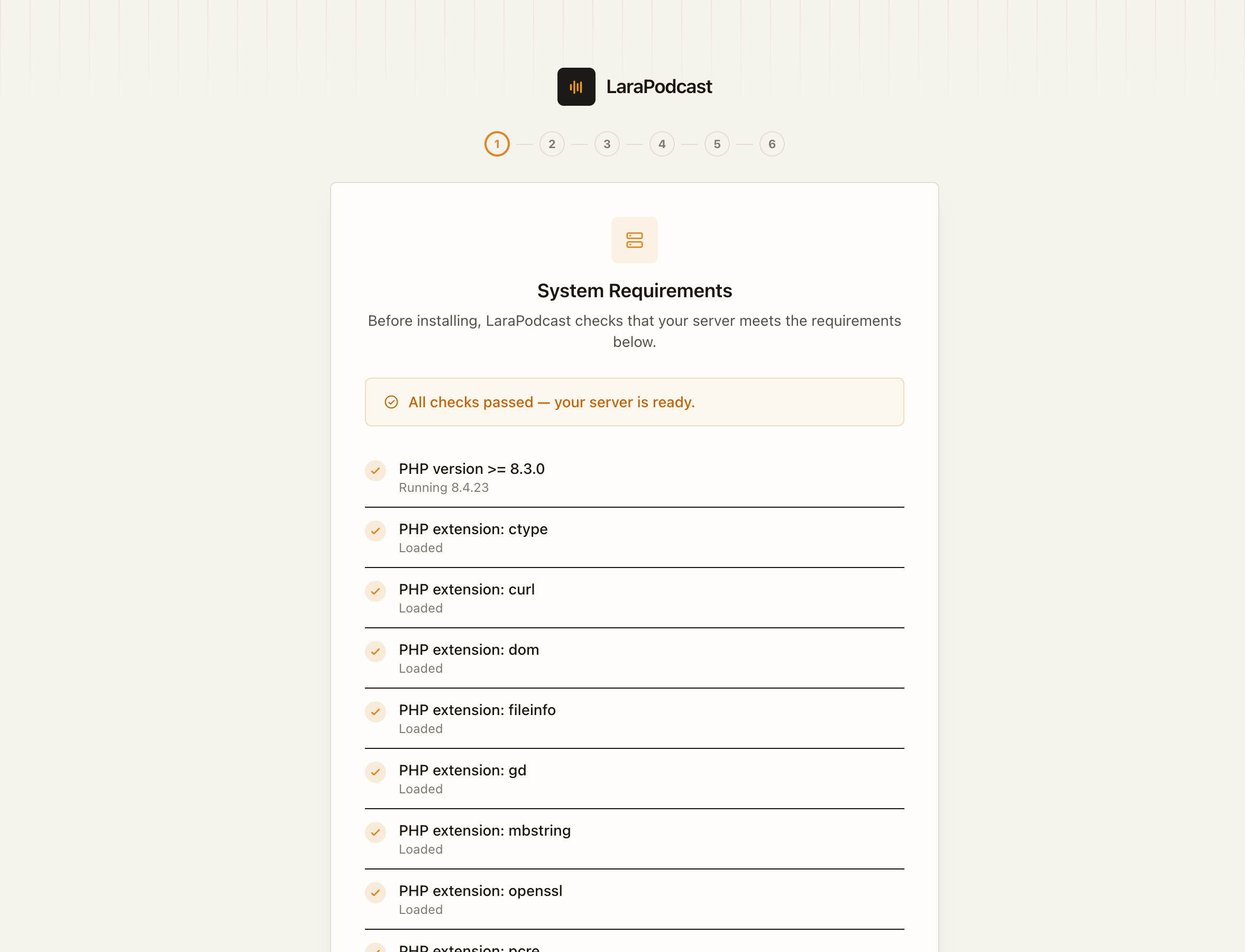
The installer checks all of the above automatically and won't let you continue until they pass.
Installation
Upload, point your domain at it, and the installer does the rest — six steps, one screenshot each.
Before you start
- Upload the contents of this package to your server.
- Point your domain (or a subdomain) at the
public/folder as its document root. - Make sure these are writable by the web server:
storage/,bootstrap/cache/,public/images/, and the.envfile itself —chmod -R 775on all four if you're not sure. - Visit your domain in a browser. You'll land on
/installautomatically.
Can't set a custom document root? The included root .htaccess redirects requests into public/ automatically on most Apache setups.
Step 1 — System Requirements
Checks your PHP version, required extensions, and that the necessary folders and .env are writable. Every check must pass before Continue unlocks.
Step 2 — Purchase Code
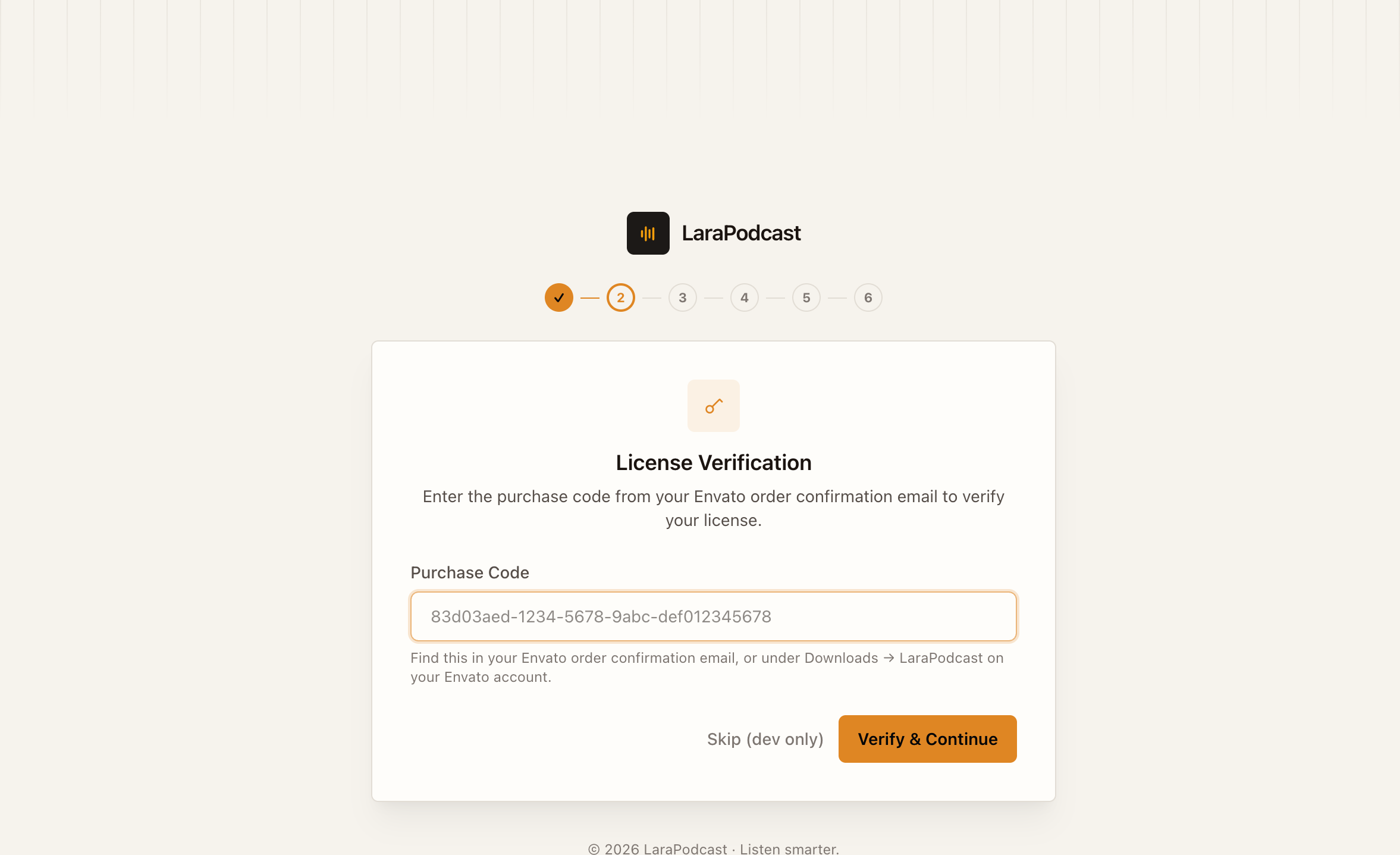
Paste the purchase code from your Envato order confirmation email. It's verified against Envato's API before you can continue — see Troubleshooting if it won't verify.
Step 3 — Database
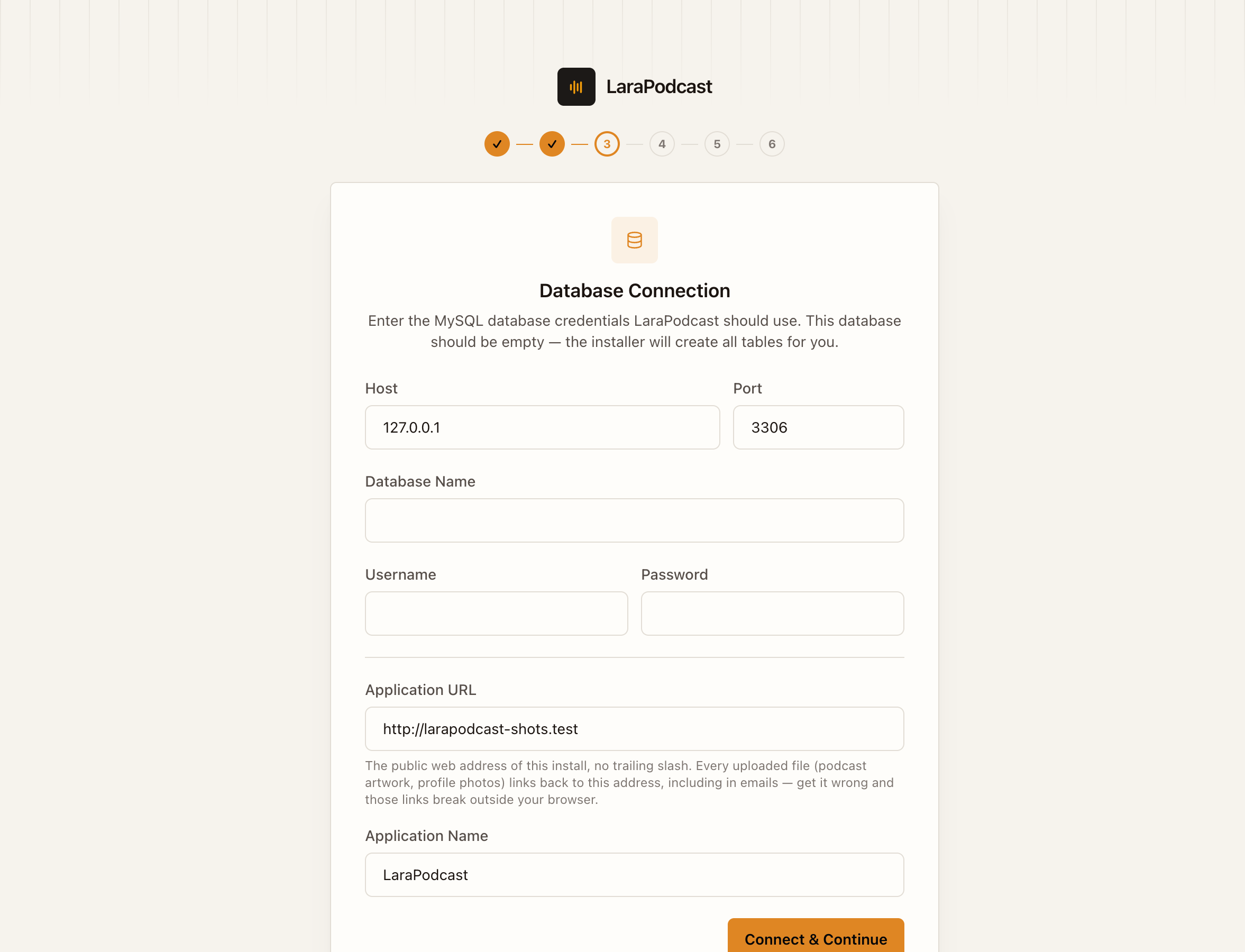
Enter your MySQL host, port, database name, username, and password, plus the application URL and name. The installer tests the connection before writing anything to .env.
Step 4 — Admin Account
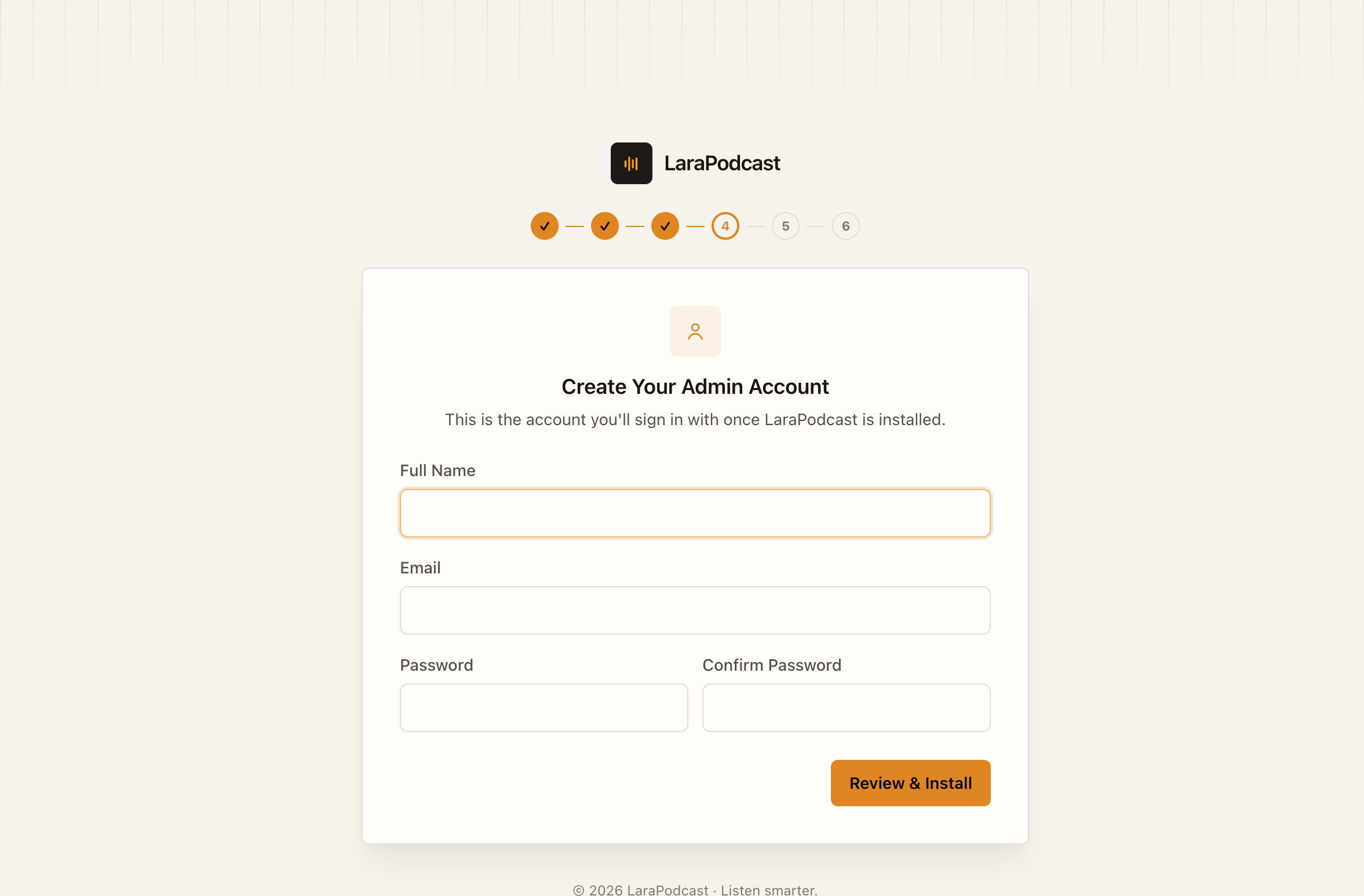
The name, email, and password you'll actually sign in with once setup finishes.
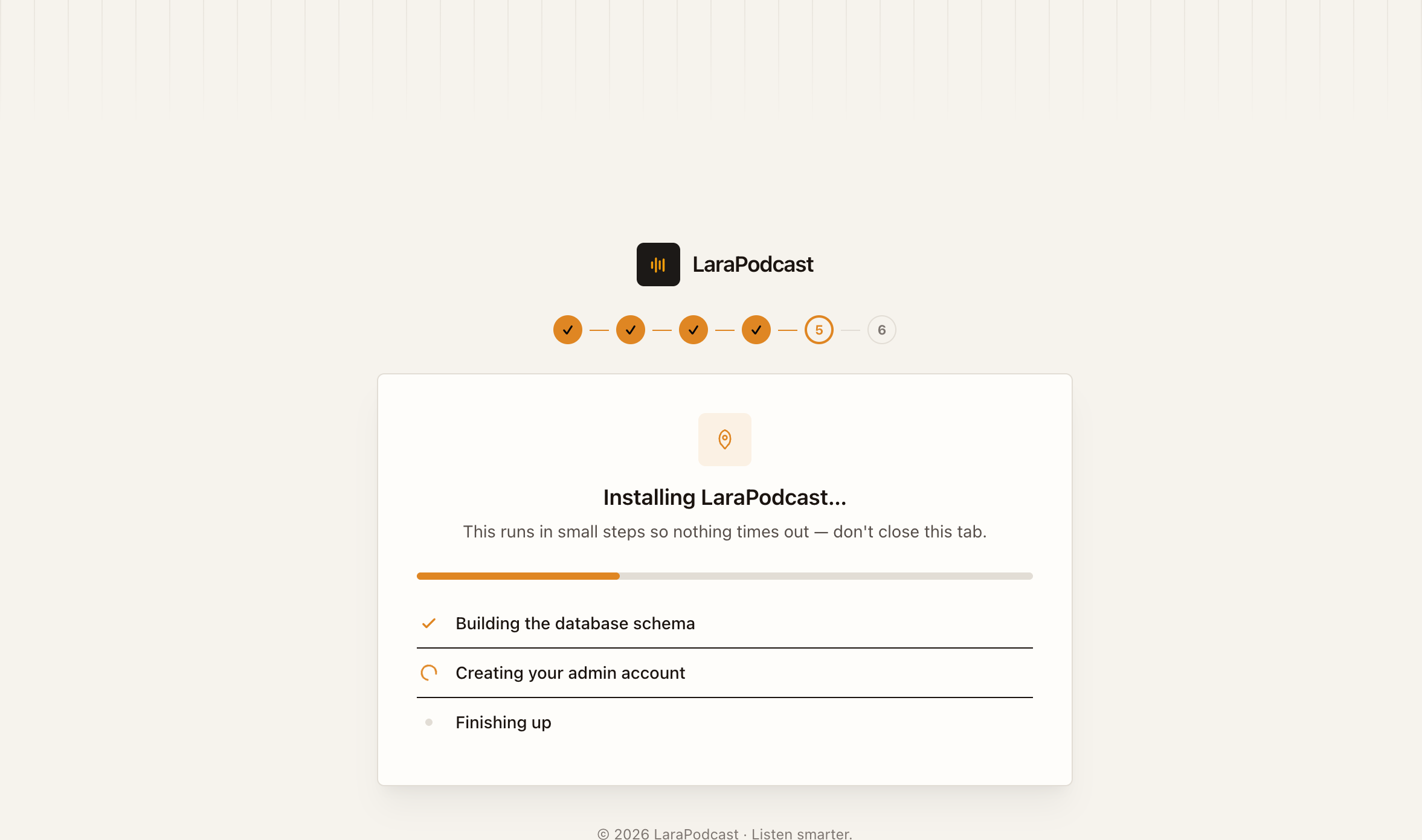
Step 5 — Installing
Runs migrations, creates your admin account, and locks the installer — each in its own request so nothing times out. If a step fails, fix the cause and hit Retry; it resumes from that step.
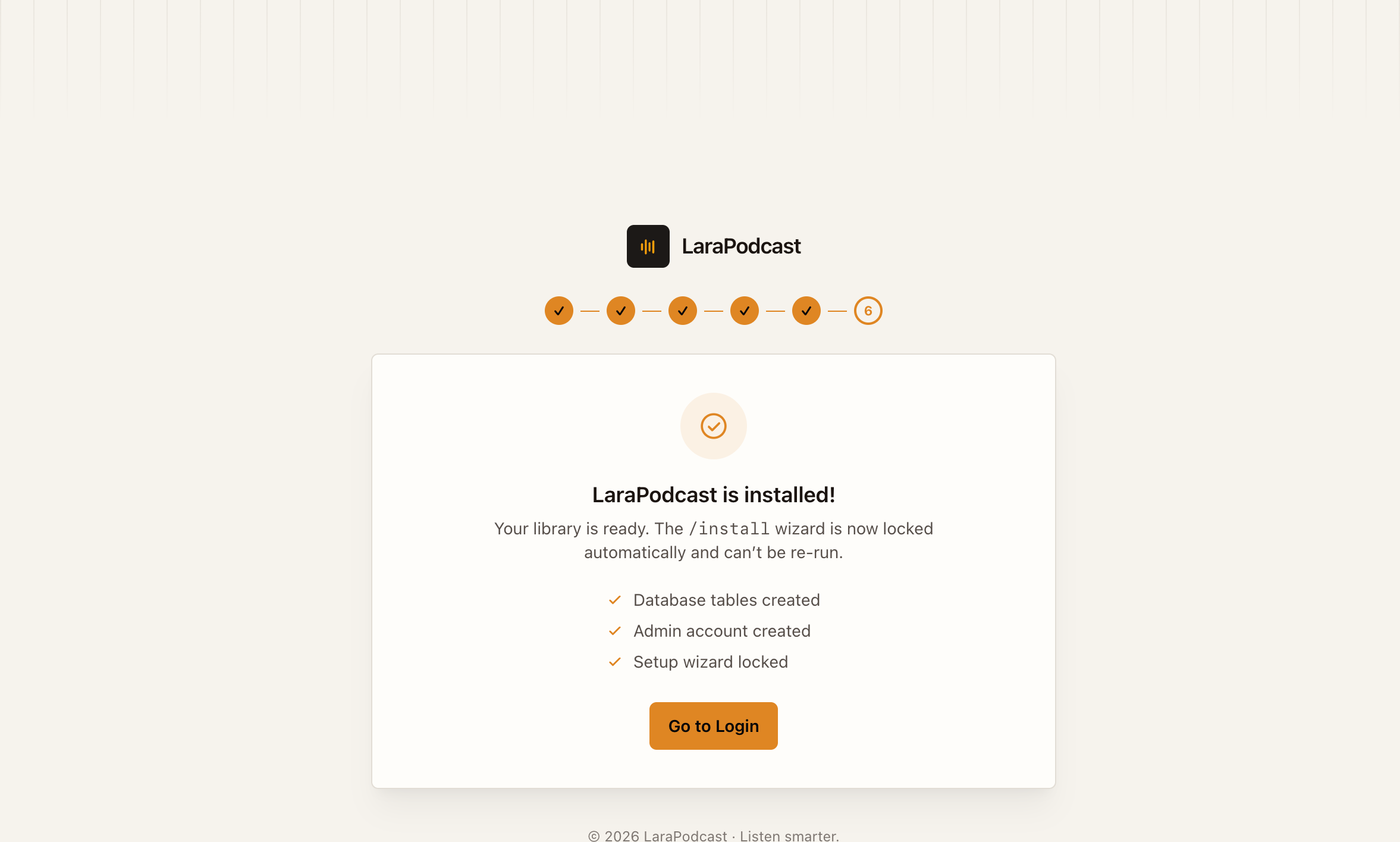
Step 6 — Finish
Setup is complete and /install is now locked — visiting it again redirects straight to /login.
Scheduled Sync (Cron)
One cron entry makes LaraPodcast pull new episodes in on its own, twice a day.
LaraPodcast schedules its own sync internally (Schedule::command('updatePodcastItems')->twiceDaily()
in routes/console.php), but Laravel's scheduler only ever runs when something calls
php artisan schedule:run — and on a real server, that something is a cron job. Without
it, episodes only refresh when someone manually clicks the sync button in the header.
cPanel
- Log in to cPanel and open Cron Jobs (under the Advanced section).
- Under Add New Cron Job, set Common Settings to
*/1 * * * *(“Once Per Minute”) — this is correct and expected. The cron fires every minute; Laravel's own scheduler decides internally whether the twice-daily sync is actually due. -
In Command, enter (adjust the path to your actual install directory):
cd /home/YOURUSER/public_html && php artisan schedule:run >> /dev/null 2>&1 - Click Add New Cron Job to save it.
php
— check cPanel's Select PHP Version page or ask your host for it (commonly something
like /usr/local/bin/ea-php83), and use that in place of php above.
Plain crontab (VPS / SSH access)
Run crontab -e and add:
* * * * * cd /path/to/larapodcast && php artisan schedule:run >> /dev/null 2>&1Verifying it's working
- Run
php artisan schedule:runby hand once via SSH — it should exit with no errors. - Check
storage/logs/laravel.logfor anything unexpected after the cron has had a chance to fire. - The sync button in the header still works manually at any time, cron or not — useful for confirming the sync logic itself is fine while you debug the cron entry.
Updating
There's no in-app auto-updater. Back up your .env and database, replace
app/, bootstrap/, config/, database/,
public/, resources/, and routes/ with the new version's
(keep your own .env), then run:
php artisan migrate --force
php artisan config:clear
Check CHANGELOG.md for what changed before updating.
Feature
Dashboard
Library totals, an up-next queue, and your subscribed shows — the first thing you see.
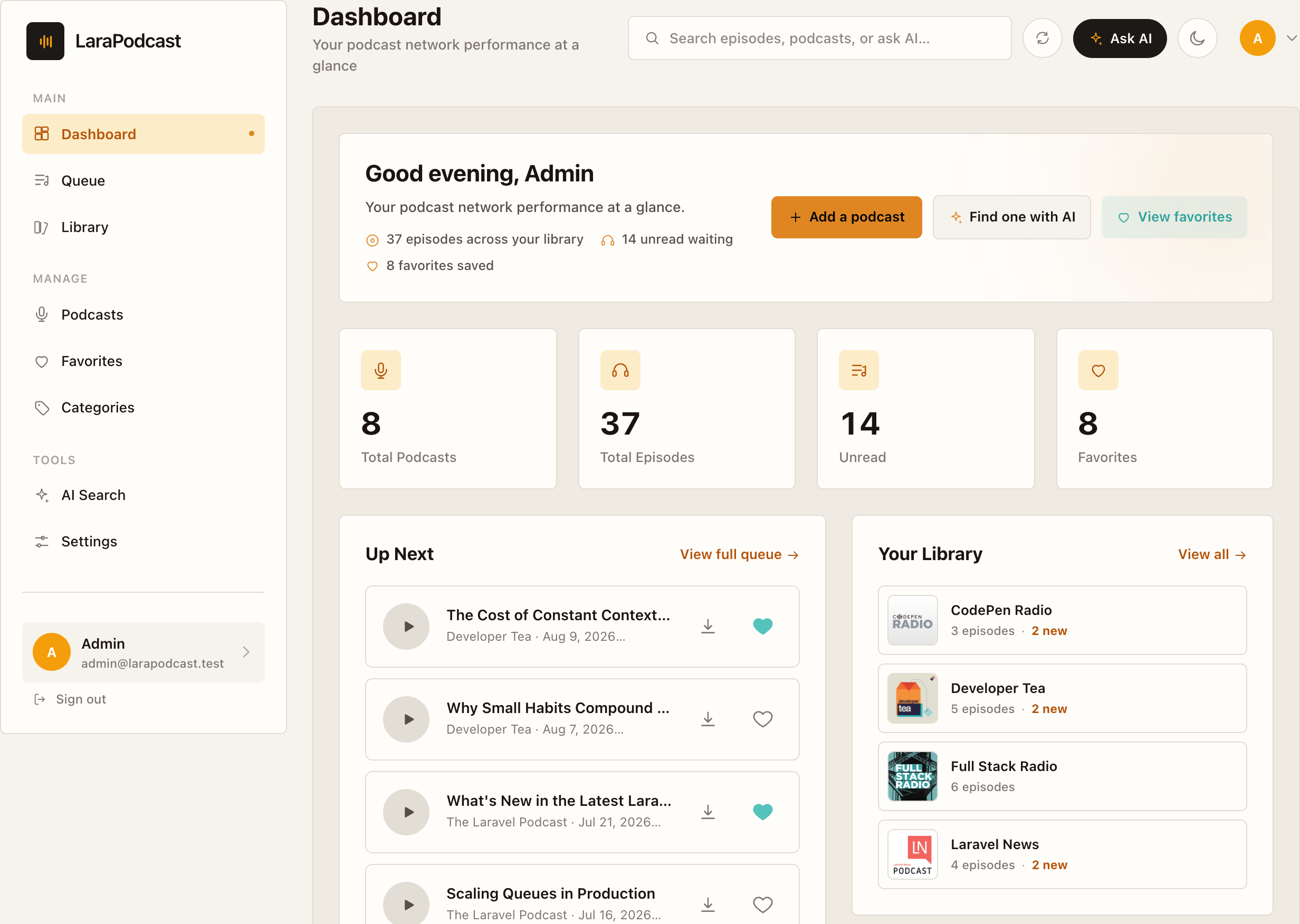
The dashboard totals podcasts, episodes, unread count, and favorites at a glance, surfaces your next few unread episodes, and lists your subscribed shows — each tracked with its own episode and unread counts.
Feature
Adding Podcasts
Three ways in, all under Podcasts in the sidebar.
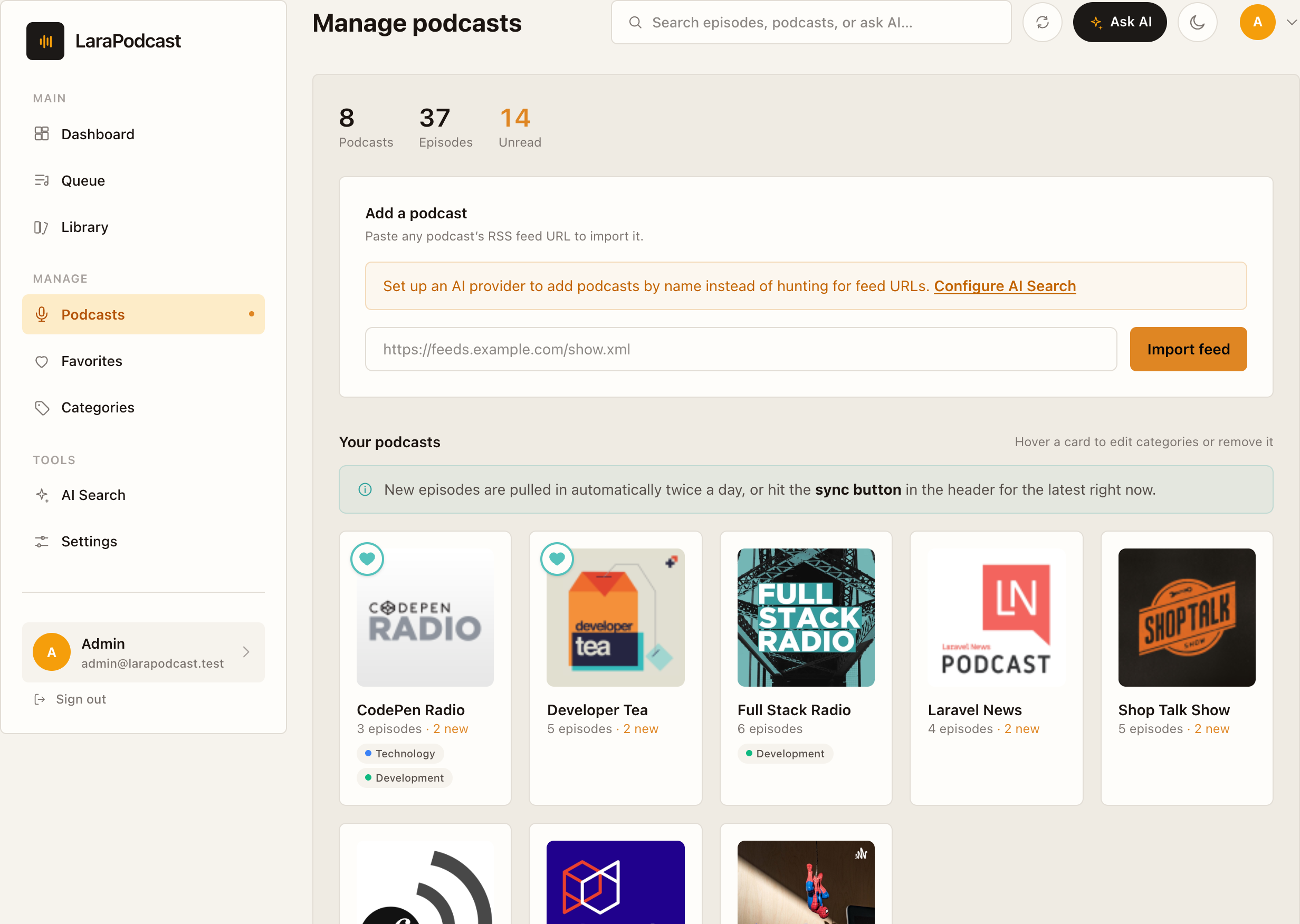
- Paste a feed URL — works immediately, no configuration needed.
- AI Search — describe a show or topic and let an AI provider find and verify a real feed for you. See AI Search below.
- Import an OPML file — bring your whole subscription list over from another podcast app in one go.
New episodes are pulled in automatically twice a day, or hit the sync button in the header for an immediate check.
Import & export (OPML)

Import OPML reads every feed URL out of the file (including nested folders some apps export) and adds each one to your library, same as pasting its URL by hand — a podcast you already follow is silently skipped, and an unreachable feed is skipped with the rest still importing. Export OPML downloads your current subscriptions as a standard OPML file, ready to import into any other podcast app.
Feature
Queue, Library & Favorites
Three ways to browse what you're subscribed to.
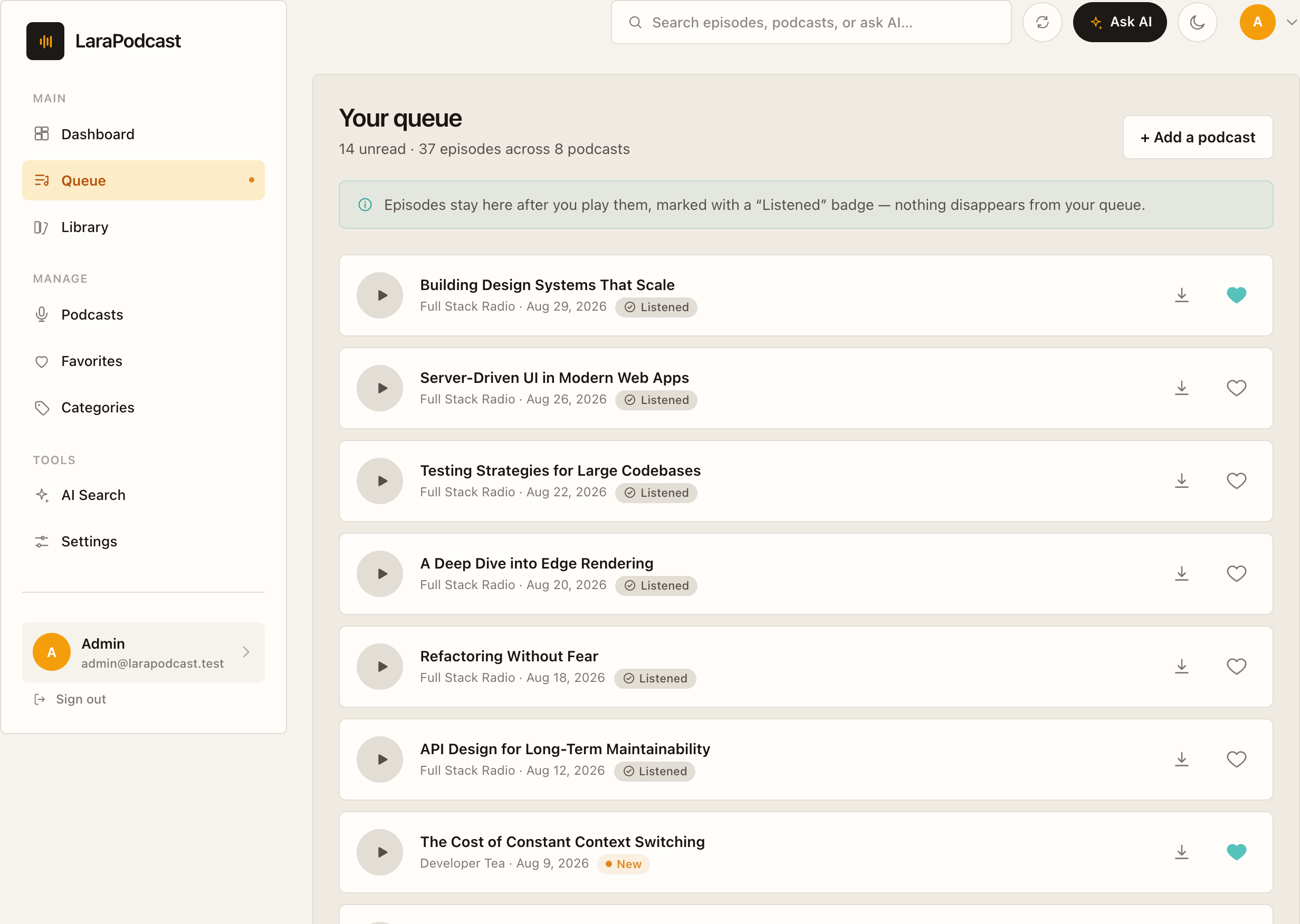
Queue lists every episode across all subscriptions, newest first. Nothing disappears once you play it — it just picks up a Listened badge, so your history stays visible instead of vanishing from the list.
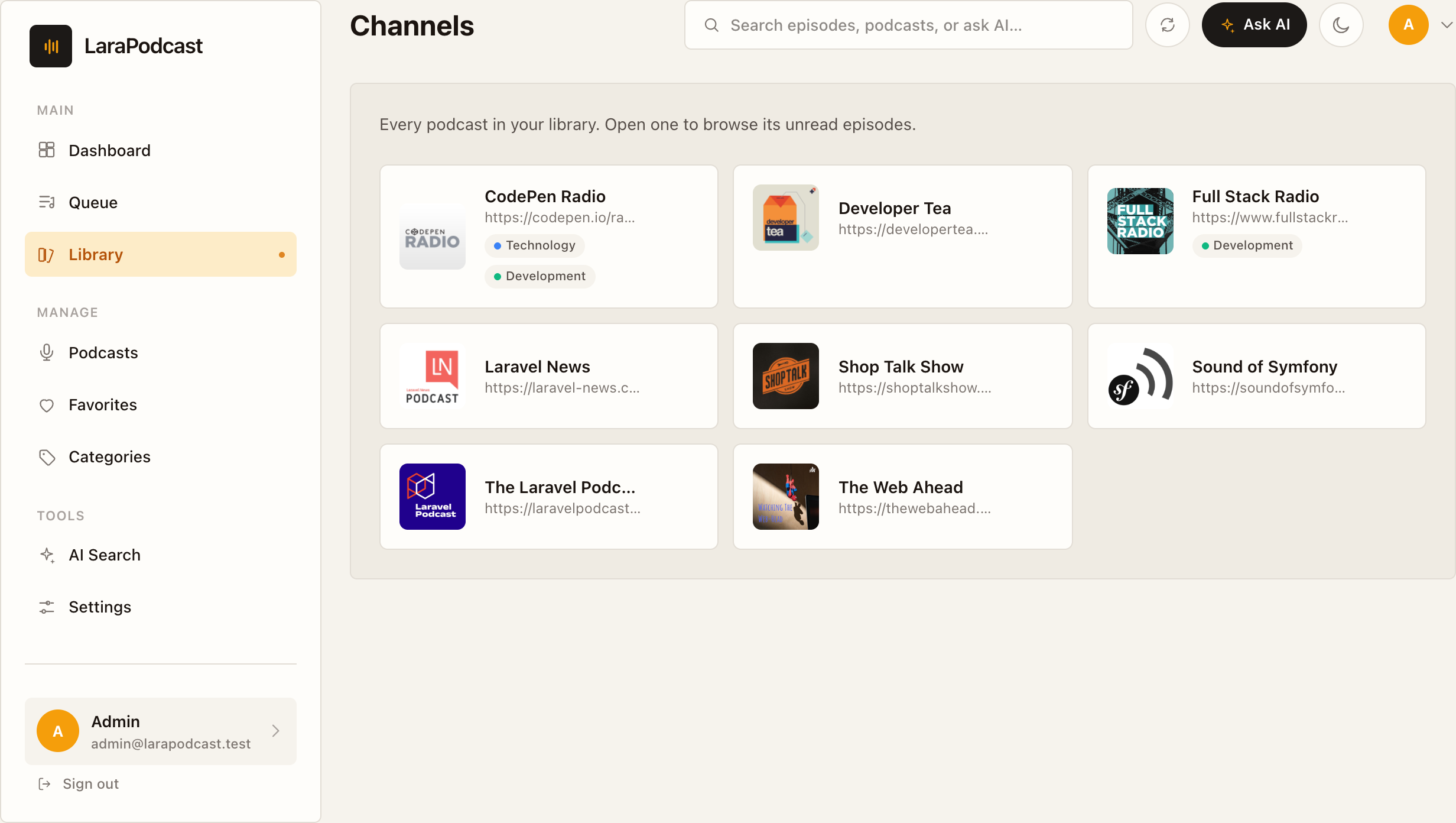
Library lists every podcast you follow — open one to see just its own episodes. Hover a card to favorite the whole channel, edit its categories, or remove it entirely.
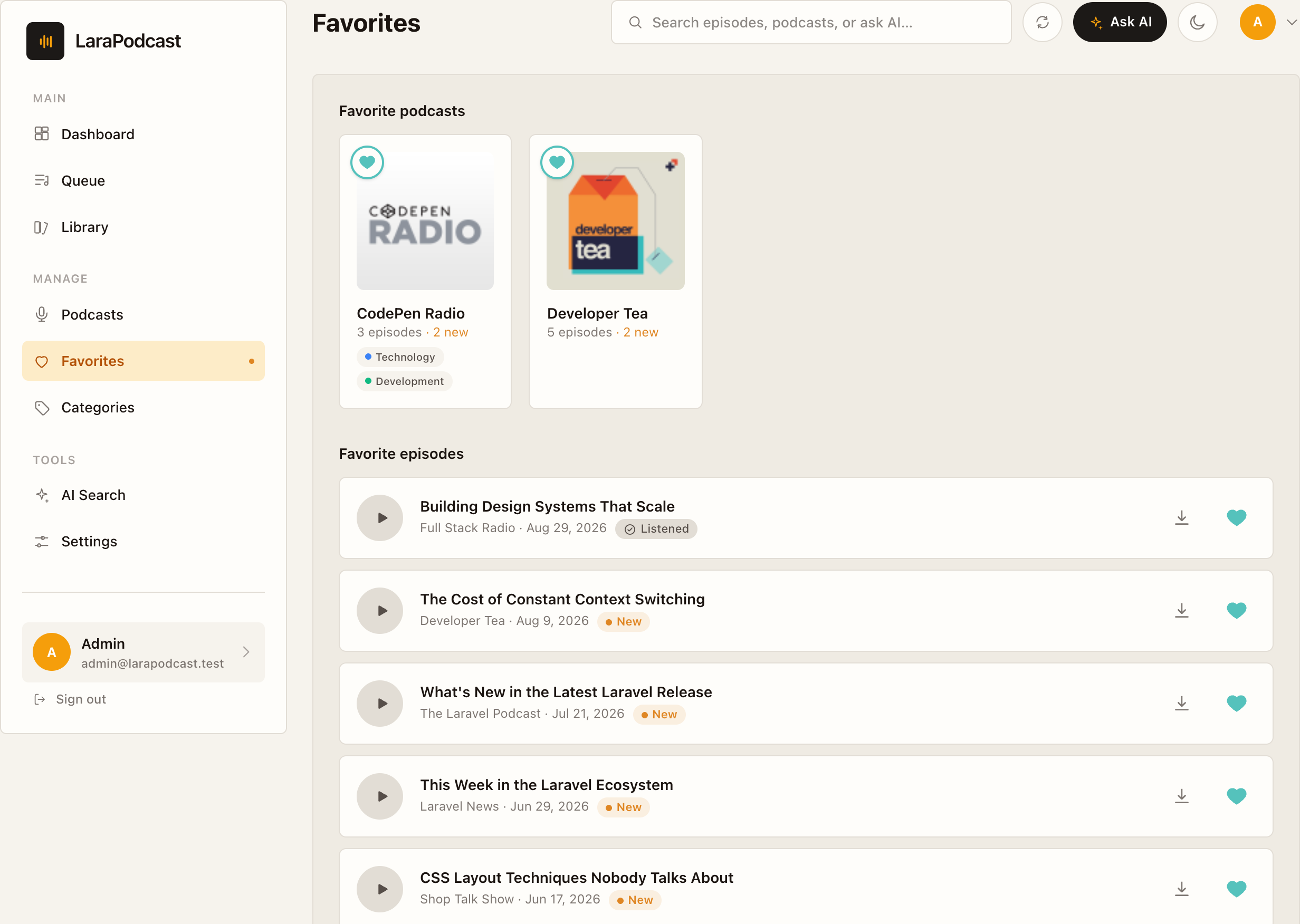
Favorites (in the sidebar) has two independent lists: podcasts you've favorited as a whole channel, and individual episodes you've starred regardless of whether they're listened to.
Feature
Categories
Group your podcasts into topics you care about.
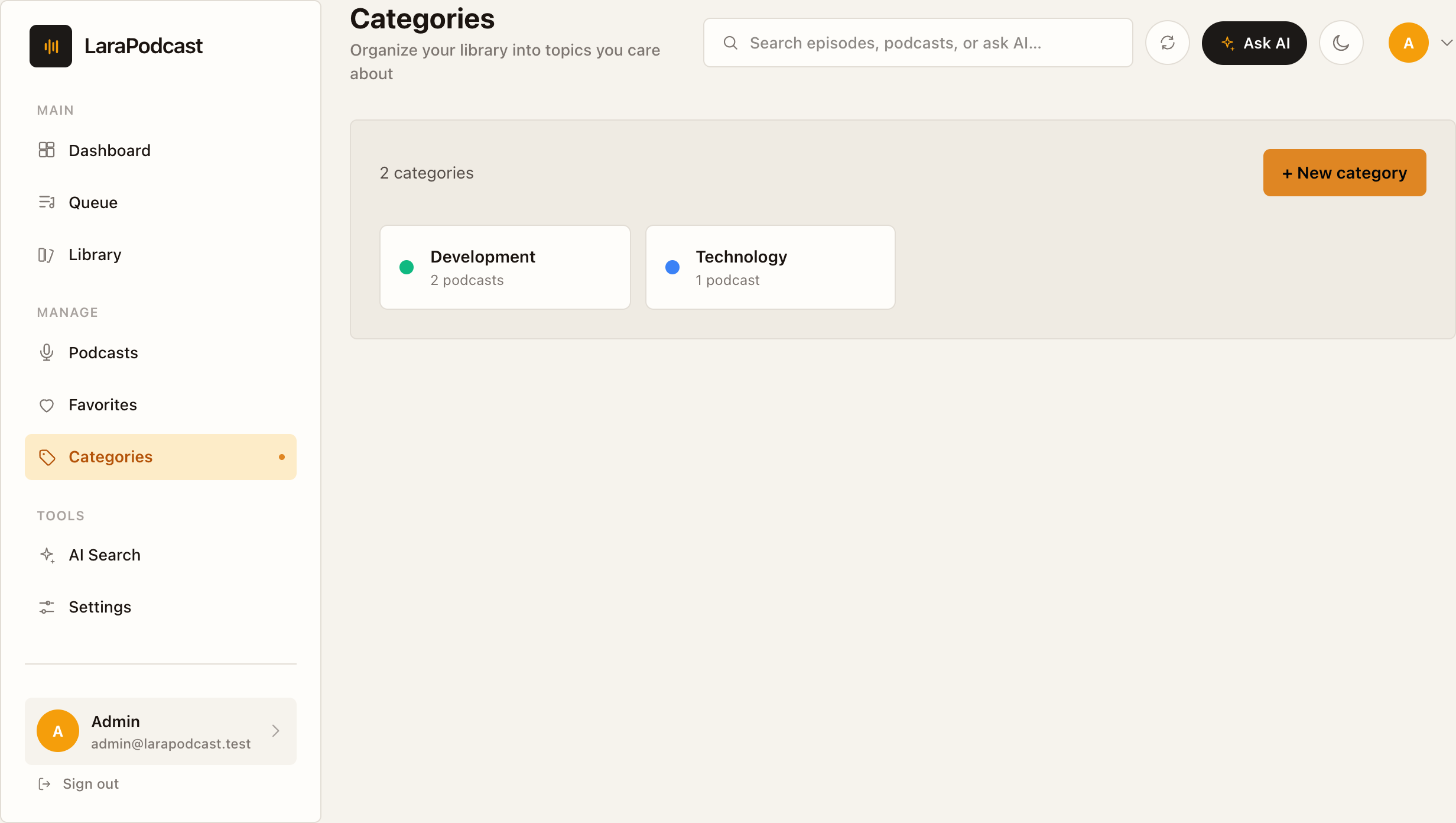
Create as many categories as you like, each with a name and a color picked from a wide palette. Manage them any time from Categories in the sidebar.
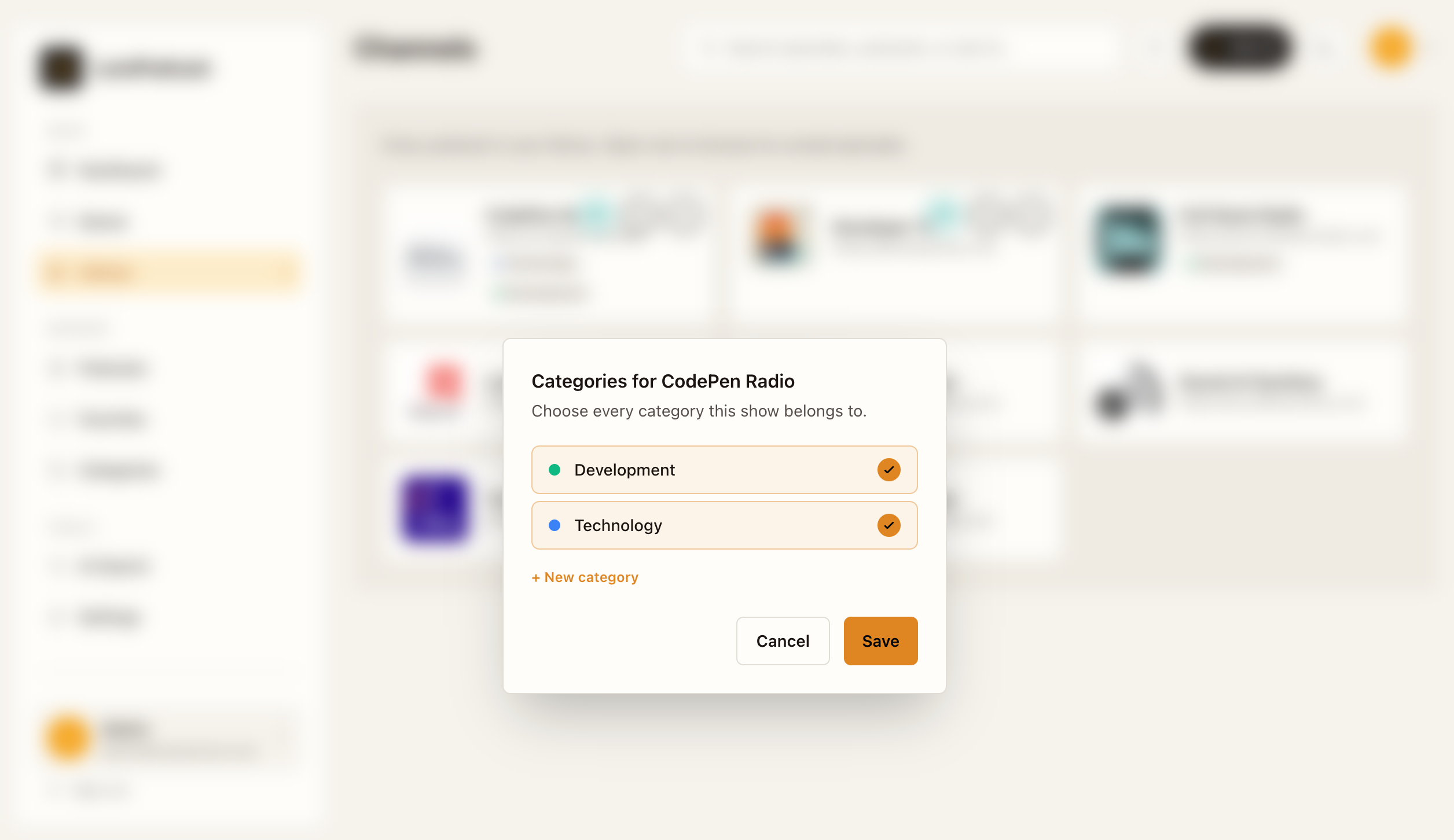
Assign categories to a podcast from its card menu on Channels or Manage — a podcast can carry any number of categories at once. Assigned categories show up as colored badges on every card for that podcast throughout the app.
Feature
AI Search
Find a show by name or topic instead of hunting down its feed URL.
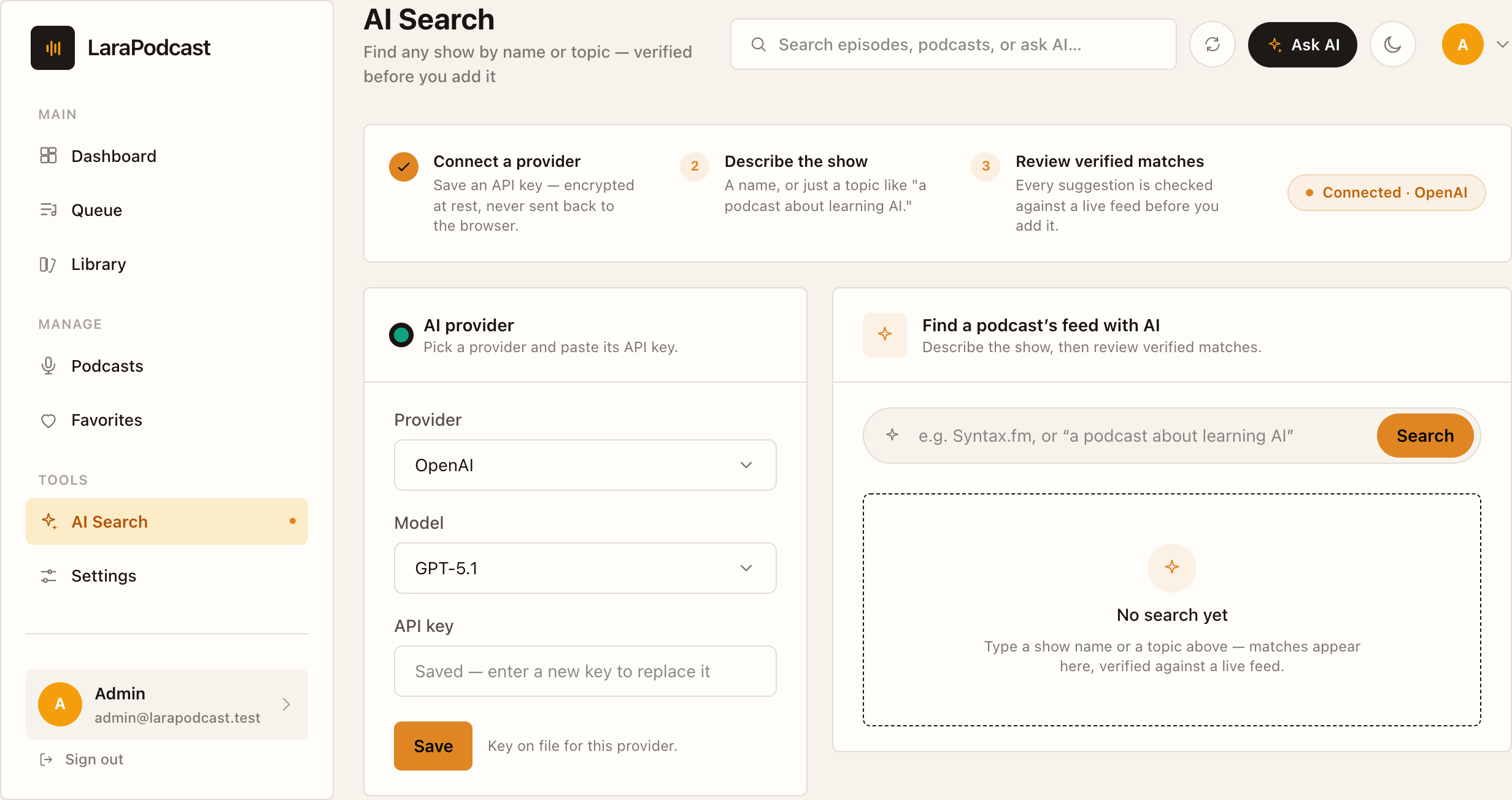
Each user connects their own AI provider — OpenAI, Anthropic, or Google — with an API key that's encrypted at rest and never sent back to the browser. Describe a show ("Syntax.fm") or a topic ("a podcast about learning AI") and every suggestion is checked against the podcast directory and its live feed before you ever add it, so you only add real, working shows.
| Provider | Where to get a key |
|---|---|
| OpenAI | platform.openai.com → API keys |
| Anthropic | console.anthropic.com → API keys |
| Google (Gemini) | aistudio.google.com → API keys |
AI Search is entirely optional — adding podcasts by feed URL needs no configuration at all.
Feature
AI Episode Summaries
A few sentences on what an episode actually covers, before you press play.
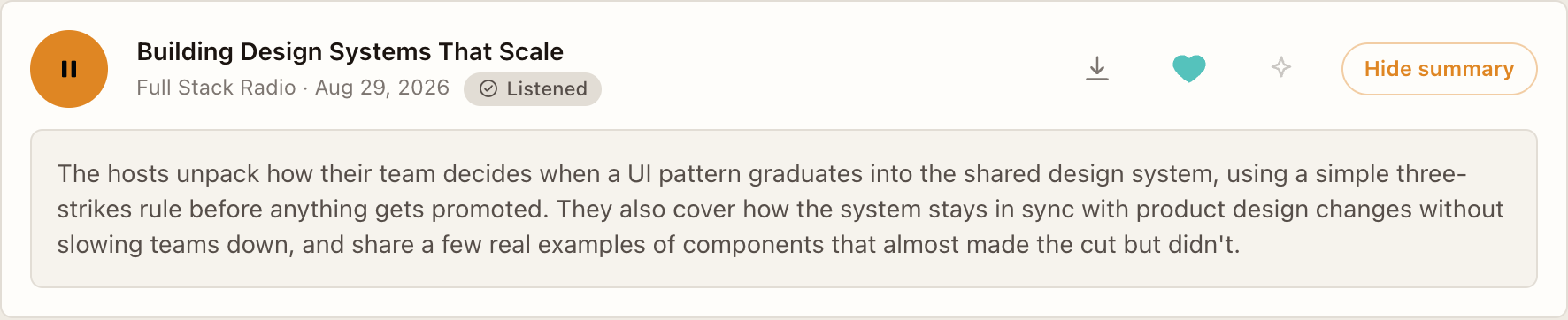
Click the sparkle icon on any episode to generate a short summary using your connected AI provider — the same one configured for AI Search. A summary is generated once and cached, so re-opening it later costs no additional API calls; the sparkle icon greys out once an episode already has one. Summaries start hidden — use Show summary / Hide summary to toggle them.
Feature
Playback
A player that stays with you — and remembers where you left off.
Press play on any episode and a persistent player appears at the bottom of the screen. It keeps playing as you navigate to other pages — pausing it, playing a different episode, or closing it with the × on the player are the only ways it stops. Your position is saved as you listen, so closing the player or leaving mid-episode and coming back later resumes right where you stopped.
If a podcast's feed publishes Podcasting 2.0 chapters, small markers appear on the seek bar — click one to jump straight to that segment.

Playback speed (0.75×–2×) is remembered across episodes and sessions. Click the speed shown in the player bar to change it.

Sleep timer pauses playback automatically after 5, 15, 30, 45, or 60 minutes — the player bar counts down while it's running, and Turn off cancels it at any time.
Feature
Transcripts
Read along, search the episode, and jump to any line.
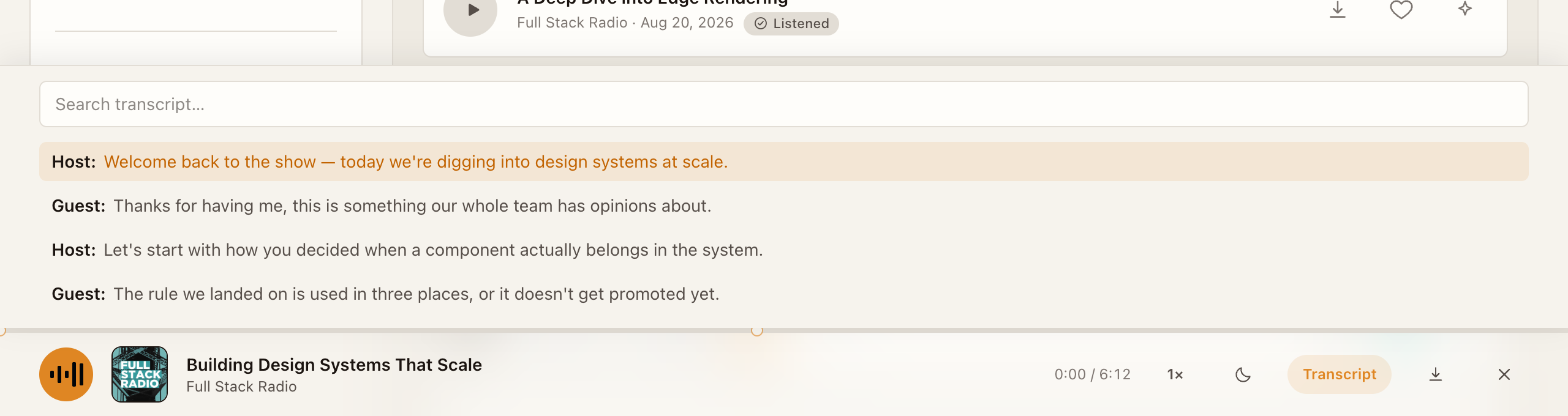
When a podcast's feed publishes a Podcasting 2.0 transcript (JSON, WebVTT, SRT, HTML, or plain text — whichever format the feed offers), a Transcript button appears in the player bar. Open it to search the transcript and click any line to jump the player to that exact moment; the line currently playing highlights automatically. A transcript is fetched once and cached, so opening it again later is instant.
Not every podcast publishes a transcript — the button only appears when one's available.
Feature
Profile & Account
Name, email, password, photo, and theme — per user.
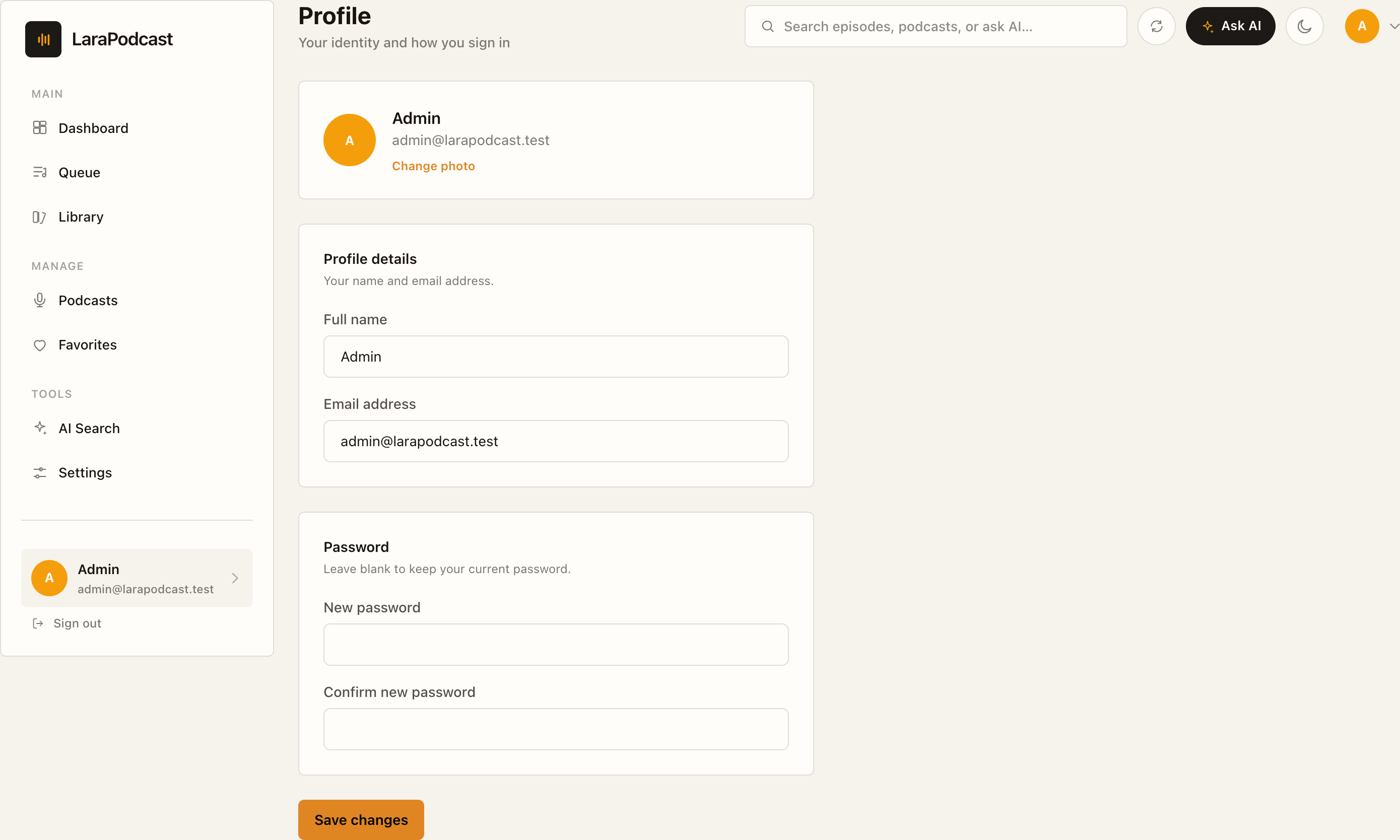
Update your name, email, and password, and upload a profile photo — it's automatically cropped to a square. Light and dark themes are both supported and remembered per browser. Reach this page any time from the avatar menu, top-right of the header.
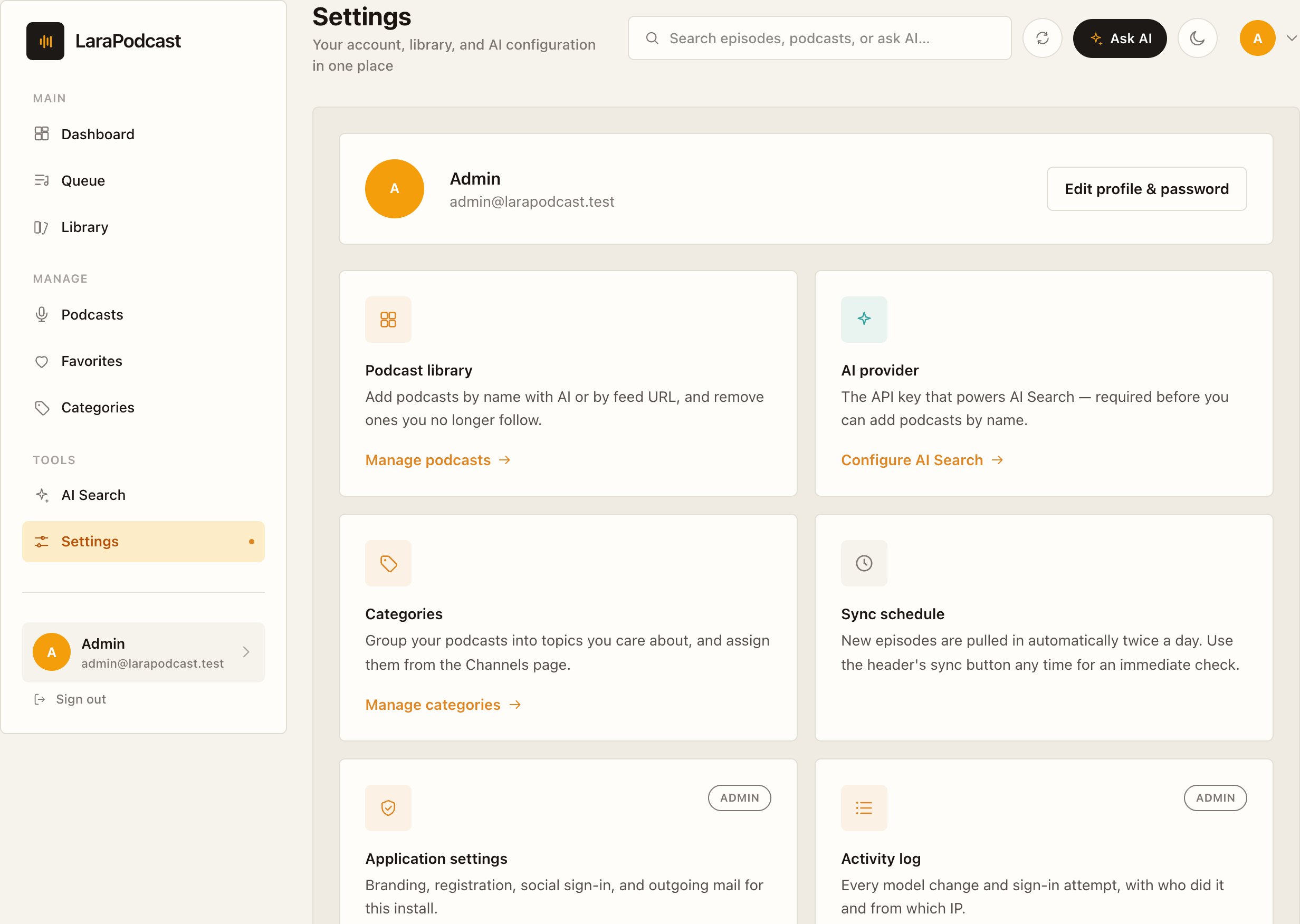
Settings gathers account, podcast library, categories, AI provider, and sync info in one place, with a link to each — plus, for admins, tiles for Application Settings and the Activity Log.
Admin only
Application Settings
Branding, registration, social sign-in, and outgoing mail — all in one place.
The account created during installation is the app's admin. Admins get an extra entry in the avatar menu, top-right of any page:
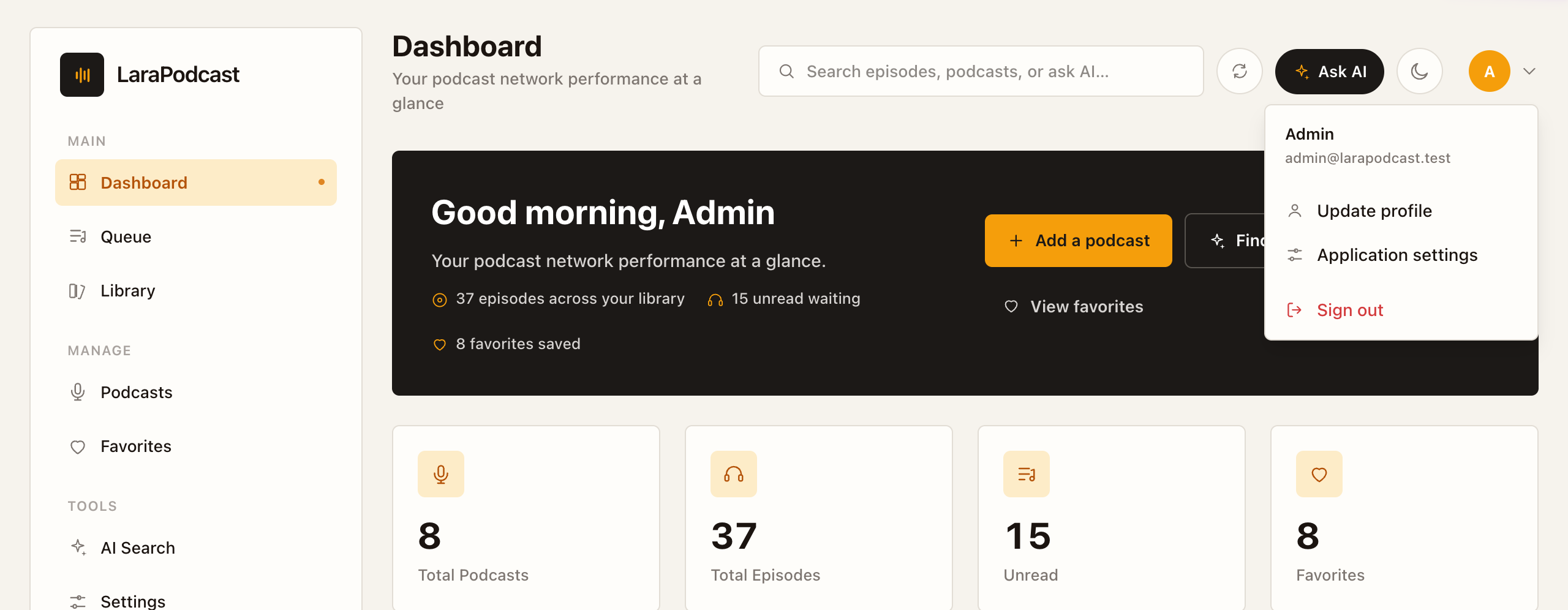
Click Application settings to open the settings page:
Branding
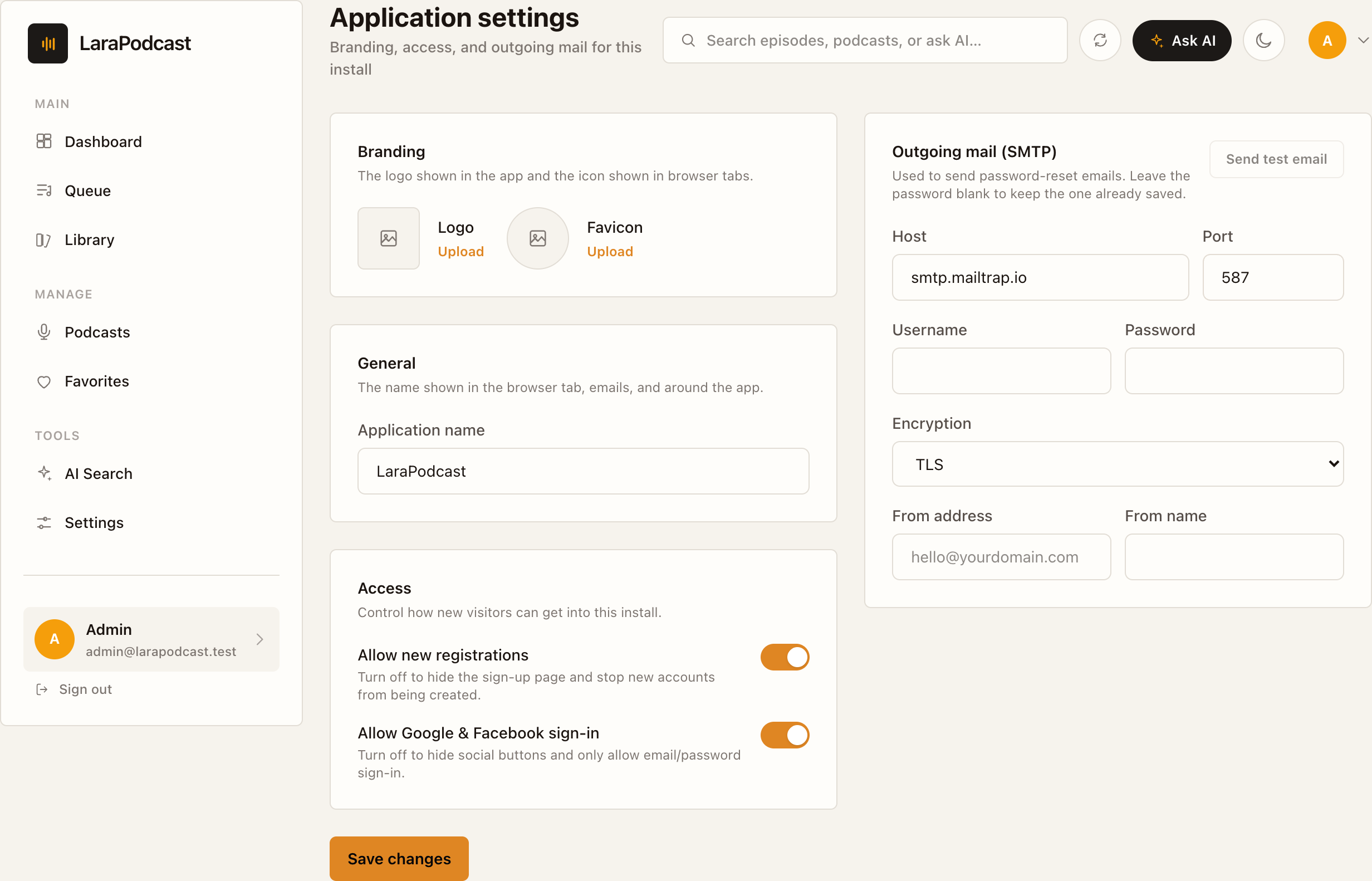
Upload a logo (shown in the sidebar and header in place of the default mark) and a favicon (shown in the browser tab). Both accept JPG, PNG, or WebP. Set an application name here too — it replaces “LaraPodcast” in the browser tab, the sidebar, and outgoing emails.
Access
Two switches control who can get in:
- Allow new registrations — turn off to hide the sign-up page and block new accounts. Existing users can still sign in.
- Allow Google & Facebook sign-in — turn off to hide both social buttons on the sign-in page and disable those routes, leaving email/password sign-in as the only option.
Outgoing mail (SMTP)
These credentials are what “Forgot password” emails send through. Fill in your provider's host, port, username, password, and encryption, plus the from address/name you want recipients to see. Leaving the password field blank on save keeps whatever password is already stored — it's never shown back to you once saved.
If no SMTP host is set, the app falls back to whatever MAIL_* values are in your .env.
Use Send test email, top-right of the SMTP card, to confirm it works before saving. It sends through whatever host, port, and credentials are currently in the form — unsaved changes included — so you can try a new host without committing to it first.
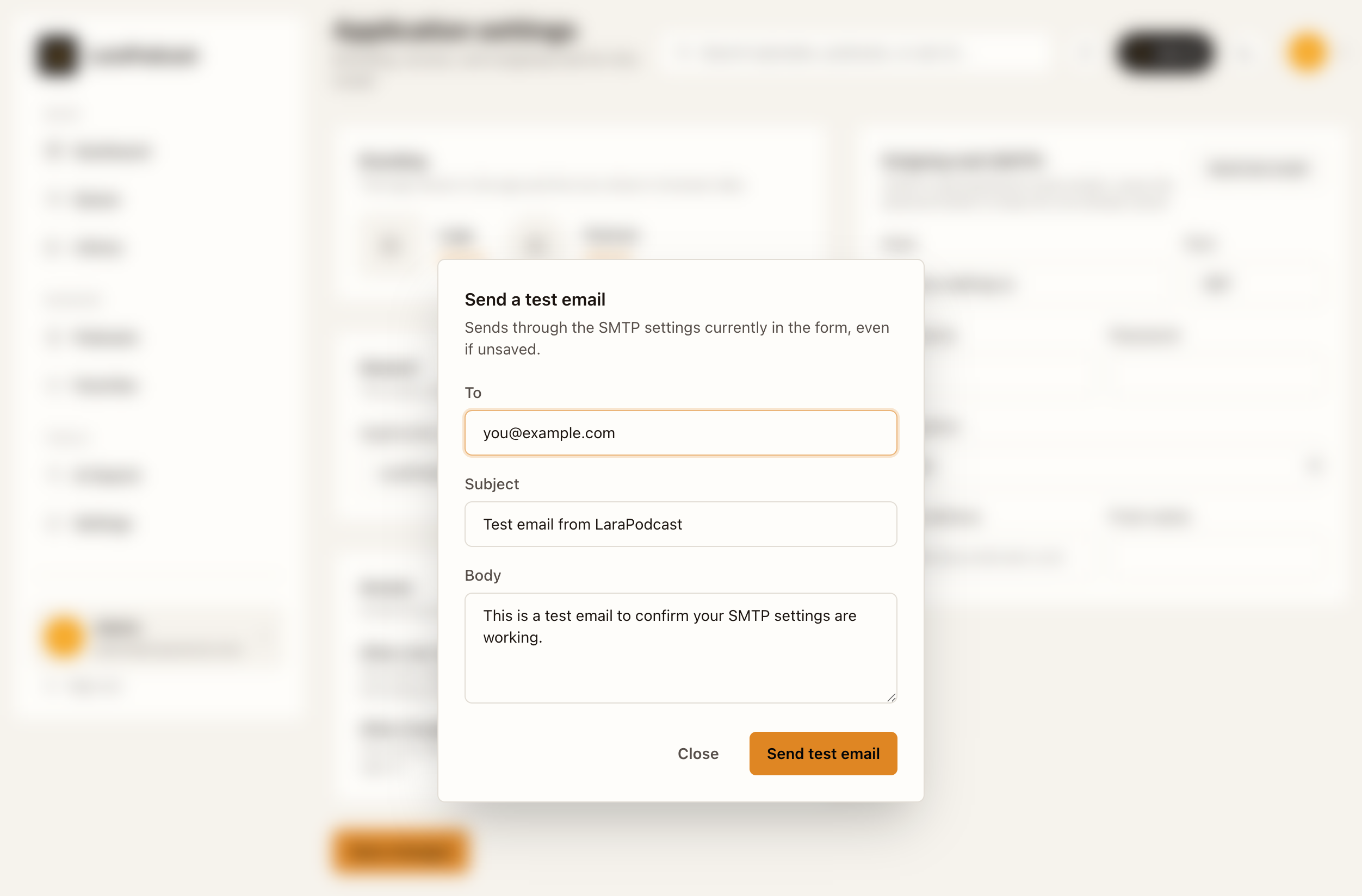
Fill in a recipient, subject, and body, then send — a connection or authentication problem is reported right there, in the sender's own words.
Admin only
Activity Log
A full audit trail of what changed, who changed it, and when.
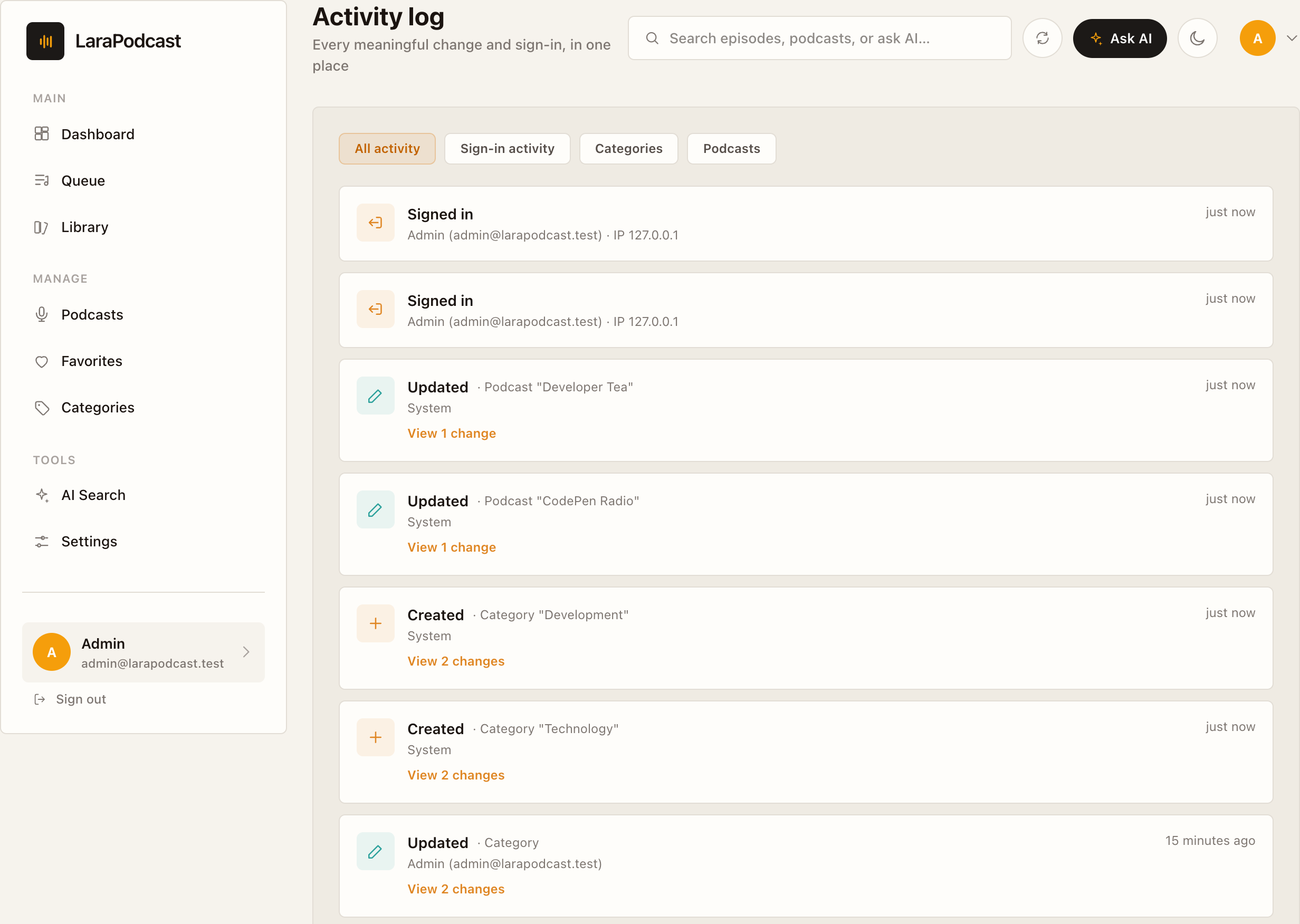
Every create, update, and delete on profiles, podcasts, categories, and Application Settings is recorded — along with every sign-in, sign-out, and failed sign-in attempt, each carrying the IP address it came from. Expand an entry to see exactly which fields changed, old value and new value side by side.
Filter by type — sign-in activity, podcasts, categories, and so on — using the chips above the list. Reach this page from Settings or directly at /settings/activity-log.
Public demos
Demo Mode
Let visitors click around a live install without being able to break it.
Set DEMO_MODE=true in your .env and restart PHP-FPM (or run
php artisan config:clear) to lock down every account — admin included:
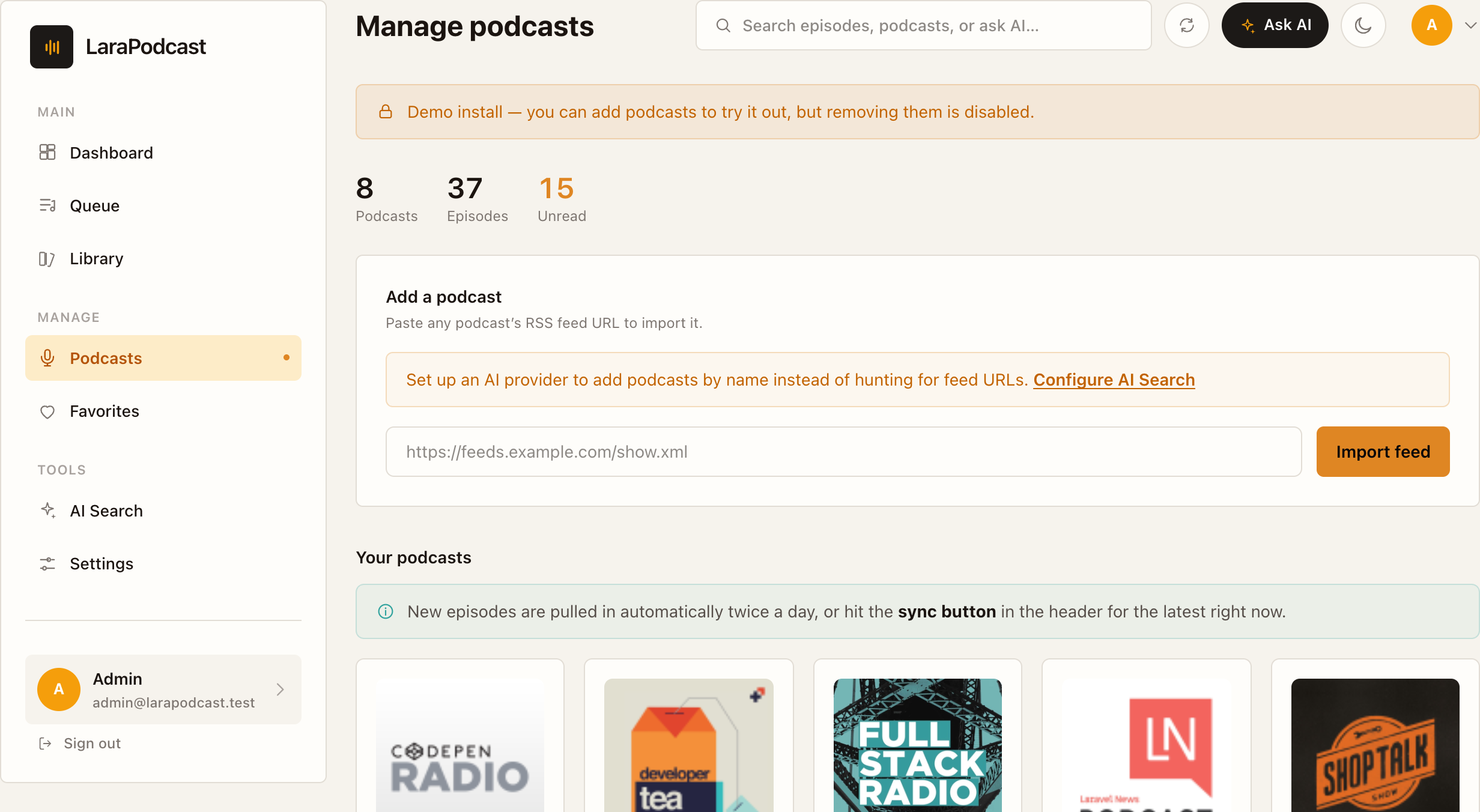
- Profile changes: name, email, password, and photo
- Application Settings: branding, registration/social-login switches, and SMTP
- Removing a podcast from the library
Adding podcasts, browsing, AI Search, playback, favorites, and the queue all keep working normally — visitors get the full experience, they just can't change configuration or delete anything. Blocked pages show a banner explaining why, and the corresponding buttons and fields are disabled; the server also refuses the underlying request even if the UI were bypassed.
DEMO_MODE=false (or remove the line) and clear the config cache again.
Troubleshooting
The installer says a directory isn't writable
chmod -R 775 storage bootstrap/cache public/images from your project root, and confirm your web server's user owns those paths (or is in the owning group).
Podcast artwork or profile photos don't appear
Confirm the gd PHP extension is enabled — artwork is downloaded and resized through it on import — and that public/images/ is writable.
“Could not connect” on the database step
Double-check host/port/database/username/password, and that the database user has privileges on that specific database.
Purchase code won't verify
83d03aed-1234-5678-9abc-def012345678.AI Search returns no results
Confirm the API key is saved for the selected provider/model and has available quota. Very obscure or fictional show names simply may not be recognized.
Episodes never update on their own
The twice-daily sync needs a cron job to actually run — see Scheduled Sync (Cron). Until it's set up, use the sync button in the header to pull new episodes manually.
Password-reset emails never arrive
Check the SMTP host, port, username, and password under Application Settings. With no host set, mail falls back to your .env's MAIL_* values, which default to logging instead of sending.
“Application settings” is missing from my avatar menu
Only the admin account — the one created during installation — sees this link. Every other account is a regular user.
Credits
Built on these open-source projects:
- Laravel — MIT License
- Inertia.js — MIT License
- React — MIT License
- Tailwind CSS — MIT License
- Intervention Image — MIT License
- SimplePie — BSD License
- Laravel Socialite — MIT License
Support
Support is provided through your Envato item page's comment section, or the contact details on the
author's profile. Please include your LaraPodcast version (see CHANGELOG.md), PHP
version, and the exact error message when asking for help.
Social Login Setup
Google and Facebook sign-in are optional. To enable either, create an OAuth app with that provider and add the resulting credentials to your
.env:Leave either blank and email/password sign-in still works — only that provider's button is affected. You can also disable social sign-in entirely, for every provider, from Application Settings.